June 2, 2026

Manage Support requests from MS Teams Shared Channels Directly in Slack with ClearFeed

WRITTEN BY
Shipra Sharma
Manage Support requests from MS Teams Shared Channels Directly in Slack with ClearFeed

Microsoft Teams shared channels are becoming a common way for companies to support and collaborate with external customers, partners, and vendors. They make cross-company collaboration easier. Customers can raise questions in a shared Teams channel, internal teams can respond in context, and everyone stays aligned in one place.

But for Support teams, shared channels can quickly become another place where requests are easy to miss. There is no clear ownership, no ticketing layer, and no simple way to bring these conversations into the same workflow agents already use for triage, follow-ups, and reporting.

At ClearFeed, we help support teams manage MS Teams conversations from Slack. We're excited to extend that support to MS Teams Shared Channels as well. Now, teams can monitor shared MS Teams channels, route conversations to Slack Triage channels, respond from Slack, and connect them to ticketing workflows, without changing how agents work.

Let's take a look at how it works.

How it Works  

ClearFeed now supports Microsoft Teams shared channels as a source for support conversations. Once set up, messages from shared channels can be routed to Slack, managed by agents, and connected to ticketing workflows. 

1. Connect Microsoft Teams to ClearFeed

Admins can connect Microsoft Teams with ClearFeed and install the ClearFeed app in their Teams workspace. For shared channels, the app also needs to be added to the specific channel being monitored. This ensures replies from Slack can sync back to the original Teams thread.

Existing Teams customers will need to update the ClearFeed Teams app to enable shared channel support. Standard Teams channels will continue to work as before.

2. Monitor shared Teams channels in ClearFeed

Once the setup is complete, teams can select the shared channel in ClearFeed and add it to a Teams Collection.

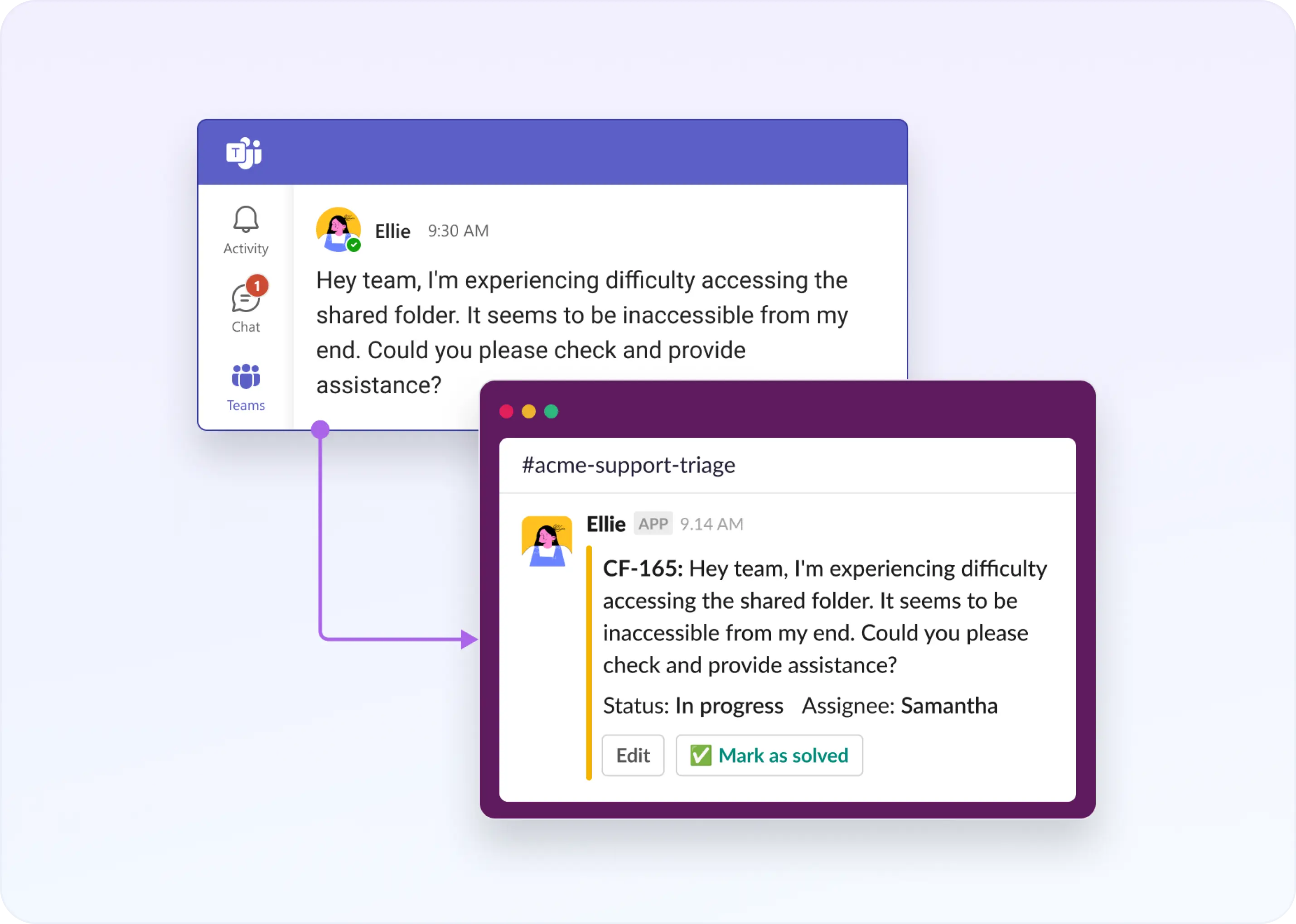
New messages from the shared channel are routed to the configured Slack Triage channel. Support teams can review, assign, and respond to customer conversations from Slack without switching between Microsoft Teams and Slack.

3. Agents respond from Slack and replies sync back to Teams

Agents can reply to shared Teams channel conversations directly from Slack. ClearFeed syncs the response back to the original Teams thread, so customers and external collaborators continue the conversation in Microsoft Teams.

Agents respond from Slack and replies sync back to Teams

4. Respond to Shared Channel Requests from the ClearFeed Web App

Teams can use the ClearFeed Web App to review and respond to Microsoft Teams shared channel requests, making it easier to stay on top of customer conversations and follow through on unresolved issues.
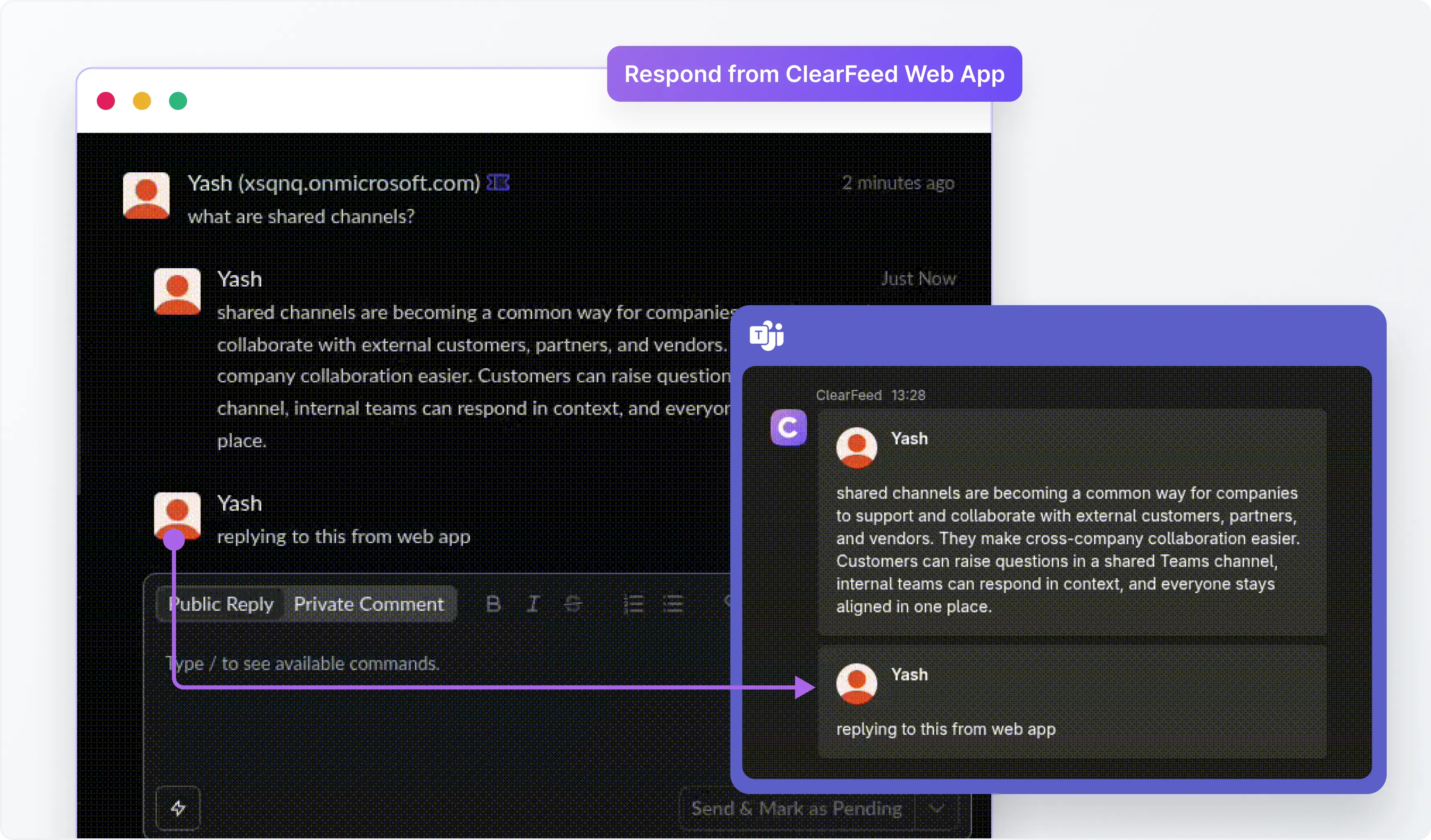
Respond to Shared Channel Requests from the ClearFeed Web App

5. Connect conversations to ticketing workflows

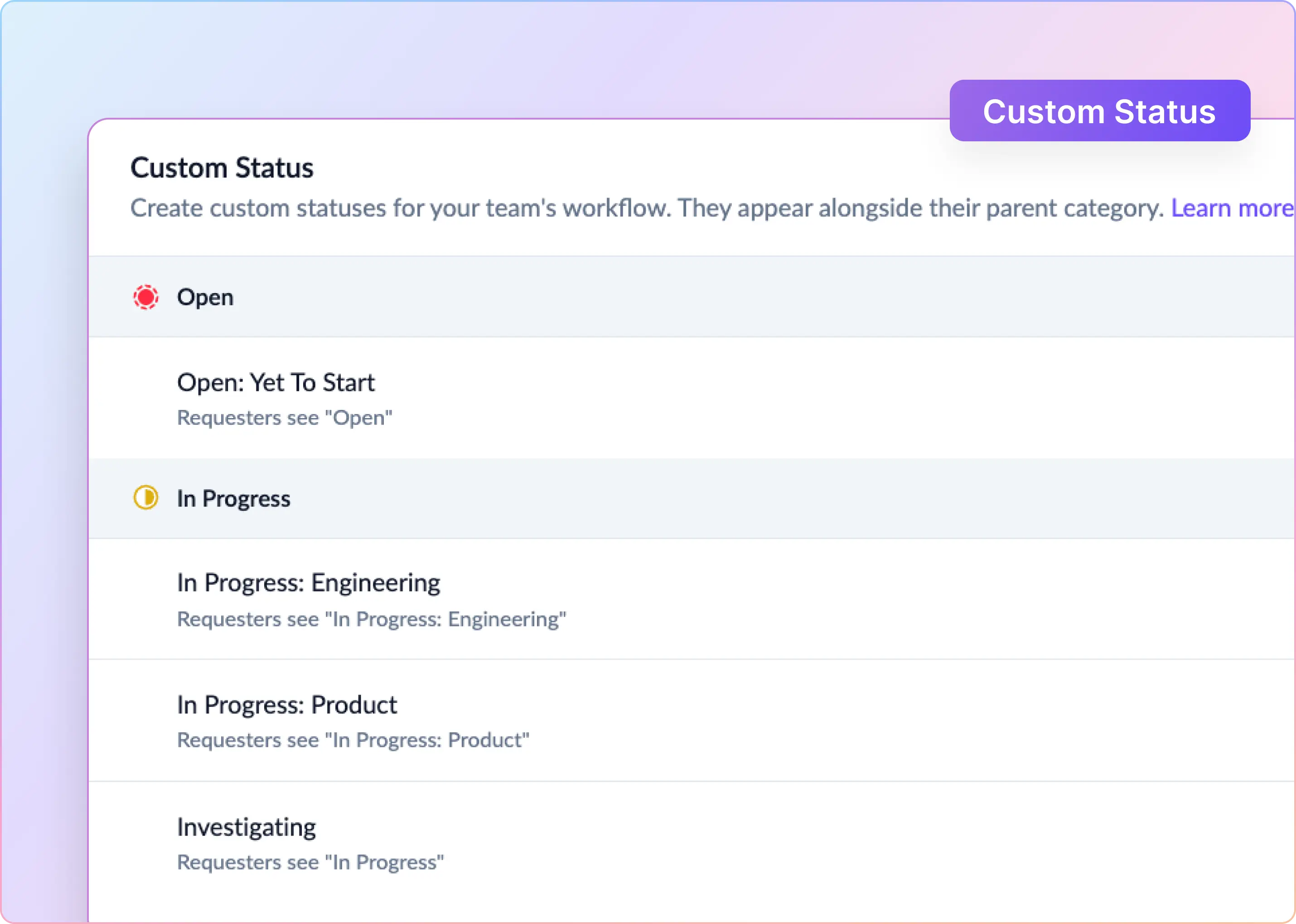
Shared channel conversations can be converted into tickets or linked to existing tickets in tools like Zendesk, Freshdesk, and other connected systems.

ClearFeed workflows such as SLAs, triage actions, message edits, deletions, and bidirectional ticket sync & more continue to work for shared channels.

Connect conversations to ticketing workflows

Here’s a step-by-step-guide on how to monitor Teams shared channel using ClearFeed. 

Wrapping Up 

With ClearFeed’s support for Teams shared channels, support teams can now bring those conversations into their existing Slack-based workflow. Agents can monitor requests, respond from Slack, create tickets, and keep customer conversations synced across Teams and their helpdesk.

If you'd like help getting this configured for your team, reach out to us on Slack, email us at support@clearfeed.ai, or book a free demo here.
Microsoft Teams shared channels are becoming a common way for companies to support and collaborate with external customers, partners, and vendors. They make cross-company collaboration easier. Customers can raise questions in a shared Teams channel, internal teams can respond in context, and everyone stays aligned in one place.

But for Support teams, shared channels can quickly become another place where requests are easy to miss. There is no clear ownership, no ticketing layer, and no simple way to bring these conversations into the same workflow agents already use for triage, follow-ups, and reporting.

At ClearFeed, we help support teams manage MS Teams conversations from Slack. We're excited to extend that support to MS Teams Shared Channels as well. Now, teams can monitor shared MS Teams channels, route conversations to Slack Triage channels, respond from Slack, and connect them to ticketing workflows, without changing how agents work.

Let's take a look at how it works.

How it Works  

ClearFeed now supports Microsoft Teams shared channels as a source for support conversations. Once set up, messages from shared channels can be routed to Slack, managed by agents, and connected to ticketing workflows. 

1. Connect Microsoft Teams to ClearFeed

Admins can connect Microsoft Teams with ClearFeed and install the ClearFeed app in their Teams workspace. For shared channels, the app also needs to be added to the specific channel being monitored. This ensures replies from Slack can sync back to the original Teams thread.

Existing Teams customers will need to update the ClearFeed Teams app to enable shared channel support. Standard Teams channels will continue to work as before.

2. Monitor shared Teams channels in ClearFeed

Once the setup is complete, teams can select the shared channel in ClearFeed and add it to a Teams Collection.

New messages from the shared channel are routed to the configured Slack Triage channel. Support teams can review, assign, and respond to customer conversations from Slack without switching between Microsoft Teams and Slack.

3. Agents respond from Slack and replies sync back to Teams

Agents can reply to shared Teams channel conversations directly from Slack. ClearFeed syncs the response back to the original Teams thread, so customers and external collaborators continue the conversation in Microsoft Teams.

Agents respond from Slack and replies sync back to Teams

4. Respond to Shared Channel Requests from the ClearFeed Web App

Teams can use the ClearFeed Web App to review and respond to Microsoft Teams shared channel requests, making it easier to stay on top of customer conversations and follow through on unresolved issues.

Respond to Shared Channel Requests from the ClearFeed Web App

5. Connect conversations to ticketing workflows

Shared channel conversations can be converted into tickets or linked to existing tickets in tools like Zendesk, Freshdesk, and other connected systems.

ClearFeed workflows such as SLAs, triage actions, message edits, deletions, and bidirectional ticket sync & more continue to work for shared channels.

Connect conversations to ticketing workflows

Here’s a step-by-step-guide on how to monitor Teams shared channel using ClearFeed. 

Wrapping Up 

With ClearFeed’s support for Teams shared channels, support teams can now bring those conversations into their existing Slack-based workflow. Agents can monitor requests, respond from Slack, create tickets, and keep customer conversations synced across Teams and their helpdesk.

If you'd like help getting this configured for your team, reach out to us on Slack, email us at support@clearfeed.ai, or book a free demo here.
Related Blogs

See all Blog Posts
TOC heading
Text LinkText Link Active
Get a Free consultation with a Support Expert
Learn how fast growing companies like Teleport, Chronosphere and Acryl Data have scaled Support processes with ClearFeed
Thank you for contacting us. Our team will reach out to you shortly.
Oops! Something went wrong while submitting the form.