
October 22, 2026

Microsoft Teams Chat Support in ClearFeed: Manage Teams Chats Directly from Slack

WRITTEN BY
Shipra Sharma
Microsoft Teams Chat Support in ClearFeed: Manage Teams Chats Directly from Slack

Microsoft Teams is widely used for customer and employee support. While some conversations happen in dedicated Teams channels, many support requests also come through group chats or direct conversations. These chats make it easy to ask questions and get quick responses, but as request volumes grow, tracking conversations, assigning ownership, and ensuring timely follow-ups can become challenging.

ClearFeed already helps support teams manage requests from Microsoft Teams standard and shared channels directly from Slack. We're excited to extend this support to Microsoft Teams chats, including group chats and one-on-one conversations.

With this release, support teams can monitor Teams chats, bring incoming requests into their Slack Triage channels, and respond directly from Slack or the ClearFeed Web App. Replies are synced back to the original Teams chat, allowing employees and customers to continue conversations in Microsoft Teams while support agents work from Slack.

Let's take a look at how it works.

‍

How It Works

Here's how you can set up Microsoft Teams chats in ClearFeed and manage incoming support requests directly from Slack or the ClearFeed Web App.

1. Connect Microsoft Teams Chats to ClearFeed

To start monitoring a Teams chat, add the ClearFeed app to the group chat or one-on-one conversation you want to monitor. Next, open your Teams Collection in ClearFeed and select the chat from the list of available conversations. Chats appear alongside Teams channels in the selector, with a separate icon to help distinguish them.

ClearFeed supports both named group chats and unnamed conversations. Once added, new messages from these chats can be monitored in ClearFeed.
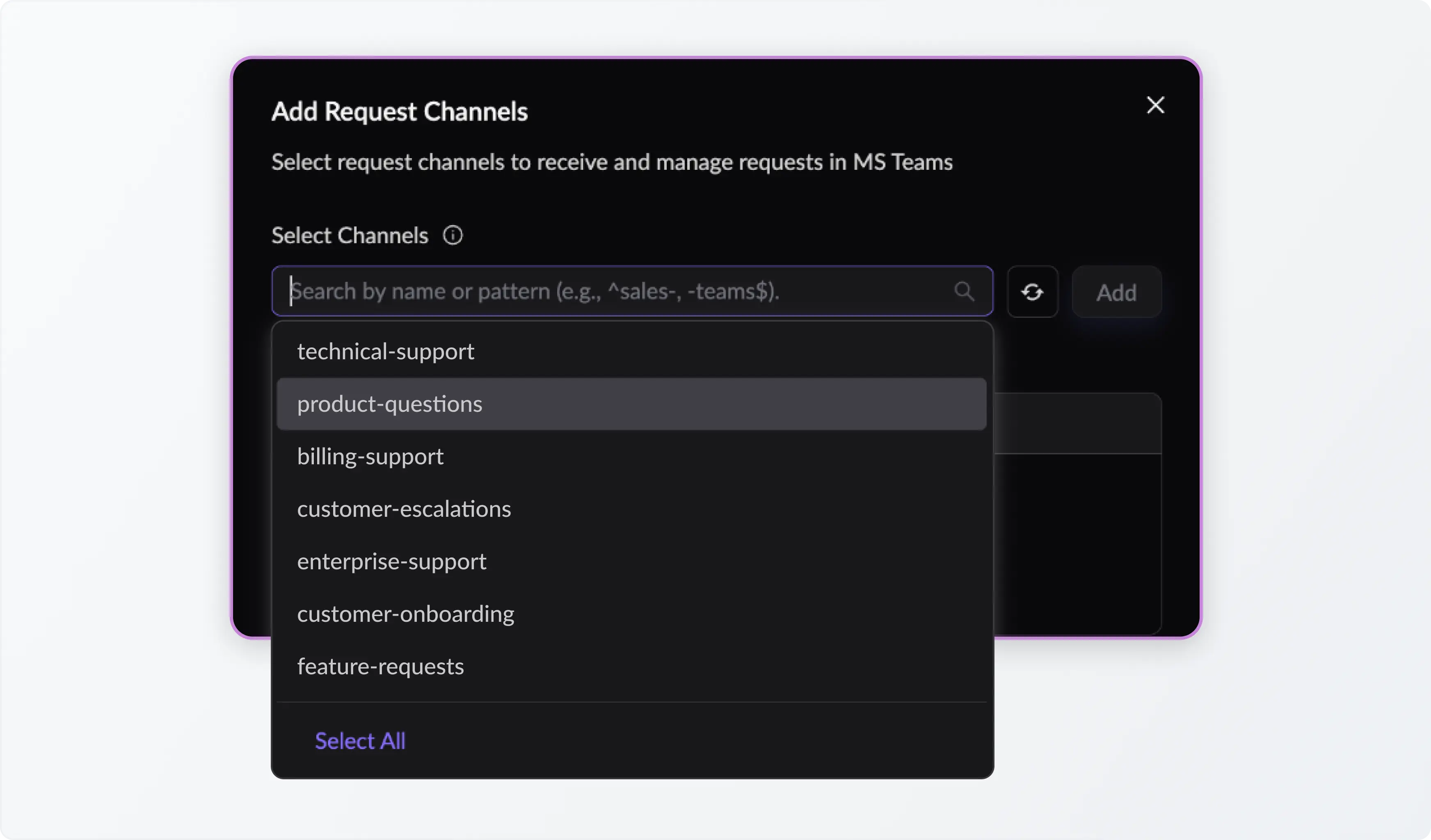
Connect Microsoft Teams Chats to ClearFeed

‍

2. Manage Teams Chat Requests from Slack

New messages from monitored Teams chats automatically flow into the configured Slack Triage channel. Since Microsoft Teams chats don't support threaded conversations, ClearFeed intelligently groups related messages into requests. Quoted replies are associated with the relevant request, while other messages are grouped using ClearFeed's automatic merging functionality.

Support teams can review incoming requests, coordinate internally, and manage responses from their existing Slack workflow without having to monitor multiple Teams chats individually.
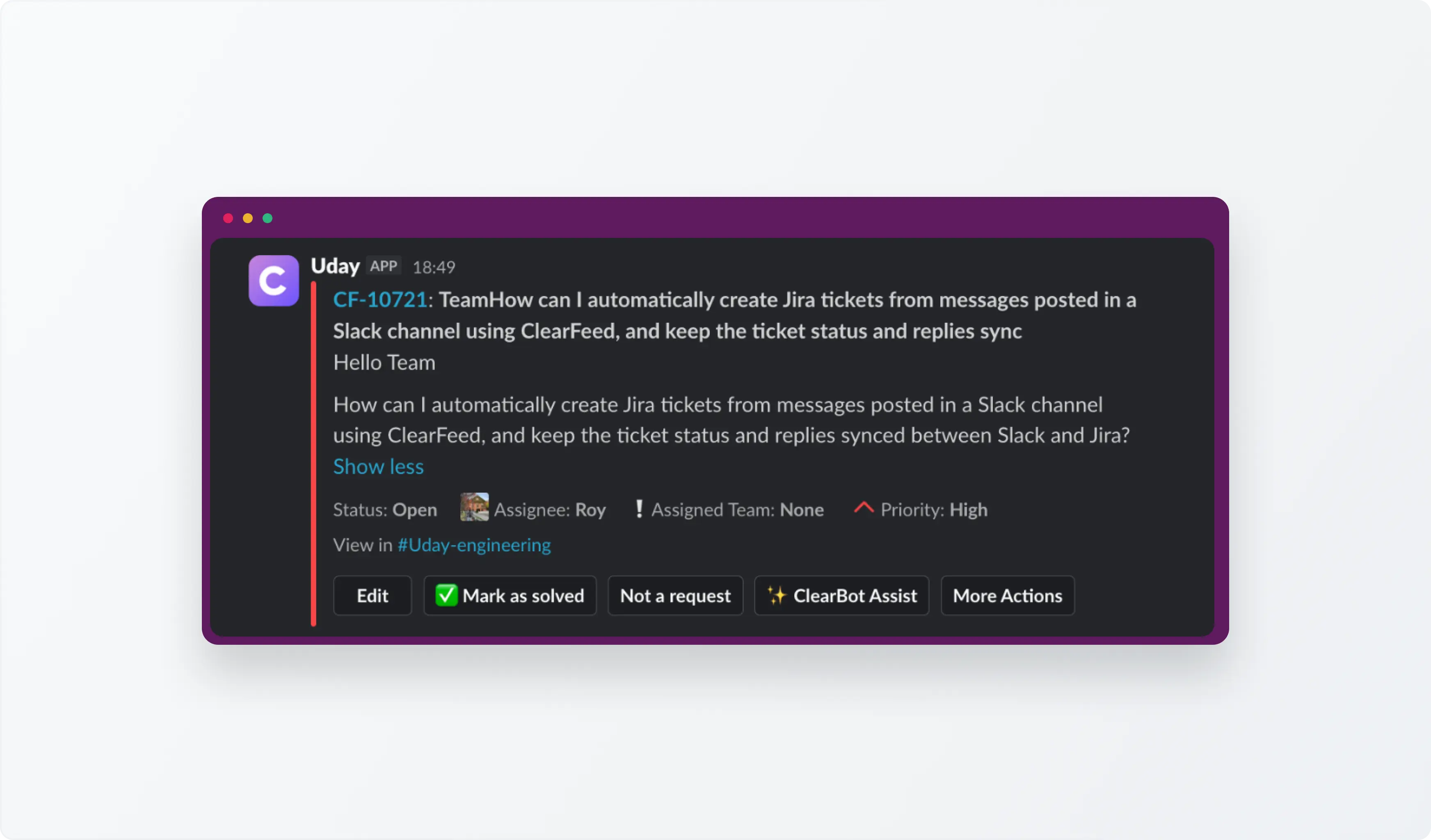
Manage Teams Chat Requests from Slack

‍

3. Respond from Slack or the ClearFeed Web App

Support agents can respond to Teams chat requests directly from their Slack Triage channel or the ClearFeed Web App. ClearFeed automatically posts these responses back into the original Microsoft Teams chat. Each reply appears as a message card displaying the responding agent's name and referencing the latest message in the request, making it easier for chat participants to follow the conversation.

This allows support agents to work from Slack or the Web App while customers and employees continue communicating through Microsoft Teams.
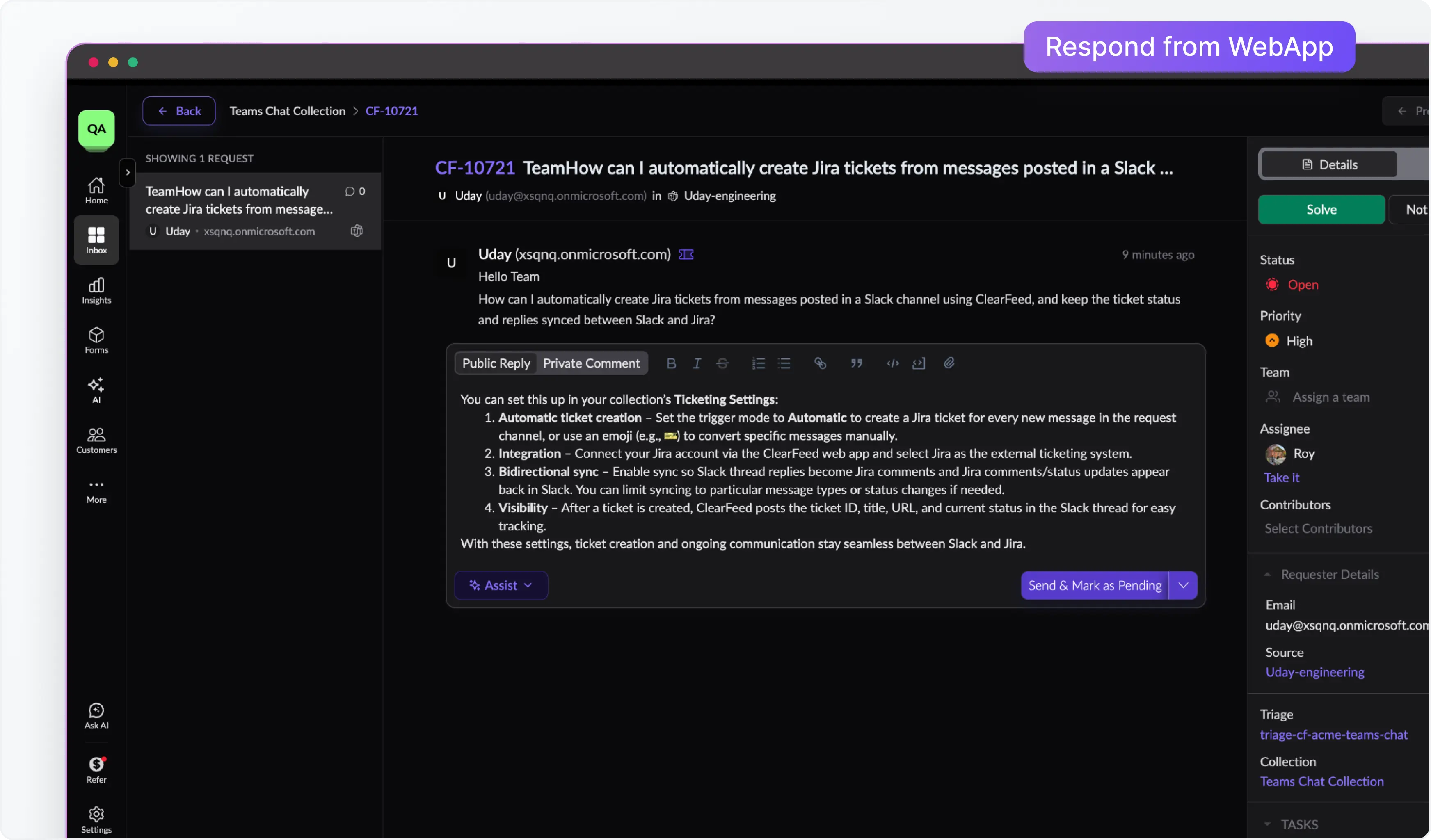
Respond from Slack or the ClearFeed Web App

‍

Getting Started

If you're already using ClearFeed to manage Microsoft Teams channels, you can extend your existing Teams Collection to include chats. Simply add the ClearFeed app to the chats you want to monitor and select them in your Teams Collection. ClearFeed will start monitoring new messages after the app has been added.

For detailed setup instructions, refer to our Microsoft Teams Chat documentation.

Note: Ticket creation and linking are not currently supported for Teams chat requests. These capabilities remain available for supported Teams channel conversations.

‍

Wrapping Up

With support for Microsoft Teams chats, ClearFeed makes it easier for support teams to manage conversations across Teams channels, group chats, and one-on-one chats from a unified Slack-based workflow.

Whether customers reach out through a shared channel or employees ask for help in a group chat, support teams can stay on top of incoming requests and respond without constantly switching between Microsoft Teams and Slack.

If you'd like help setting this up for your team, reach out to us on Slack, email us at support@clearfeed.ai, or book a product walkthrough here.

Microsoft Teams is widely used for customer and employee support. While some conversations happen in dedicated Teams channels, many support requests also come through group chats or direct conversations. These chats make it easy to ask questions and get quick responses, but as request volumes grow, tracking conversations, assigning ownership, and ensuring timely follow-ups can become challenging.

ClearFeed already helps support teams manage requests from Microsoft Teams standard and shared channels directly from Slack. We're excited to extend this support to Microsoft Teams chats, including group chats and one-on-one conversations.

With this release, support teams can monitor Teams chats, bring incoming requests into their Slack Triage channels, and respond directly from Slack or the ClearFeed Web App. Replies are synced back to the original Teams chat, allowing employees and customers to continue conversations in Microsoft Teams while support agents work from Slack.

Let's take a look at how it works.

‍

How It Works

Here's how you can set up Microsoft Teams chats in ClearFeed and manage incoming support requests directly from Slack or the ClearFeed Web App.

1. Connect Microsoft Teams Chats to ClearFeed

To start monitoring a Teams chat, add the ClearFeed app to the group chat or one-on-one conversation you want to monitor. Next, open your Teams Collection in ClearFeed and select the chat from the list of available conversations. Chats appear alongside Teams channels in the selector, with a separate icon to help distinguish them.

ClearFeed supports both named group chats and unnamed conversations. Once added, new messages from these chats can be monitored in ClearFeed.

Connect Microsoft Teams Chats to ClearFeed

‍

2. Manage Teams Chat Requests from Slack

New messages from monitored Teams chats automatically flow into the configured Slack Triage channel. Since Microsoft Teams chats don't support threaded conversations, ClearFeed intelligently groups related messages into requests. Quoted replies are associated with the relevant request, while other messages are grouped using ClearFeed's automatic merging functionality.

Support teams can review incoming requests, coordinate internally, and manage responses from their existing Slack workflow without having to monitor multiple Teams chats individually.

Manage Teams Chat Requests from Slack

‍

3. Respond from Slack or the ClearFeed Web App

Support agents can respond to Teams chat requests directly from their Slack Triage channel or the ClearFeed Web App. ClearFeed automatically posts these responses back into the original Microsoft Teams chat. Each reply appears as a message card displaying the responding agent's name and referencing the latest message in the request, making it easier for chat participants to follow the conversation.

This allows support agents to work from Slack or the Web App while customers and employees continue communicating through Microsoft Teams.

Respond from Slack or the ClearFeed Web App

‍

Getting Started

If you're already using ClearFeed to manage Microsoft Teams channels, you can extend your existing Teams Collection to include chats. Simply add the ClearFeed app to the chats you want to monitor and select them in your Teams Collection. ClearFeed will start monitoring new messages after the app has been added.

For detailed setup instructions, refer to our Microsoft Teams Chat documentation.

Note: Ticket creation and linking are not currently supported for Teams chat requests. These capabilities remain available for supported Teams channel conversations.

‍

Wrapping Up

With support for Microsoft Teams chats, ClearFeed makes it easier for support teams to manage conversations across Teams channels, group chats, and one-on-one chats from a unified Slack-based workflow.

Whether customers reach out through a shared channel or employees ask for help in a group chat, support teams can stay on top of incoming requests and respond without constantly switching between Microsoft Teams and Slack.

If you'd like help setting this up for your team, reach out to us on Slack, email us at support@clearfeed.ai, or book a product walkthrough here.
Related Blogs

See all Blog Posts
TOC heading
Text LinkText Link Active
Get a Free consultation with a Support Expert
Learn how fast growing companies like Teleport, Chronosphere and Acryl Data have scaled Support processes with ClearFeed
Thank you for contacting us. Our team will reach out to you shortly.
Oops! Something went wrong while submitting the form.