
October 9, 2026

Introducing Custom Status in ClearFeed: Adapt Ticket Status to Your Support Workflow

WRITTEN BY
Shipra Sharma
Introducing Custom Status in ClearFeed: Adapt Ticket Status to Your Support Workflow

Support requests often go through several stages before they’re resolved. An agent investigates an issue, asks the customer for more details, brings in Engineering, and tests a fix. But a status like “In Progress” or “On Hold” only captures part of this process. To find out what’s actually happening, teammates have to read through the conversation or ask the assigned agent for an update.

To make these stages easier to track, we’re introducing Custom Status in ClearFeed. Support teams can now create their own status for requests and tickets, while keeping ClearFeed’s existing status behavior, SLA calculations, and reporting.

What this means for support teams:

  • Track specific stages: Use status such as “Investigating,” “Testing Fix,” or “Waiting for Engineering” to show where requests stand.
  • Separate internal and requester-facing wording: Give agents useful context while choosing how the status appears in requester updates.
  • Find requests that need attention: Filter tickets and create saved views around specific custom status.
  • Keep metrics consistent: Custom status remains tied to standard categories, so requests continue to follow the corresponding SLA and reporting behavior.

Let’s get into how it works

‍

How Custom Status Work

Each custom status belongs to one of ClearFeed’s six standard categories: Open, In Progress, Pending, On Hold, Solved, or Closed. The custom name describes the specific stage of a request, while the parent category determines how ClearFeed handles it.

1. Define the Stages Your Team Uses

Different support teams need to track different steps. A customer support team might want to distinguish between an issue being investigated and a fix being tested. An IT team might need to identify requests waiting for a vendor or an internal approval.

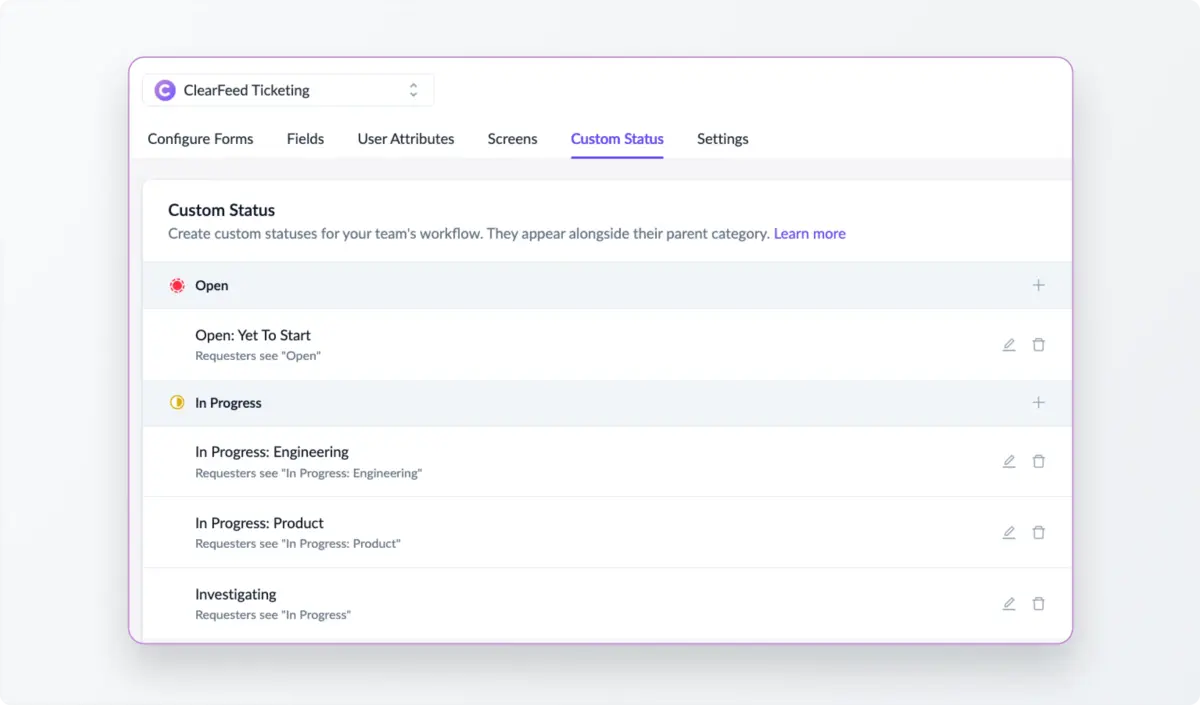
With Custom Status, account admins can add these stages under the relevant category. For example:
Parent category Example custom status
In Progress Investigating, Testing Fix
Pending Waiting for Customer Details
On Hold Waiting for Engineering, Waiting for vendor
Solved Fix Delivered, Workaround Provided
Define the Stages Your Team Uses

These names can reflect the terms your team already uses. When someone reviews a queue or takes over a request, the status gives them more context about the work completed and what remains outstanding.

‍

2. Set Separate Names for Agents and Requesters

Internal status names sometimes describe team dependencies that need different wording in customer or employee updates. For each custom status, admins can define:

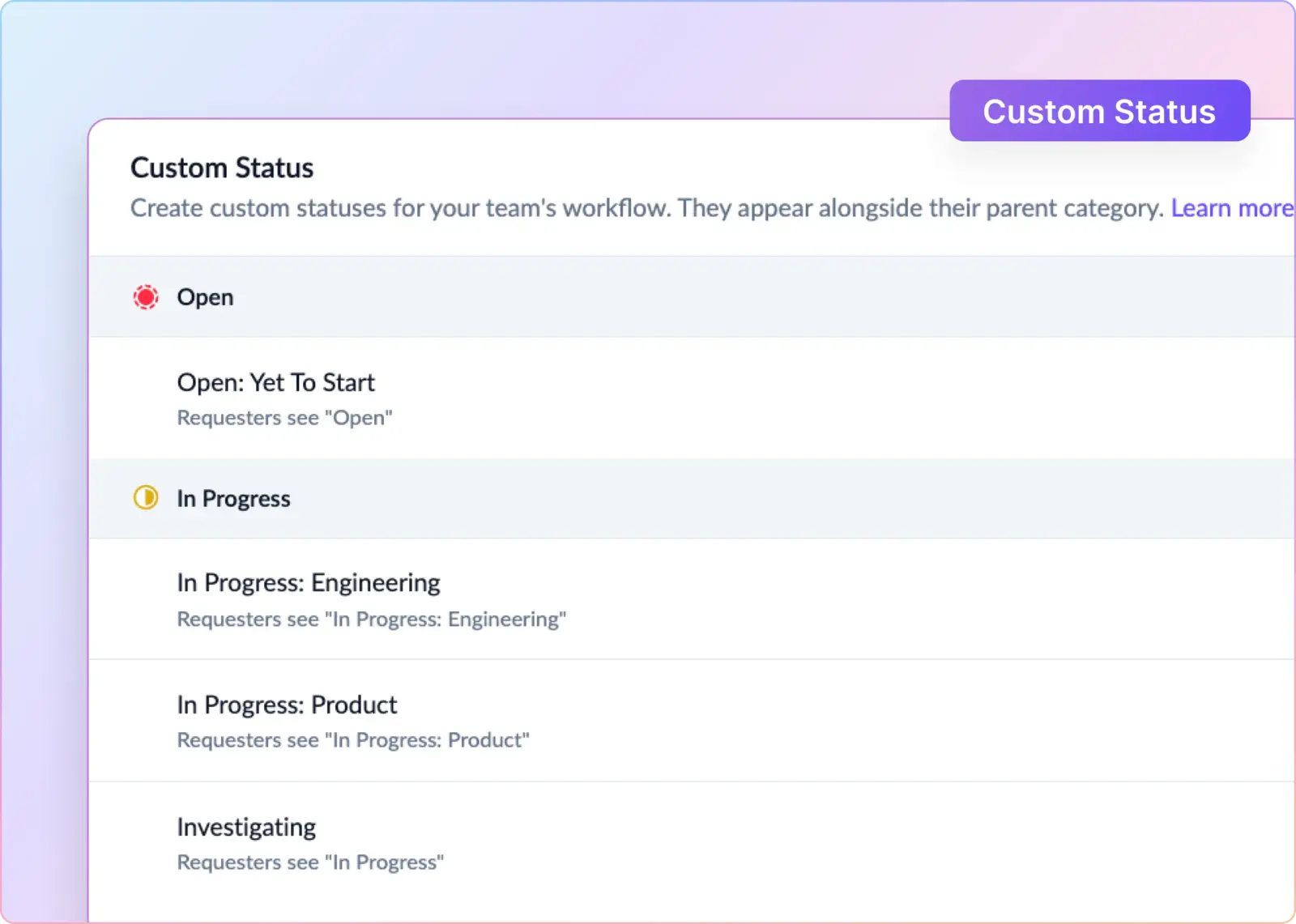
  • Status name: The name agents see in the WebApp, Slack triage, filters, and exports.
  • Requester-facing name: The name requesters see in status updates.

For example, a support team could use “Waiting for Engineering” internally and “Under Technical Review” as the requester-facing name. Both refer to the same status, with wording suited to the people reading it.
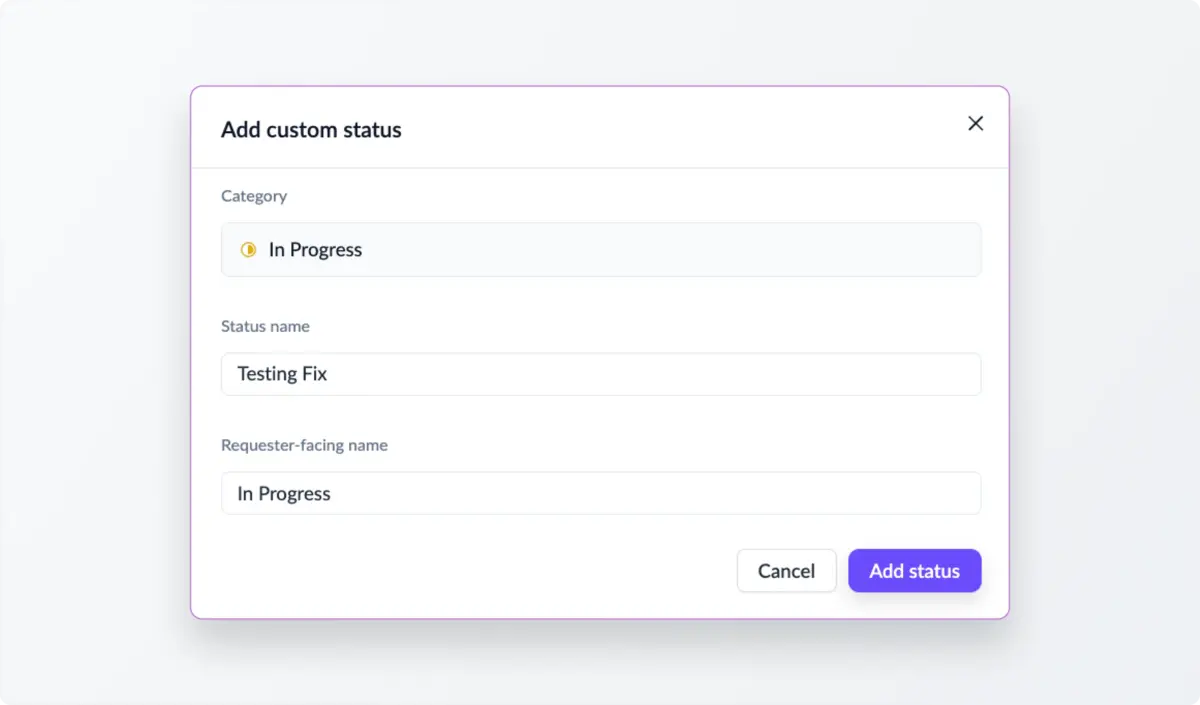
Set Separate Names for Agents and Requesters

‍

3. Use Custom Status in Slack and the WebApp

Custom statuses work just like regular statuses across Slack and the ClearFeed WebApp. Agents can update them from the Slack triage channel or the WebApp, and use them in Automations, Inbox filters, saved views, Kanban lanes, bulk edits, request creation, and CSV exports.

For example, a support lead could create a saved view for “Waiting for Engineering” to review outstanding escalations, while agents could filter for “Testing Fix” to find requests that need validation. Teams can also use custom status in Automations to trigger actions when a request reaches a specific stage.

‍

4. Keep Existing SLA and Reporting Behavior

Custom status adds detail within the standard categories. Each status follows its parent category’s rules for transitions, SLA calculations, reporting, and other category-driven actions.

For example, a request marked “Fix Delivered” under Solved is included in solved-request metrics. Moving a request from “Investigating” to “Testing Fix,” both under In Progress, changes its label while keeping the same category behavior. Moving it to a custom status under Solved performs the normal transition to Solved.
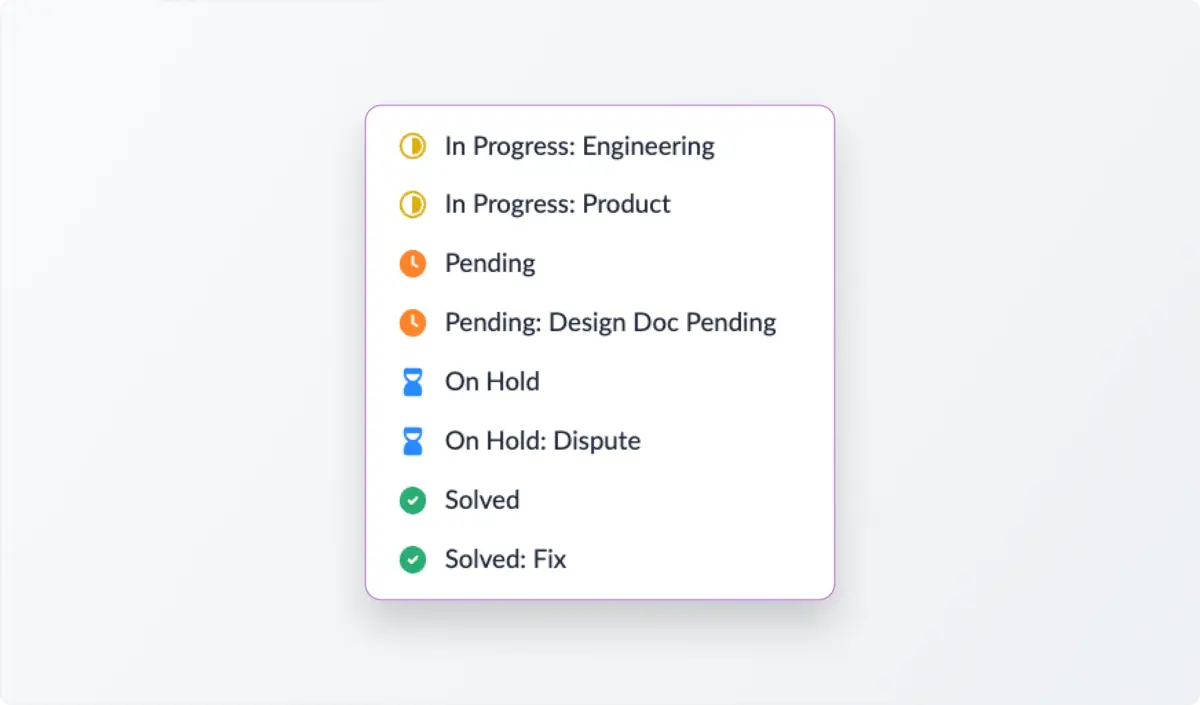
Keep Existing SLA and Reporting Behavior

Reports continue to calculate metrics by parent category, allowing teams to use more specific status names while maintaining consistent reporting.

‍

5. Manage Custom Status From One Place

Account admins can create and manage status from the Custom Status tab under Forms in the ClearFeed WebApp. To add one, select the parent category, click Add custom status, enter the agent-facing and requester-facing names, and save click Add status.

Each category supports up to ten custom status. Status names must be unique across your account, can’t match a built-in category name like Open or Solved, and can be up to 75 characters. Admins can edit both names later. An existing status cannot be moved to another parent category, and it must be removed from all assigned requests before it can be deleted.

‍

Wrapping Up

A request’s status should help your team understand where the work stands. Custom Status brings more of that context into your support queues, so your team can see what’s being investigated, what’s blocked, and what’s done without opening each request.

Custom Status are available now on Professional and Enterprise plans for Internal Helpdesk and External Helpdesk accounts. If you’d like help setting up status for your team, reach out to us on Slack or at support@clearfeed.ai.

Support requests often go through several stages before they’re resolved. An agent investigates an issue, asks the customer for more details, brings in Engineering, and tests a fix. But a status like “In Progress” or “On Hold” only captures part of this process. To find out what’s actually happening, teammates have to read through the conversation or ask the assigned agent for an update.

To make these stages easier to track, we’re introducing Custom Status in ClearFeed. Support teams can now create their own status for requests and tickets, while keeping ClearFeed’s existing status behavior, SLA calculations, and reporting.

What this means for support teams:

  • Track specific stages: Use status such as “Investigating,” “Testing Fix,” or “Waiting for Engineering” to show where requests stand.
  • Separate internal and requester-facing wording: Give agents useful context while choosing how the status appears in requester updates.
  • Find requests that need attention: Filter tickets and create saved views around specific custom status.
  • Keep metrics consistent: Custom status remains tied to standard categories, so requests continue to follow the corresponding SLA and reporting behavior.

Let’s get into how it works

‍

How Custom Status Work

Each custom status belongs to one of ClearFeed’s six standard categories: Open, In Progress, Pending, On Hold, Solved, or Closed. The custom name describes the specific stage of a request, while the parent category determines how ClearFeed handles it.

1. Define the Stages Your Team Uses

Different support teams need to track different steps. A customer support team might want to distinguish between an issue being investigated and a fix being tested. An IT team might need to identify requests waiting for a vendor or an internal approval.

With Custom Status, account admins can add these stages under the relevant category. For example:

Parent category Example custom status
In Progress Investigating, Testing Fix
Pending Waiting for Customer Details
On Hold Waiting for Engineering, Waiting for vendor
Solved Fix Delivered, Workaround Provided
Define the Stages Your Team Uses

These names can reflect the terms your team already uses. When someone reviews a queue or takes over a request, the status gives them more context about the work completed and what remains outstanding.

‍

2. Set Separate Names for Agents and Requesters

Internal status names sometimes describe team dependencies that need different wording in customer or employee updates. For each custom status, admins can define:

  • Status name: The name agents see in the WebApp, Slack triage, filters, and exports.
  • Requester-facing name: The name requesters see in status updates.

For example, a support team could use “Waiting for Engineering” internally and “Under Technical Review” as the requester-facing name. Both refer to the same status, with wording suited to the people reading it.

Set Separate Names for Agents and Requesters

‍

3. Use Custom Status in Slack and the WebApp

Custom statuses work just like regular statuses across Slack and the ClearFeed WebApp. Agents can update them from the Slack triage channel or the WebApp, and use them in Automations, Inbox filters, saved views, Kanban lanes, bulk edits, request creation, and CSV exports.

For example, a support lead could create a saved view for “Waiting for Engineering” to review outstanding escalations, while agents could filter for “Testing Fix” to find requests that need validation. Teams can also use custom status in Automations to trigger actions when a request reaches a specific stage.

‍

4. Keep Existing SLA and Reporting Behavior

Custom status adds detail within the standard categories. Each status follows its parent category’s rules for transitions, SLA calculations, reporting, and other category-driven actions.

For example, a request marked “Fix Delivered” under Solved is included in solved-request metrics. Moving a request from “Investigating” to “Testing Fix,” both under In Progress, changes its label while keeping the same category behavior. Moving it to a custom status under Solved performs the normal transition to Solved.

Keep Existing SLA and Reporting Behavior

Reports continue to calculate metrics by parent category, allowing teams to use more specific status names while maintaining consistent reporting.

‍

5. Manage Custom Status From One Place

Account admins can create and manage status from the Custom Status tab under Forms in the ClearFeed WebApp. To add one, select the parent category, click Add custom status, enter the agent-facing and requester-facing names, and save click Add status.

Each category supports up to ten custom status. Status names must be unique across your account, can’t match a built-in category name like Open or Solved, and can be up to 75 characters. Admins can edit both names later. An existing status cannot be moved to another parent category, and it must be removed from all assigned requests before it can be deleted.

‍

Wrapping Up

A request’s status should help your team understand where the work stands. Custom Status brings more of that context into your support queues, so your team can see what’s being investigated, what’s blocked, and what’s done without opening each request.

Custom Status are available now on Professional and Enterprise plans for Internal Helpdesk and External Helpdesk accounts. If you’d like help setting up status for your team, reach out to us on Slack or at support@clearfeed.ai.

Related Blogs

See all Blog Posts
TOC heading
Text LinkText Link Active
Get a Free consultation with a Support Expert
Learn how fast growing companies like Teleport, Chronosphere and Acryl Data have scaled Support processes with ClearFeed
Thank you for contacting us. Our team will reach out to you shortly.
Oops! Something went wrong while submitting the form.