Table of Contents

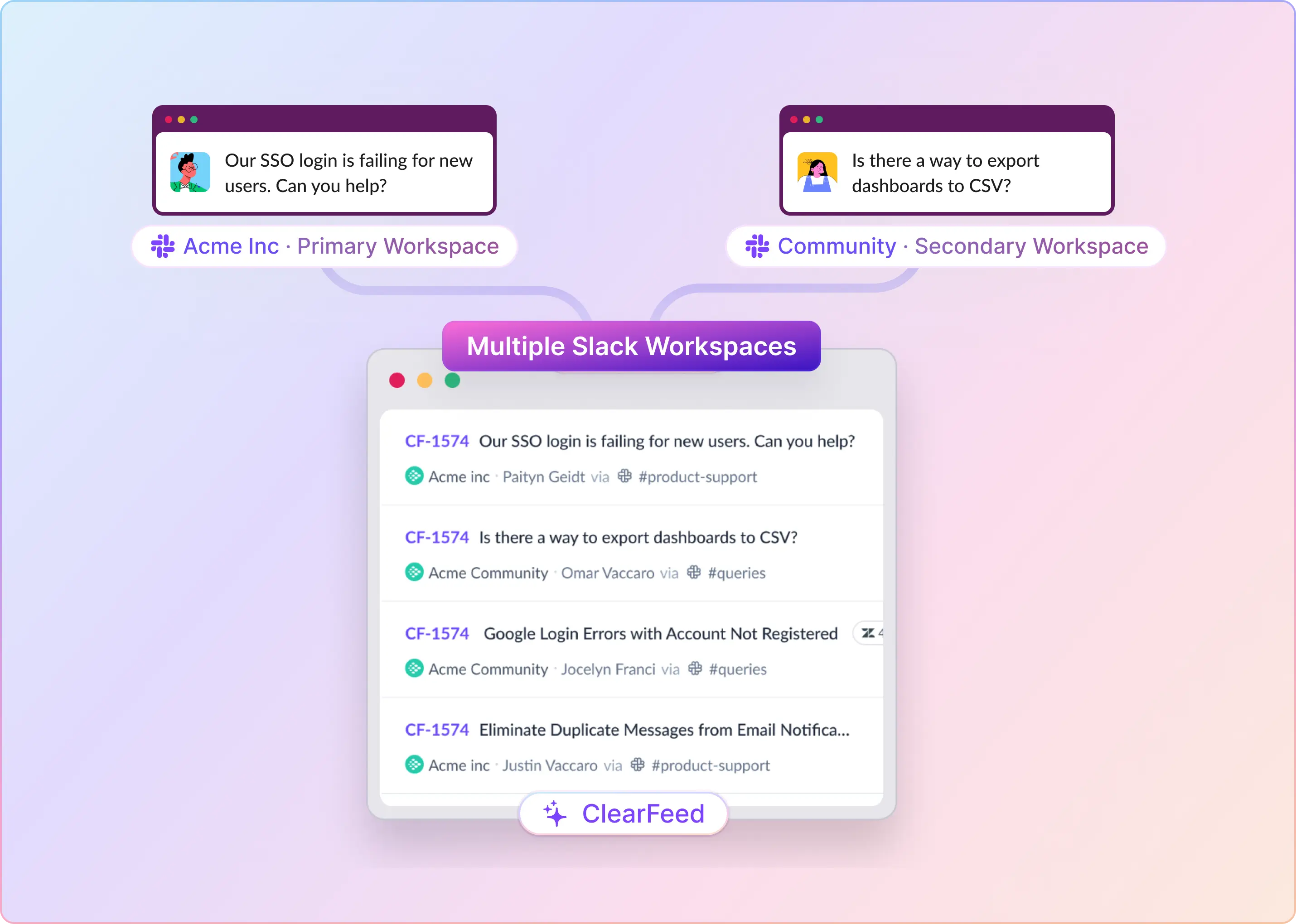
Many companies use separate Slack workspaces for internal collaboration and customer communities. While support teams might handle customer conversations in both, managing requests across these workspaces often means switching between them or maintaining separate support setups. Until now, ClearFeed supported connecting different Slack workspaces to separate ClearFeed accounts. However, teams looking to manage support across these workspaces in a single account didn't have that option.
With our latest release, you can now connect multiple Slack workspaces to a single ClearFeed account. Support teams can monitor incoming requests across different workspaces and manage them centrally from their primary Slack workspace or the ClearFeed Web App. This is particularly useful for teams that support customers across both their corporate Slack workspace and external community workspaces, but want to manage support through a single, centralized workflow.
How It Works
Here's how you can connect additional Slack workspaces to ClearFeed and manage support requests across them.
1. Connect Multiple Slack Workspaces
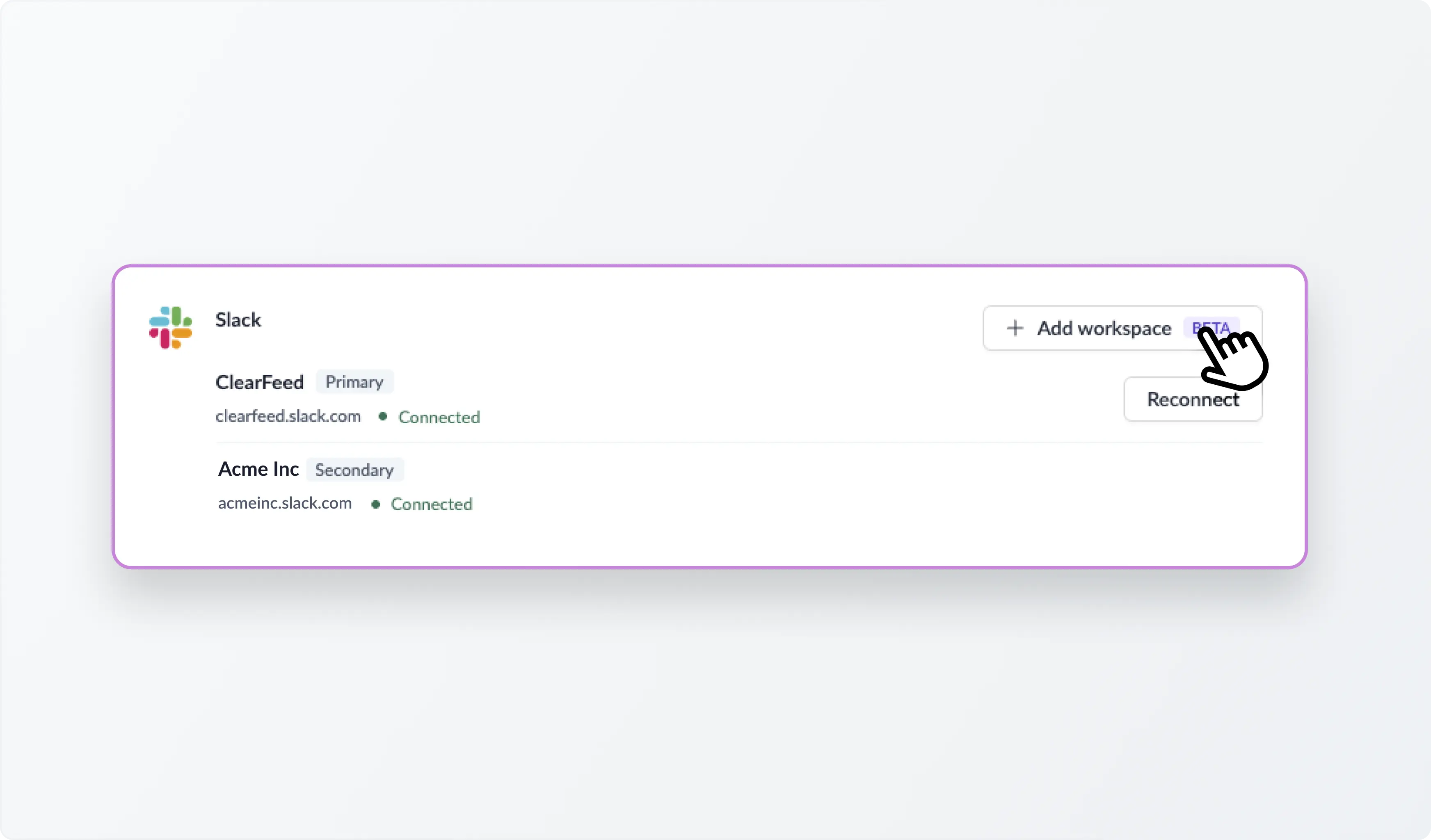
Your existing Slack workspace becomes your Primary workspace, while any additional Slack workspaces you connect are treated as Secondary workspaces.
To connect another workspace:
- Navigate to Settings > Integrations in the ClearFeed Web App.
- Under Slack, click Add workspace.
- Select the Slack workspace you want to connect and authorize the ClearFeed app.
- Once connected, the new workspace will appear as a Secondary workspace in your account.
You can connect multiple additional Slack workspaces to the same ClearFeed account. Each additional workspace must not already be connected to another ClearFeed account.
2. Monitor Requests Across Different Slack Workspaces
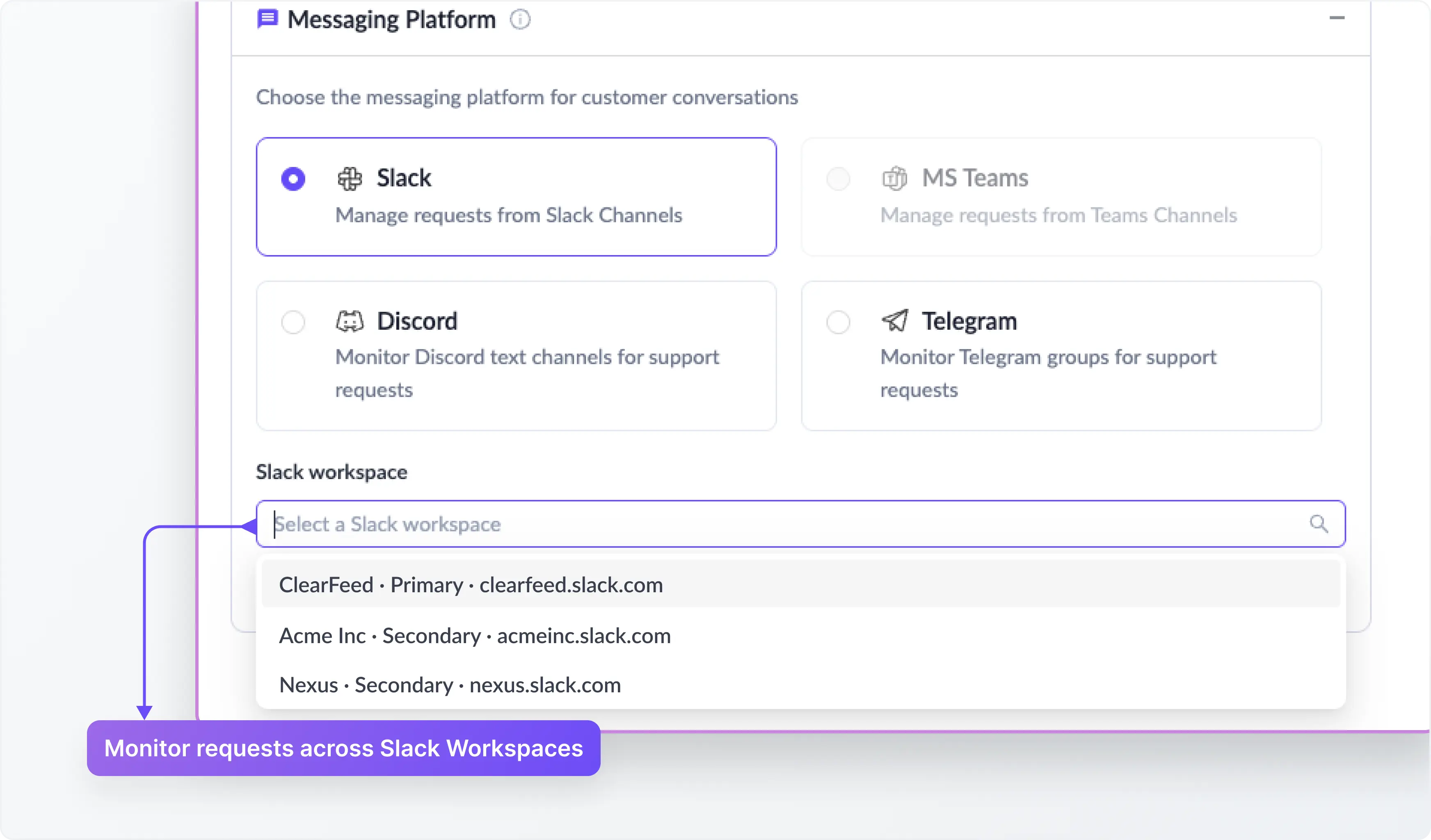
Once you've connected additional workspaces, you can create Customer Collections to monitor support conversations from each one.
While creating a Customer Collection, select the Slack workspace you want to monitor, add the relevant customers and channels, and configure responders. You can then choose a Slack Triage channel in your Primary workspace or manage incoming requests directly from the ClearFeed Web App.
Each Collection is associated with a single Slack workspace, but requests from Collections across different workspaces can be managed together in ClearFeed.
For example, you can monitor customer requests from your corporate Slack workspace alongside questions from your community workspace, without maintaining separate ClearFeed accounts.
3. Manage and Respond to Requests from One Place
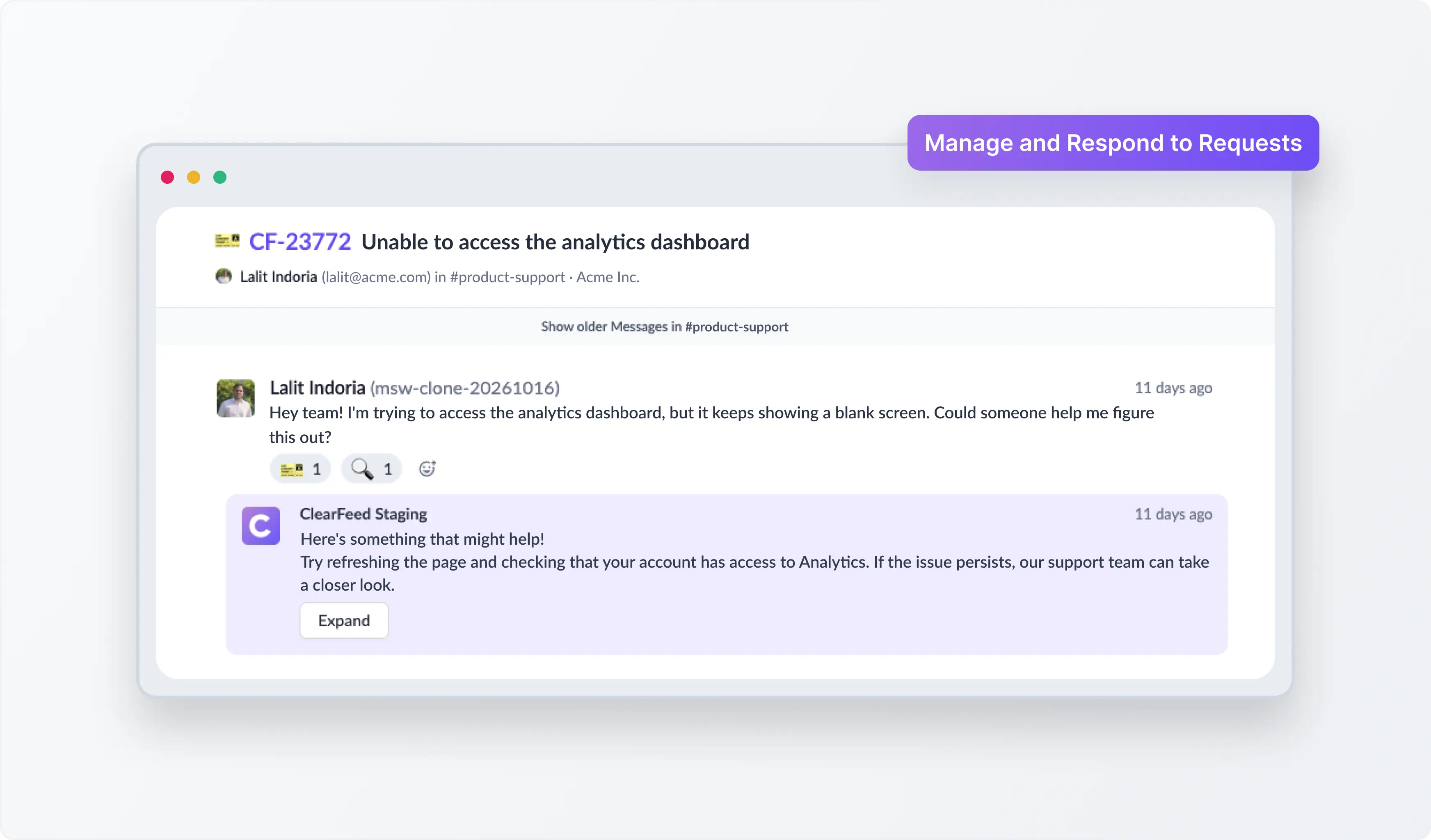
Requests from Secondary workspaces can be routed to Slack Triage channels in your Primary workspace or managed directly from the ClearFeed Web App.
Here's what you can do:
- Ticketing: Create and manage tickets, including integrations with tools such as Zendesk and Jira, based on your ticketing configuration.
- AI-powered support: Use Ask AI to answer customer questions, collect feedback, and support handoffs.
- SLA tracking: Measure response times using your existing SLA policies and business schedules.
- CSAT surveys: Collect customer feedback on support interactions.
- Quick Replies: Respond faster using Quick Replies from your Primary Slack Triage channels or the ClearFeed Web App.
Public replies sent to Secondary workspaces appear through the ClearFeed bot, along with the responding agent's name and avatar.
4. Use ClearFeed's Existing Support Capabilities
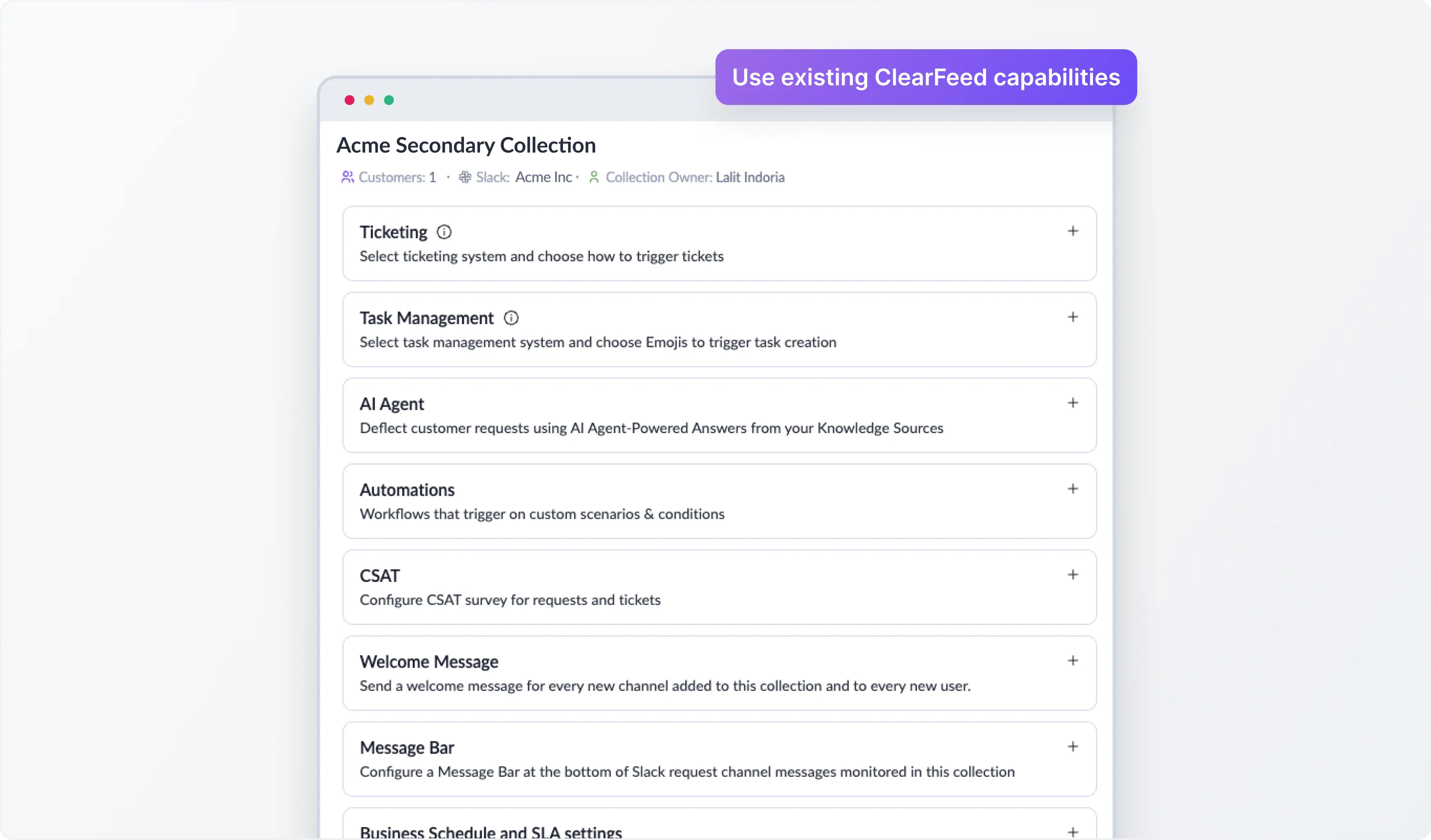
Connecting additional Slack workspaces doesn't mean setting up a separate support system for each one. Requests from Secondary workspaces can use several existing ClearFeed capabilities, including:
- Ticketing: Create and manage tickets, including integrations with tools such as Zendesk and Jira.
- AI-powered support: Use Ask AI to answer customer questions and support handoffs.
- SLA tracking: Track response times using your existing SLA policies and business schedules.
- CSAT surveys: Collect customer feedback on support interactions.
- Quick Replies: Respond faster using Quick Replies from your Primary Slack Triage channels or the ClearFeed Web App.
These capabilities work based on your Collection settings, allowing you to extend your existing support setup across additional workspaces.
Getting Started
Multiple Slack Workspace Support is currently available in Beta for eligible ClearFeed accounts with Customer Centric Inbox enabled. To enable this functionality, reach out to our team in Slack or contact us at support@clearfeed.ai.
Once enabled, an Admin can connect additional workspaces from Settings > Integrations. A few things to keep in mind:
- Your Primary workspace continues to manage support agents, assignments, Slack Triage channels, and notifications.
- Each Customer Collection can monitor channels from only one Slack workspace.
- Support requests from connected workspaces are accessible to authorized users of the same ClearFeed account. If your teams need separate access to their support data, separate accounts may be more suitable.
- Workflows, Automations, and Announcements are not currently supported for Secondary workspaces.
For detailed setup instructions, refer to our Multiple Slack Workspaces documentation.
Wrapping Up
With Multiple Slack Workspace Support, teams can bring customer conversations from different Slack workspaces into a single ClearFeed account.
Whether you're supporting customers in your corporate workspace, an external community, or both, your support team can track requests, collaborate internally, and respond from one place without juggling separate accounts or switching between workspaces.
If you'd like to enable this functionality for your team, reach out to us at support@clearfeed.ai or book a demo.