
November 11, 2026

How To Connect Gmail To Slack: 3 Integration Methods

WRITTEN BY
Happy Das
PUBLISHED ON
November 11, 2026
UPDATED ON
November 11, 2026
How To Connect Gmail To Slack: 3 Integration Methods

To connect Gmail to Slack, install the Slack for Gmail add-on, open an email, and click the Slack icon in Gmail’s sidebar. Connect your workspace, choose a channel or person, and send the email into Slack.

For automatic Gmail-to-Slack notifications, use email forwarding and Gmail filters. For two-way conversations that let your team reply by email from Slack, use ClearFeed email ticketing. Each method supports a different kind of work.

Consider a familiar month-end situation: a vendor emails an invoice, finance needs the budget owner to confirm a charge, and the discussion happens in Slack. Someone still has to take the answer back to the email thread. Meanwhile, an employee has emailed the same finance inbox asking about a reimbursement. That needs an owner and a response, too.

Both start with email. But sharing an invoice for discussion and managing a reimbursement question call for different setups.

The same choice comes up in IT, HR, operations, and customer support. This guide explains three ways to connect Gmail and Slack, what each helps you finish, and what your team will still need to handle.

‍

Which Gmail-Slack Integration Method Should You Use?

Before connecting the apps, decide what should happen after the email reaches Slack.

Method A practical use case What happens in Slack What remains elsewhere
Slack for Gmail add-on Ask a budget owner about one invoice Your team reads and discusses an email you share You reply to the sender in Gmail
Automatic forwarding Bring selected vendor updates into a finance channel Matching new emails arrive without manual sharing Your team assigns follow-up and replies in Gmail
ClearFeed email ticketing Handle employee finance questions, IT requests, or customer queries Your team assigns, discusses, and replies to email tickets Department-specific actions, such as processing a reimbursement, stay in their existing systems

The native add-on is available on all Slack plans. Dedicated channel email addresses require a paid Slack plan. 

A team that only needs to discuss occasional emails can start with the add-on. Forwarding suits recurring visibility. ClearFeed becomes relevant when a request needs an owner, a status, and replies that travel back to the person who emailed.

The instructions below draw on Slack and Google’s documentation and ClearFeed’s Help Center. The workplace scenarios are illustrative examples.

1. Connect Gmail To Slack With the Slack for Gmail Add-On

Best for: Bringing a specific email into a team conversation while keeping email replies in Gmail.

Suppose an invoice contains a charge finance cannot explain. You open it in Gmail, share it with the budget owner in Slack, and add: “Does this include the extra licenses your team requested?”

The budget owner can read the email and its attachment where you are discussing the question. Once you have an answer, you return to Gmail to respond to the vendor.

How To Set Up Slack for Gmail

  1. Install the official Slack for Gmail add-on for your work Google account. If installation is restricted, ask your Google Workspace administrator to approve it.
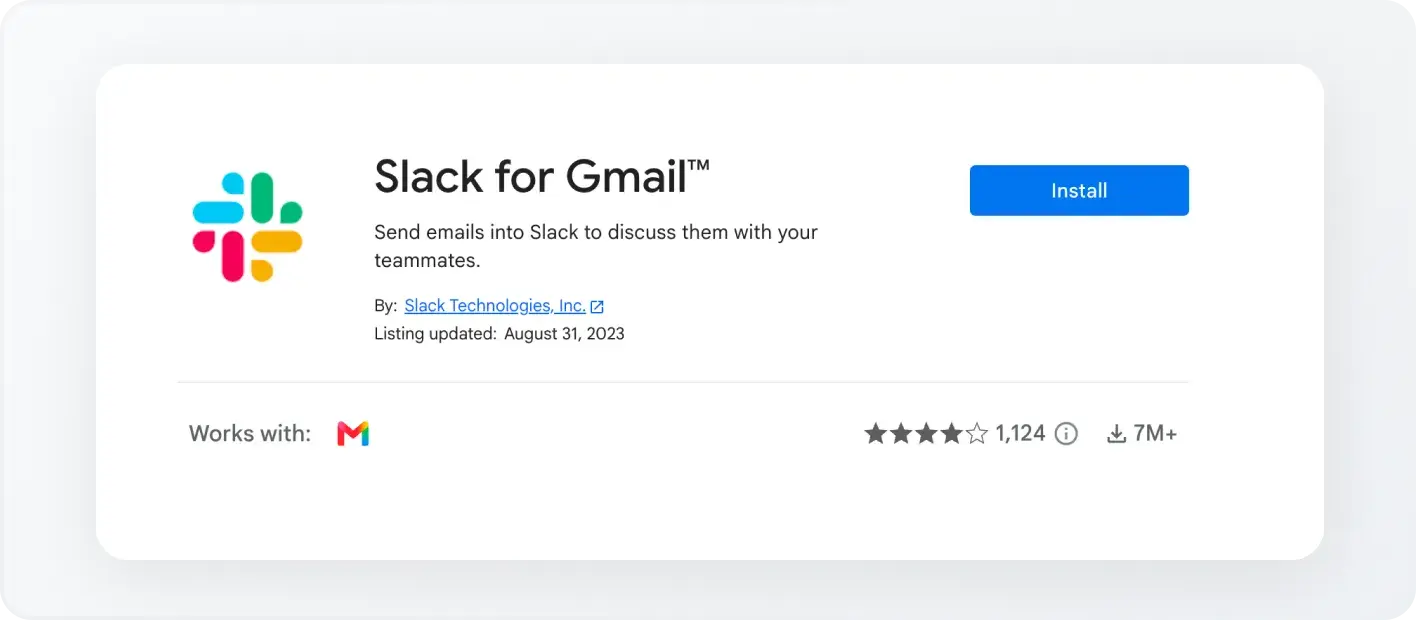
Slack for Gmail
  1. Open an email in Gmail and click the Slack icon in the right sidebar.
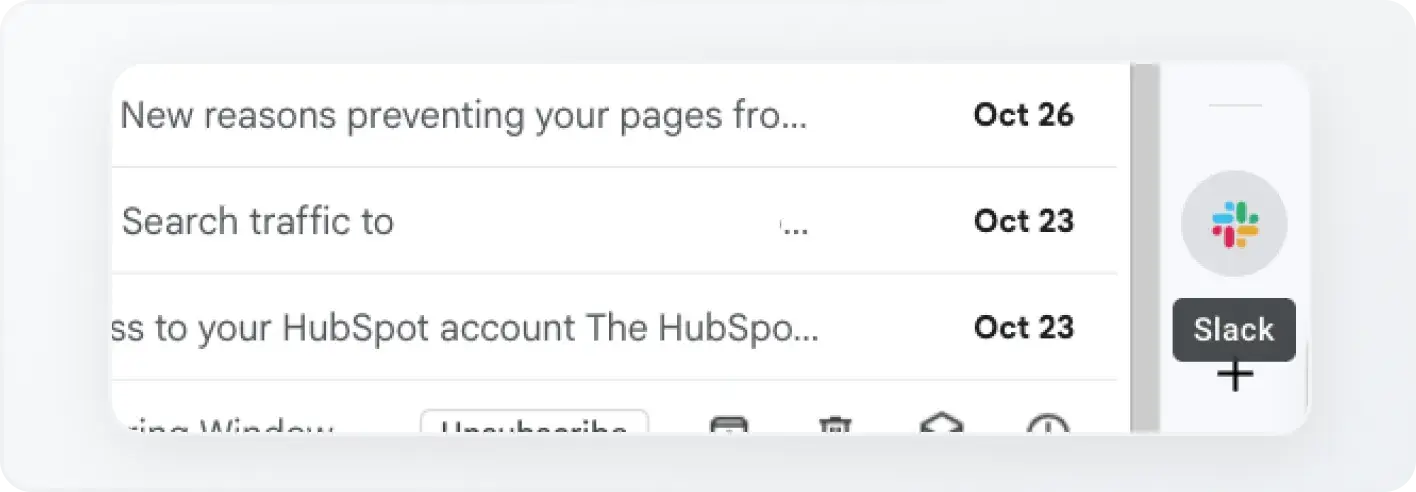
Slack in Gmail inbox
  1. Select Connect to Slack and complete the connection.
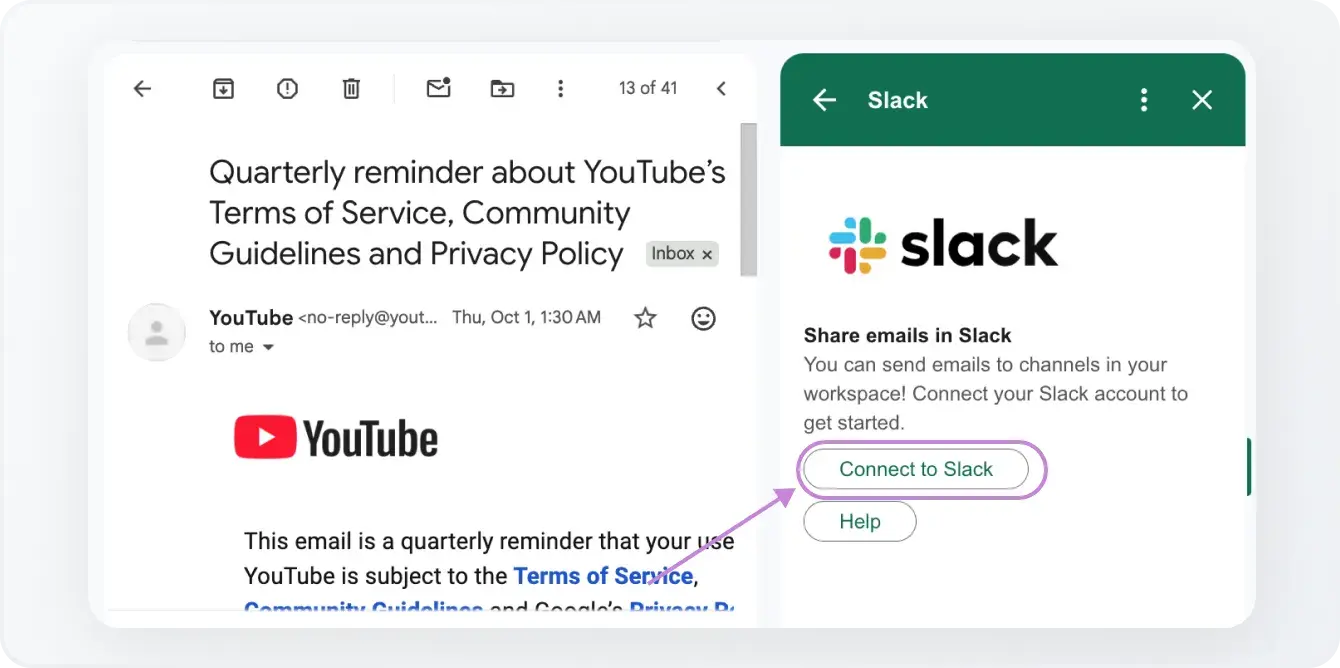
Connect to slack
  1. Choose Search channels and people, select the correct workspace, and find the channel or person you need.
  2. Add your note, include any relevant attachments, and click Send to [name]. Use View to check the email in Slack.
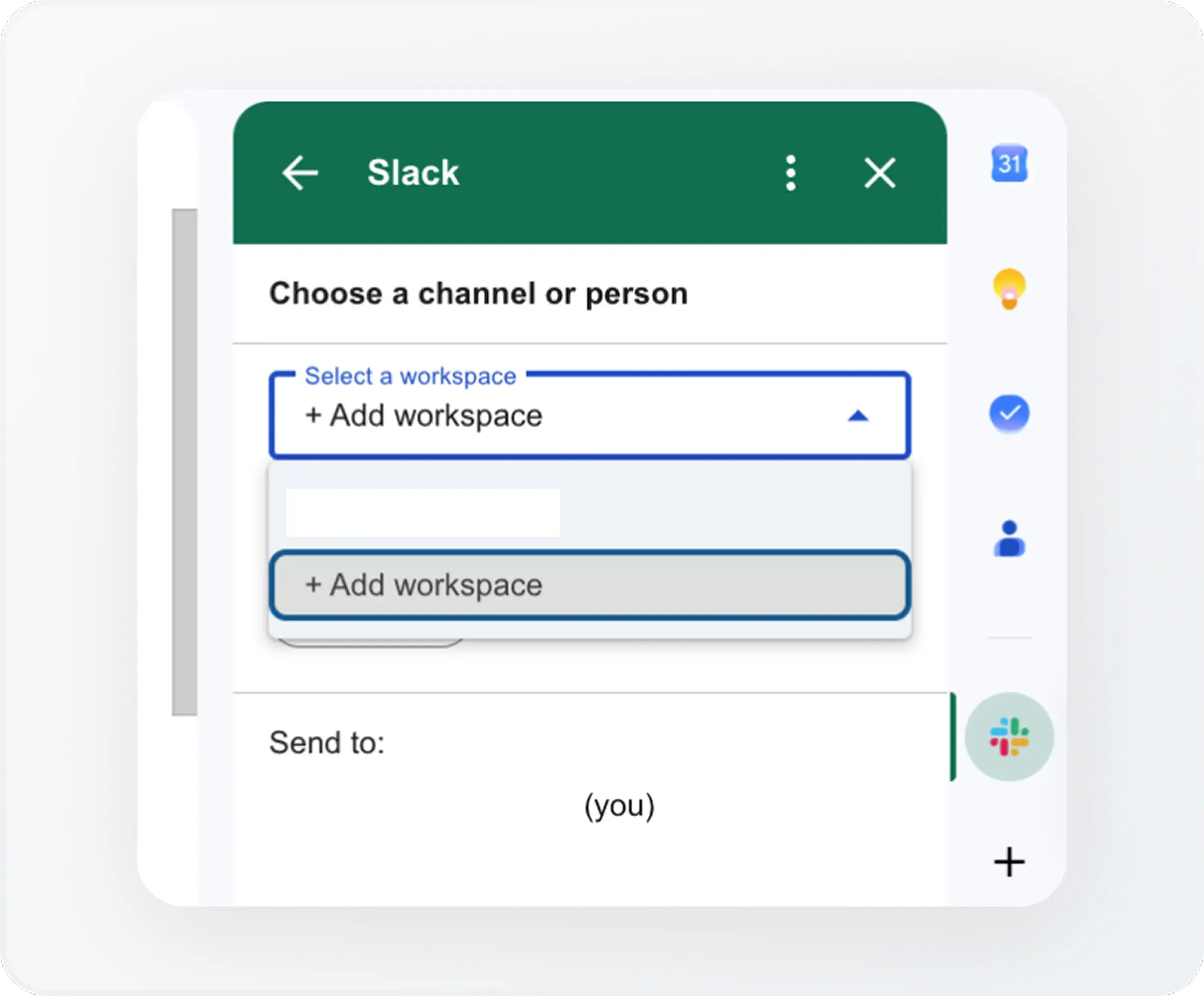
Slack workspace add on for gmail

Name the next action in your note. “Please confirm which cost center this belongs to; I’ll update the vendor” gives the discussion a clear purpose.

Key Features

  • Share from Gmail’s sidebar: Send an open email to a Slack channel or direct message.
  • Choose the audience: Select the workspace, channel, or person for each share.
  • Include context and files: Add a note and include attachments so teammates can review the material behind your question.

Benefits

You can get a second opinion without rewriting the email or asking colleagues to find it in a shared inbox. Choosing each message also keeps unrelated mail out of the discussion.

That makes the add-on useful for an invoice discrepancy, a candidate’s scheduling email, a vendor’s renewal terms, or a customer escalation. It works well when one person is still responsible for the email conversation and occasionally needs help from others.

Limitations

Every share is manual. If the sender provides a correction later, you need to share that update separately. Replies beneath the Slack message don’t go back by email, and the add-on doesn’t provide ticket assignment or resolution tracking.

Slack also limits shared emails to 20 attachments, 30 MB including attachments, and 1 MB for the combined headers and body.

For the invoice example, the handoff remains yours: a teammate’s “yes, that charge is correct” in Slack still needs to become a vendor response or an update in your finance system.

‍

2. Forward Gmail To Slack for Automatic Notifications

Best for: Giving a team ongoing visibility into a defined stream of email.

To automate Gmail-to-Slack notifications, configure Gmail to forward matching messages to a Slack channel’s email address. Suppose finance wants everyone handling vendor accounts to see incoming monthly statements. A forwarding rule removes the repeated task of manually sharing each statement.

The useful change is that teammates can notice and discuss the email without waiting for someone to share it. You still need to decide who acts on it.

Key Features

  • A channel email address: Slack generates an address that delivers emails into the conversation.
  • Automatic forwarding: Gmail can forward new incoming mail to a verified destination.
  • Filters for selected messages: Use criteria such as the sender or recipient to define which emails reach Slack.

Benefits

Forwarding removes the repeated sharing step. Finance can monitor selected vendor correspondence, operations can follow delivery updates, and IT can bring relevant service notices into its working channel.

You can build this with Gmail’s forwarding controls and Slack’s channel address. For teams that want shared awareness while continuing to answer email in Gmail, that may cover the whole requirement.

Limitations

Forwarding creates a stream of messages without assigning responsibility for them. Three people seeing a statement does not tell you whether anyone has checked it. Replies in Slack also stay in Slack, so follow-up emails still happen in Gmail.

Dedicated channel addresses require a paid Slack plan, and administrators can restrict their creation. Gmail excludes spam from automatic forwarding. Filter-based forwarding affects new messages; later replies must also match the filter to be forwarded.

Keep the rule narrow. Forwarding every message from a busy finance inbox can make an important vendor update harder to spot among routine notifications.

‍

How To Forward Gmail to a Slack Channel

1. Open the destination Slack channel on desktop and click its name. Click the three dots and select Edit settings. Under Automations, choose Send emails to this channel → Get email address. Copy the address.

2. In Gmail, go to Settings → See all settings → Forwarding and POP/IMAP or Forwarding. Select Add a forwarding address and enter the Slack address.
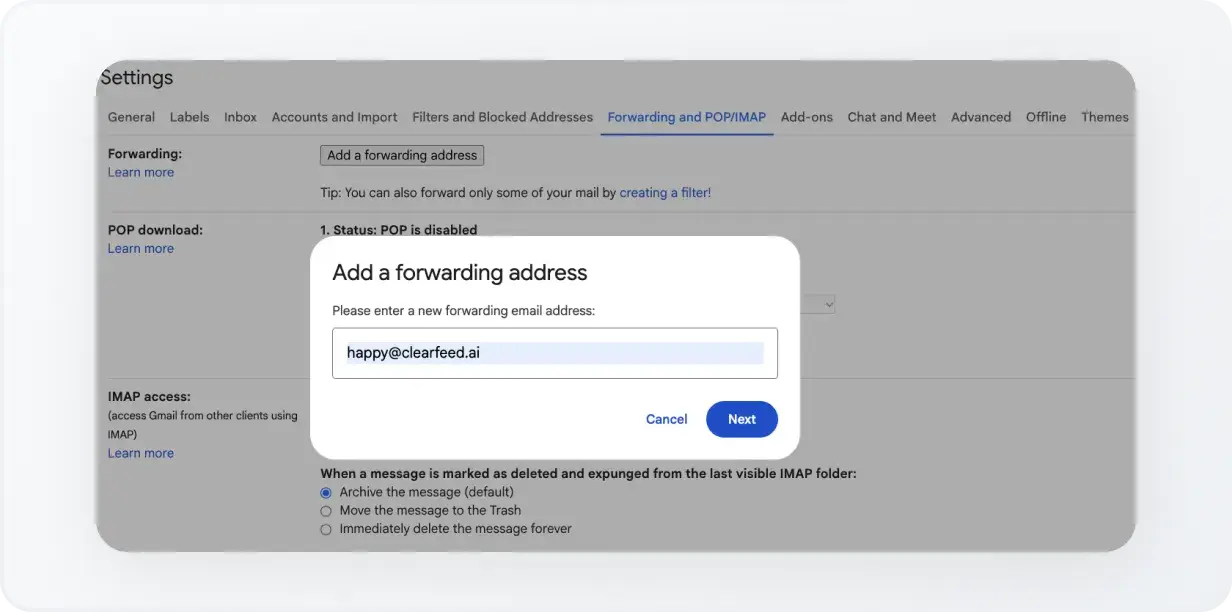
Add a forwarding address to gmail

3. Complete verification using the message delivered to that address. Adding the destination alone does not enable forwarding.

4. For selected emails, leave account-wide forwarding disabled. Create a Gmail filter with your criteria, choose Forward it, and select the verified Slack address.

5. Send a new matching email and confirm that it reaches the intended channel.

Agree on who checks the channel and sends any necessary reply. The rule handles delivery; your team handles the follow-through.

‍

3. Manage Gmail Conversations in Slack With ClearFeed

Best for: Teams that need to assign, track, and answer requests from employees, vendors, or customers without managing the email conversation separately in Gmail.

Return to the employee asking finance about a reimbursement. The question arrives at finance@yourcompany.com. A teammate needs to own it, check the supporting information, and ask the employee for a missing receipt.

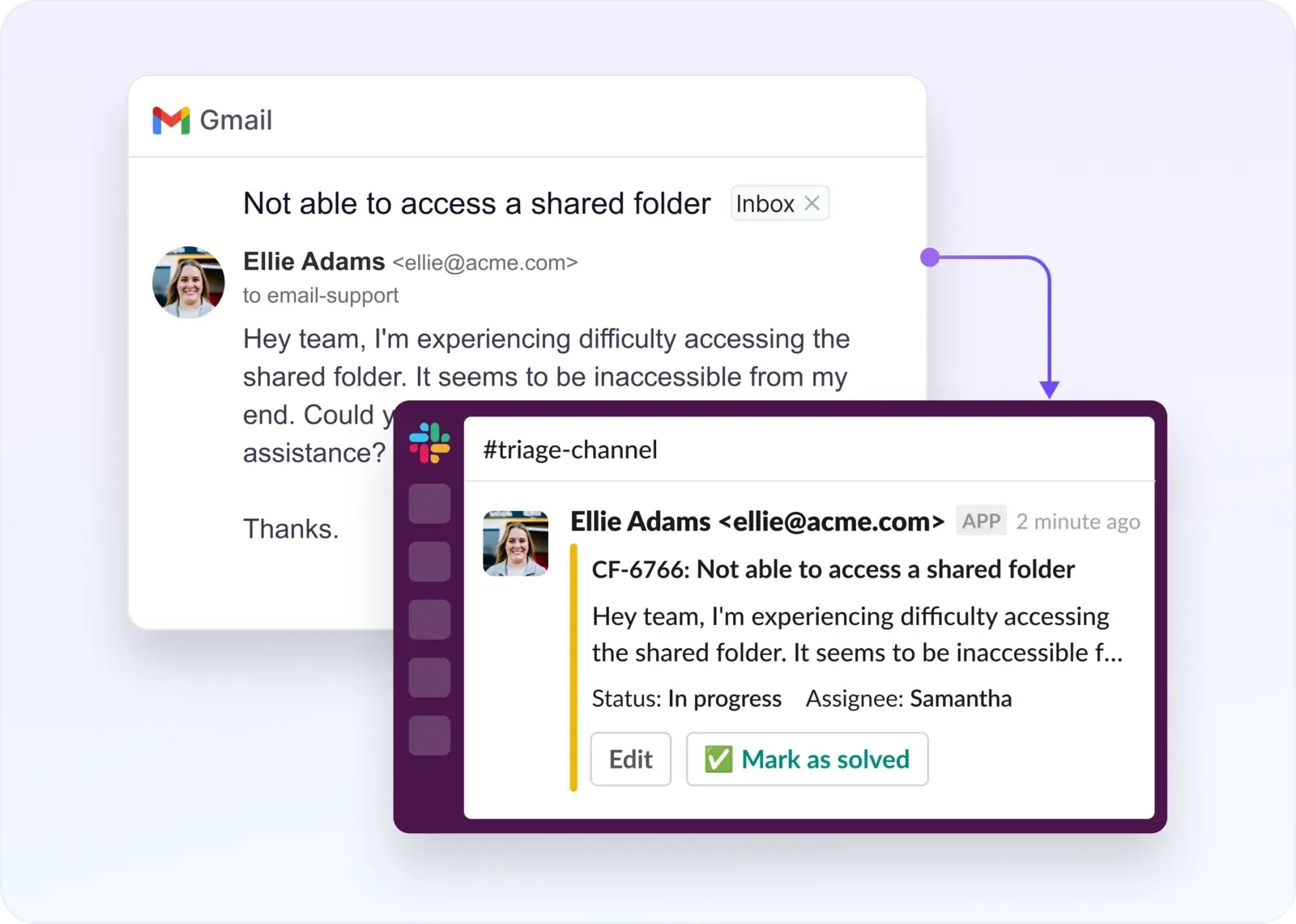
With ClearFeed email ticketing configured, that email creates a ticket in a Slack triage channel—where the team manages incoming requests. A responder takes ownership, discusses the question privately with a colleague, and replies to the employee from the ticket thread. When the employee emails the receipt, the response returns to the same Slack thread.

The same pattern can support an IT access request, an HR policy question, a vendor inquiry, or a customer asking for help.

Key Features

  • Two-way email conversations: Incoming emails create tickets; replies sent to the requester from Slack go out by email, and subsequent email responses return to the triage thread.
  • Ownership and status: Assign responders and update ticket states from Slack or the ClearFeed web app.
  • Private collaboration: Keep team notes separate from responses sent to the requester.
  • Attachments in both directions: Receive email attachments in Slack and include files in outgoing replies.
  • Separate team mailboxes: Configure incoming addresses, outgoing reply identities, and the collections and triage channels that handle them.
  • Email acknowledgments and updates: Customize the initial acknowledgment and notifications for Solved or Closed tickets.

Benefits

For the employee, the interaction remains an email conversation with finance. For the finance team, the question, owner, internal discussion, and email replies stay together in the ticket thread.

That becomes useful when several people work from a shared email inbox in Slack. Instead of a Slack message saying “Has anyone replied to this?”, the team can check the assignee and ticket status. Subsequent email replies return to the conversation already in progress.

Different departments can also handle their own queues. For example, finance and IT can use separate incoming addresses and triage channels, with replies sent from the appropriate departmental address.

Limitations

This setup requires incoming email routing, an outgoing sender, and a collection linked to the triage channel. It uses ClearFeed’s native email ticketing in its Internal or External Helpdesk editions; external ticketing systems have their own integration instructions. Email setup may be unavailable in the Integration edition.

Each incoming address can belong to only one collection. Email replies must be written above the indicated reply line, because ClearFeed cannot process inline responses inside quoted history. Editing a Slack reply cannot change an email already delivered.

For a finance workflow, this manages the request and its correspondence. You still record formal approvals and process reimbursements in the systems your organization uses for those actions. A ticket marked Solved should reflect the work your team has actually completed.

How To Set Up Two-Way Gmail-Slack Integration

1. Add the incoming mailbox. With ClearFeed connected to Slack, open Settings → Email Setup → Email Addresses in the ClearFeed web app. Choose Custom Email → + Add mailbox and enter the departmental address, such as finance@yourcompany.com. Copy the Mail forwarding address shown.

2. Route incoming mail to ClearFeed. Configure the Gmail mailbox to forward incoming requests to that address, using the verification process described above. If you use a Google Group, add ClearFeed’s forwarding address as a member. The documented group setup requires external members to be allowed, membership to be invitation-only, and posting to be open to anyone on the web. If mailbox forwarding is disabled, a Google Workspace administrator can use recipient address mapping in Gmail routing instead.

Use the forwarding address provided by ClearFeed. Sending email directly to a Slack channel’s address—even a channel monitored by ClearFeed—does not establish two-way email ticketing with the original sender.

3. Set the outgoing address. Continue to Outgoing email, enter the departmental sender address and display name, and authenticate with Google. For a Google Group or alias, first add and verify the address under Gmail’s Settings → Accounts and Import → Send mail as, then authenticate the Google account with permission to use it. Otherwise, replies can come from the personal Google address.

ClearFeed also supports sending through a custom domain authenticated with DKIM; addresses covered by that verified domain do not require Google OAuth or Gmail’s “Send mail as” setup. Save the mailbox configuration. A mailbox without its own outgoing address uses the account’s default.

4. Create the working queue. Go to Collections → Add New Collection → Email Collection, add the responders, and link or create the Slack triage channel. Open the collection’s Settings → Email Settings and select the incoming address. Repeat with distinct addresses for separate departmental queues.

5. Configure internal notes and email replies. Check Triage Comment Visibility before the team starts responding. With the default Public setting, thread messages are sent to the requester; prefix an internal note with 🔒 before sending. With Private selected, messages stay internal unless you prefix a reply with 📢. Editing a message to add either emoji afterward does not change its visibility.

Here, “Public” means sent to the requester—including an employee who emailed finance. Keep the distinction clear when discussing a request privately with colleagues.

6. Test a complete exchange. From a separate account, email the departmental address. Confirm the ticket reaches the correct channel, send a reply from Slack, and check the sender address in the received email. Reply by email and confirm that it returns to the same thread. Test a private note and an attachment in each direction, too.

‍

Make the Gmail-Slack Connection Fit Your Team’s Work

Start with one mailbox and one destination. For finance, use a channel whose membership is appropriate for the correspondence you plan to share. Then check the parts that determine whether the integration helps: which messages arrive, who owns the next action, where the response goes, and what still needs updating elsewhere.

Avoid configuring two delivery paths for the same email unless you need both. Sending mail directly to Slack and through ClearFeed can leave your team discussing duplicate copies. ClearFeed’s documentation also warns that copying both the custom address and ClearFeed-generated address in replies can create duplicate requests.

For an occasional invoice question, the Gmail add-on may be enough. For recurring notices, try filtered forwarding. When employees, vendors, or customers need an answer from a team that works in Slack, set up ClearFeed email ticketing to connect the conversation, its owner, and the reply.

Choose the method that gets the next piece of work to the right person—and makes it clear what they need to do with it.

‍

Gmail-Slack Integration FAQs

Is Slack for Gmail a Browser Extension?

The official Slack for Gmail integration is a Google Workspace add-on. Install it from the Google Workspace Marketplace and use it from Gmail’s sidebar. You do not need a separate browser extension for this method.

‍

Do I Need Code or a Webhook To Connect Gmail To Slack?

No. The three methods in this guide use app installation, email settings, or ClearFeed configuration. You can share emails, automatically forward selected messages, or manage two-way email tickets without writing code. A custom webhook implementation is a separate development project.

To connect Gmail to Slack, install the Slack for Gmail add-on, open an email, and click the Slack icon in Gmail’s sidebar. Connect your workspace, choose a channel or person, and send the email into Slack.

For automatic Gmail-to-Slack notifications, use email forwarding and Gmail filters. For two-way conversations that let your team reply by email from Slack, use ClearFeed email ticketing. Each method supports a different kind of work.

Consider a familiar month-end situation: a vendor emails an invoice, finance needs the budget owner to confirm a charge, and the discussion happens in Slack. Someone still has to take the answer back to the email thread. Meanwhile, an employee has emailed the same finance inbox asking about a reimbursement. That needs an owner and a response, too.

Both start with email. But sharing an invoice for discussion and managing a reimbursement question call for different setups.

The same choice comes up in IT, HR, operations, and customer support. This guide explains three ways to connect Gmail and Slack, what each helps you finish, and what your team will still need to handle.

‍

Which Gmail-Slack Integration Method Should You Use?

Before connecting the apps, decide what should happen after the email reaches Slack.

Method A practical use case What happens in Slack What remains elsewhere
Slack for Gmail add-on Ask a budget owner about one invoice Your team reads and discusses an email you share You reply to the sender in Gmail
Automatic forwarding Bring selected vendor updates into a finance channel Matching new emails arrive without manual sharing Your team assigns follow-up and replies in Gmail
ClearFeed email ticketing Handle employee finance questions, IT requests, or customer queries Your team assigns, discusses, and replies to email tickets Department-specific actions, such as processing a reimbursement, stay in their existing systems

The native add-on is available on all Slack plans. Dedicated channel email addresses require a paid Slack plan. 

A team that only needs to discuss occasional emails can start with the add-on. Forwarding suits recurring visibility. ClearFeed becomes relevant when a request needs an owner, a status, and replies that travel back to the person who emailed.

The instructions below draw on Slack and Google’s documentation and ClearFeed’s Help Center. The workplace scenarios are illustrative examples.

1. Connect Gmail To Slack With the Slack for Gmail Add-On

Best for: Bringing a specific email into a team conversation while keeping email replies in Gmail.

Suppose an invoice contains a charge finance cannot explain. You open it in Gmail, share it with the budget owner in Slack, and add: “Does this include the extra licenses your team requested?”

The budget owner can read the email and its attachment where you are discussing the question. Once you have an answer, you return to Gmail to respond to the vendor.

How To Set Up Slack for Gmail

  1. Install the official Slack for Gmail add-on for your work Google account. If installation is restricted, ask your Google Workspace administrator to approve it.
Slack for Gmail
  1. Open an email in Gmail and click the Slack icon in the right sidebar.
Slack in Gmail inbox
  1. Select Connect to Slack and complete the connection.
Connect to slack
  1. Choose Search channels and people, select the correct workspace, and find the channel or person you need.
  2. Add your note, include any relevant attachments, and click Send to [name]. Use View to check the email in Slack.
Slack workspace add on for gmail

Name the next action in your note. “Please confirm which cost center this belongs to; I’ll update the vendor” gives the discussion a clear purpose.

Key Features

  • Share from Gmail’s sidebar: Send an open email to a Slack channel or direct message.
  • Choose the audience: Select the workspace, channel, or person for each share.
  • Include context and files: Add a note and include attachments so teammates can review the material behind your question.

Benefits

You can get a second opinion without rewriting the email or asking colleagues to find it in a shared inbox. Choosing each message also keeps unrelated mail out of the discussion.

That makes the add-on useful for an invoice discrepancy, a candidate’s scheduling email, a vendor’s renewal terms, or a customer escalation. It works well when one person is still responsible for the email conversation and occasionally needs help from others.

Limitations

Every share is manual. If the sender provides a correction later, you need to share that update separately. Replies beneath the Slack message don’t go back by email, and the add-on doesn’t provide ticket assignment or resolution tracking.

Slack also limits shared emails to 20 attachments, 30 MB including attachments, and 1 MB for the combined headers and body.

For the invoice example, the handoff remains yours: a teammate’s “yes, that charge is correct” in Slack still needs to become a vendor response or an update in your finance system.

‍

2. Forward Gmail To Slack for Automatic Notifications

Best for: Giving a team ongoing visibility into a defined stream of email.

To automate Gmail-to-Slack notifications, configure Gmail to forward matching messages to a Slack channel’s email address. Suppose finance wants everyone handling vendor accounts to see incoming monthly statements. A forwarding rule removes the repeated task of manually sharing each statement.

The useful change is that teammates can notice and discuss the email without waiting for someone to share it. You still need to decide who acts on it.

Key Features

  • A channel email address: Slack generates an address that delivers emails into the conversation.
  • Automatic forwarding: Gmail can forward new incoming mail to a verified destination.
  • Filters for selected messages: Use criteria such as the sender or recipient to define which emails reach Slack.

Benefits

Forwarding removes the repeated sharing step. Finance can monitor selected vendor correspondence, operations can follow delivery updates, and IT can bring relevant service notices into its working channel.

You can build this with Gmail’s forwarding controls and Slack’s channel address. For teams that want shared awareness while continuing to answer email in Gmail, that may cover the whole requirement.

Limitations

Forwarding creates a stream of messages without assigning responsibility for them. Three people seeing a statement does not tell you whether anyone has checked it. Replies in Slack also stay in Slack, so follow-up emails still happen in Gmail.

Dedicated channel addresses require a paid Slack plan, and administrators can restrict their creation. Gmail excludes spam from automatic forwarding. Filter-based forwarding affects new messages; later replies must also match the filter to be forwarded.

Keep the rule narrow. Forwarding every message from a busy finance inbox can make an important vendor update harder to spot among routine notifications.

‍

How To Forward Gmail to a Slack Channel

1. Open the destination Slack channel on desktop and click its name. Click the three dots and select Edit settings. Under Automations, choose Send emails to this channel → Get email address. Copy the address.

2. In Gmail, go to Settings → See all settings → Forwarding and POP/IMAP or Forwarding. Select Add a forwarding address and enter the Slack address.

Add a forwarding address to gmail

3. Complete verification using the message delivered to that address. Adding the destination alone does not enable forwarding.

4. For selected emails, leave account-wide forwarding disabled. Create a Gmail filter with your criteria, choose Forward it, and select the verified Slack address.

5. Send a new matching email and confirm that it reaches the intended channel.

Agree on who checks the channel and sends any necessary reply. The rule handles delivery; your team handles the follow-through.

‍

3. Manage Gmail Conversations in Slack With ClearFeed

Best for: Teams that need to assign, track, and answer requests from employees, vendors, or customers without managing the email conversation separately in Gmail.

Return to the employee asking finance about a reimbursement. The question arrives at finance@yourcompany.com. A teammate needs to own it, check the supporting information, and ask the employee for a missing receipt.

With ClearFeed email ticketing configured, that email creates a ticket in a Slack triage channel—where the team manages incoming requests. A responder takes ownership, discusses the question privately with a colleague, and replies to the employee from the ticket thread. When the employee emails the receipt, the response returns to the same Slack thread.

The same pattern can support an IT access request, an HR policy question, a vendor inquiry, or a customer asking for help.

Key Features

  • Two-way email conversations: Incoming emails create tickets; replies sent to the requester from Slack go out by email, and subsequent email responses return to the triage thread.
  • Ownership and status: Assign responders and update ticket states from Slack or the ClearFeed web app.
  • Private collaboration: Keep team notes separate from responses sent to the requester.
  • Attachments in both directions: Receive email attachments in Slack and include files in outgoing replies.
  • Separate team mailboxes: Configure incoming addresses, outgoing reply identities, and the collections and triage channels that handle them.
  • Email acknowledgments and updates: Customize the initial acknowledgment and notifications for Solved or Closed tickets.

Benefits

For the employee, the interaction remains an email conversation with finance. For the finance team, the question, owner, internal discussion, and email replies stay together in the ticket thread.

That becomes useful when several people work from a shared email inbox in Slack. Instead of a Slack message saying “Has anyone replied to this?”, the team can check the assignee and ticket status. Subsequent email replies return to the conversation already in progress.

Different departments can also handle their own queues. For example, finance and IT can use separate incoming addresses and triage channels, with replies sent from the appropriate departmental address.

Limitations

This setup requires incoming email routing, an outgoing sender, and a collection linked to the triage channel. It uses ClearFeed’s native email ticketing in its Internal or External Helpdesk editions; external ticketing systems have their own integration instructions. Email setup may be unavailable in the Integration edition.

Each incoming address can belong to only one collection. Email replies must be written above the indicated reply line, because ClearFeed cannot process inline responses inside quoted history. Editing a Slack reply cannot change an email already delivered.

For a finance workflow, this manages the request and its correspondence. You still record formal approvals and process reimbursements in the systems your organization uses for those actions. A ticket marked Solved should reflect the work your team has actually completed.

How To Set Up Two-Way Gmail-Slack Integration

1. Add the incoming mailbox. With ClearFeed connected to Slack, open Settings → Email Setup → Email Addresses in the ClearFeed web app. Choose Custom Email → + Add mailbox and enter the departmental address, such as finance@yourcompany.com. Copy the Mail forwarding address shown.

2. Route incoming mail to ClearFeed. Configure the Gmail mailbox to forward incoming requests to that address, using the verification process described above. If you use a Google Group, add ClearFeed’s forwarding address as a member. The documented group setup requires external members to be allowed, membership to be invitation-only, and posting to be open to anyone on the web. If mailbox forwarding is disabled, a Google Workspace administrator can use recipient address mapping in Gmail routing instead.

Use the forwarding address provided by ClearFeed. Sending email directly to a Slack channel’s address—even a channel monitored by ClearFeed—does not establish two-way email ticketing with the original sender.

3. Set the outgoing address. Continue to Outgoing email, enter the departmental sender address and display name, and authenticate with Google. For a Google Group or alias, first add and verify the address under Gmail’s Settings → Accounts and Import → Send mail as, then authenticate the Google account with permission to use it. Otherwise, replies can come from the personal Google address.

ClearFeed also supports sending through a custom domain authenticated with DKIM; addresses covered by that verified domain do not require Google OAuth or Gmail’s “Send mail as” setup. Save the mailbox configuration. A mailbox without its own outgoing address uses the account’s default.

4. Create the working queue. Go to Collections → Add New Collection → Email Collection, add the responders, and link or create the Slack triage channel. Open the collection’s Settings → Email Settings and select the incoming address. Repeat with distinct addresses for separate departmental queues.

5. Configure internal notes and email replies. Check Triage Comment Visibility before the team starts responding. With the default Public setting, thread messages are sent to the requester; prefix an internal note with 🔒 before sending. With Private selected, messages stay internal unless you prefix a reply with 📢. Editing a message to add either emoji afterward does not change its visibility.

Here, “Public” means sent to the requester—including an employee who emailed finance. Keep the distinction clear when discussing a request privately with colleagues.

6. Test a complete exchange. From a separate account, email the departmental address. Confirm the ticket reaches the correct channel, send a reply from Slack, and check the sender address in the received email. Reply by email and confirm that it returns to the same thread. Test a private note and an attachment in each direction, too.

‍

Make the Gmail-Slack Connection Fit Your Team’s Work

Start with one mailbox and one destination. For finance, use a channel whose membership is appropriate for the correspondence you plan to share. Then check the parts that determine whether the integration helps: which messages arrive, who owns the next action, where the response goes, and what still needs updating elsewhere.

Avoid configuring two delivery paths for the same email unless you need both. Sending mail directly to Slack and through ClearFeed can leave your team discussing duplicate copies. ClearFeed’s documentation also warns that copying both the custom address and ClearFeed-generated address in replies can create duplicate requests.

For an occasional invoice question, the Gmail add-on may be enough. For recurring notices, try filtered forwarding. When employees, vendors, or customers need an answer from a team that works in Slack, set up ClearFeed email ticketing to connect the conversation, its owner, and the reply.

Choose the method that gets the next piece of work to the right person—and makes it clear what they need to do with it.

‍

Gmail-Slack Integration FAQs

Is Slack for Gmail a Browser Extension?

The official Slack for Gmail integration is a Google Workspace add-on. Install it from the Google Workspace Marketplace and use it from Gmail’s sidebar. You do not need a separate browser extension for this method.

‍

Do I Need Code or a Webhook To Connect Gmail To Slack?

No. The three methods in this guide use app installation, email settings, or ClearFeed configuration. You can share emails, automatically forward selected messages, or manage two-way email tickets without writing code. A custom webhook implementation is a separate development project.

Related Blogs

See all Blog Posts
TOC heading
Text LinkText Link Active
Get a Free consultation with a Support Expert
Learn how fast growing companies like Teleport, Chronosphere and Acryl Data have scaled Support processes with ClearFeed
Thank you for contacting us. Our team will reach out to you shortly.
Oops! Something went wrong while submitting the form.