Table of Contents

Slack handles real-time communication. Trello tracks tasks and deliverables. When Slack and Trello aren’t connected, critical work gets lost between the conversation and the follow-through.
Integrating both—whether through native features or automation tools—closes that loop. Bug reports, support escalations, and task updates flow directly from chat to card, without the tab-hopping or follow-up fatigue.
The payoff? Faster handoffs, clearer accountability, and a smoother path from “we’ll look into it” to “it’s done.” In this blog, we look at how to integrate Trello and Slack.
Bonus: We will also look at custom Slack-Trello automation using Zapier, as well as where ClearFeed fits: not as a Slack-Trello connector, but as a Slack-native ticketing option for teams that use Trello as a lightweight support board and need more structure within Slack.
TL;DR
A practical guide to connecting Slack and Trello, covering the native app, Zapier automations, and a pivot to ClearFeed for teams that have outgrown Trello as a support tool.
The gist
- The native Trello app for Slack lets you create cards via slash commands, search existing cards, and link a channel to a specific board, all for free.
- Trello's Slack Power-Up (also free) handles the reverse: posting Slack notifications when cards are created, moved, commented on, or hit due dates.
- Zapier fills the gaps for custom workflows, like creating a card from an emoji reaction or DMing someone when a card goes overdue. Basic Zapier is free but covers only limited tasks per month.
- Native and Zapier integrations can coexist: use the app for on-demand actions, Zaps for automated edge cases.
- ClearFeed is a next step for teams using Trello as a makeshift support queue, not as a Trello sync tool. It brings SLAs, triage channels, AI fields, assignment rules, and reporting into Slack natively. Trello is not on its supported sync list.
Why Should You Integrate Slack and Trello?
An integration between Slack and Trello ensures that spontaneous Slack conversations translate into trackable Trello tasks. Here are a few reasons integration between Slack and Trello is valuable for support teams:
- Never Miss a Request: Internal IT or customer issues reported in Slack can be instantly logged into Trello. This integration between Trello and Slack means no support request gets lost in chat scrollback.
- Faster Ticket Escalation: Support agents can escalate a Slack discussion to a Trello ticket in one step, so engineers or other teams can pick it up from Trello while the conversation continues on Slack.
- Centralized Tracking: Trello’s boards and cards provide a clear view of all outstanding tasks or bugs. When Slack messages create Trello cards, you get the best of both worlds: real-time discussion and a single source of truth for task status.
- Reduced Context Switching: Rather than constantly toggling between Slack and Trello, the Slack Trello integration brings Trello updates into Slack and allows certain Trello actions from Slack.
Native Slack and Trello Integration (Via Built-in Features)
The easiest way to connect Slack and Trello is to use Atlassian’s official Trello app for Slack. With the Trello app added to Slack,
- You can create Trello cards from Slack messages
- Get Trello link previews in Slack
- Configure Trello to post updates into Slack
Below, we walk through setting up the Trello integration with Slack and using its commands and alerts.
Setting Up the Trello App in Slack
To use the native integration, first an admin needs to link your Trello workspace with your Slack workspace. Once the workspaces are linked and the Trello app is installed in Slack, each user also needs to connect their own Trello account to Slack. Here’s a quick setup checklist:
- Add Trello to Slack: A Slack workspace admin can go to the Slack App Directory and click "Add to Slack" on the Trello app. Alternatively, from Trello’s side, a Trello workspace admin can initiate linking by clicking "Add to Slack" in Trello’s workspace settings.
- Link Your Accounts: After the admin links the workspaces, each team member should open Slack, find the Trello app in the Apps section, and click the Home tab. There you'll see an option to "Link your Trello account" – follow the prompts to log in to Trello and authorize Slack.
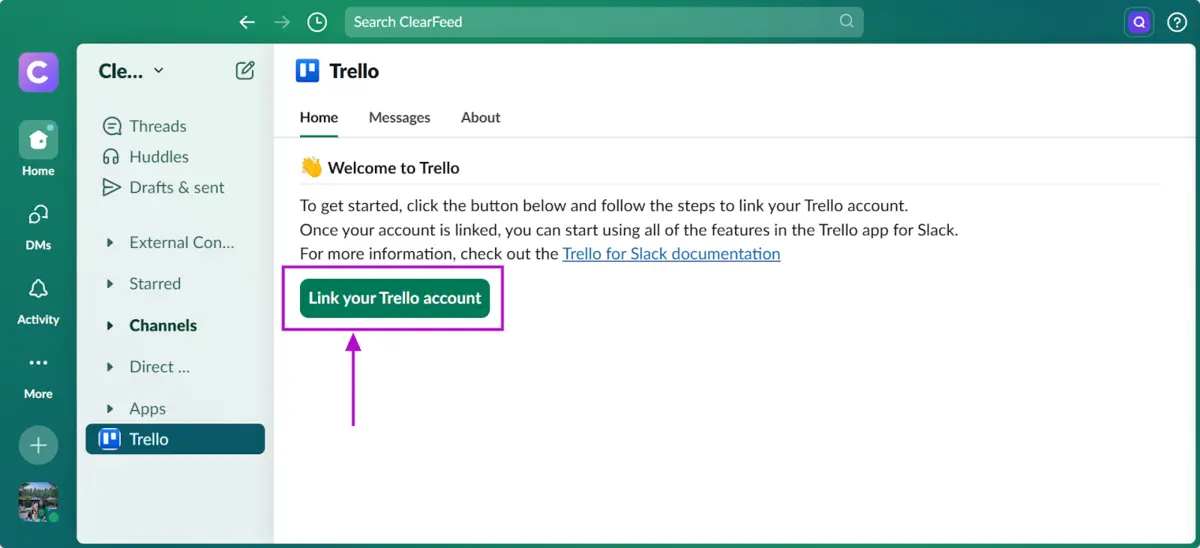
You can also simply type the command /trello login in Slack which will provide a link to connect your Trello account.
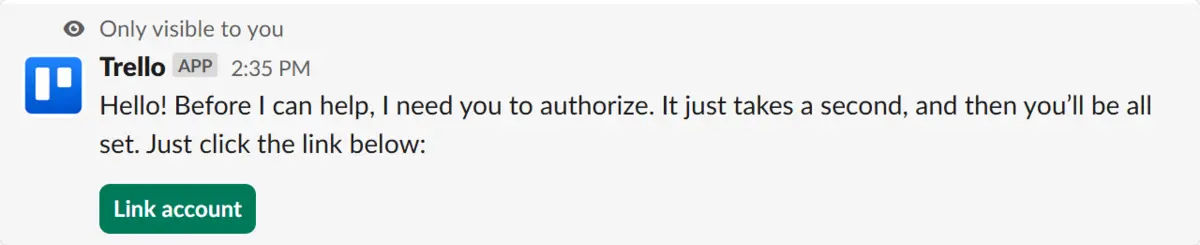
- Invite Trello to Channels: By default, the Trello app might not be in all channels. To use it in a specific Slack channel (say #support), invite it by typing /invite @Trello in that channel.
- Configure Initial Settings: You can link a Slack channel to a specific Trello board using /trello link [board name or URL]. For example, in your #support channel you might run /trello link Support Tickets Board to associate that channel with your Trello board for support tickets.
Once connected, you can use a variety of slash commands in Slack to interact with Trello without leaving the Slack interface.
| Command | Description |
|---|---|
| Create a Card | /trello create [card name] – Creates a new Trello card in the default list of the linked board for that channel, with the given title. Slack/Trello confirms and provides a link to the new card. |
| Search Cards | /trello search [keywords] – Searches Trello cards and shows matching cards in Slack. Handy for quickly pulling up an existing ticket by keyword. |
| Link a Channel to a Board | /trello link [board name or URL] – Links the current Slack channel to a Trello board. Can be re-run to change the board link. |
| Unlink | /trello unlink – Detaches the Trello board from the current channel, removing integration for that channel. |
| Set Default List | /trello set-list [list name] – Sets a different default list for Trello cards created via Slack. |
| Login/Logout | /trello login or /trello logout – Connects or disconnects your Trello account from Slack. Useful for switching accounts or refreshing the link. |
| Help | /trello help – Lists all available Trello commands in Slack. |
How To Enable Trello Notifications in Slack?
Aside from creating and finding cards from Slack, you likely also want Trello to send updates into Slack – for example, notify a channel when a card is moved to "Done" or when a due date is near. The native Trello and Slack integration can do this too, using the Trello Slack Power-Up on the Trello side. To set up Trello-to-Slack notifications (manual method):
- On your Trello board, go to Power-Ups, find "Slack", and add it to the board. (This is free to use. If you don't see it, ensure your Trello workspace is linked with Slack first.)

- Once the Slack Power-Up is enabled, click its icon on the board (usually in the board’s header). Choose "Add Slack alert". You'll be asked to choose which Slack workspace and channel to send notifications to.

- The first time, Trello might ask you to authorize Slack again for this Power-Up. Approve it so Trello can post to Slack.
- Next, pick what Trello events should send Slack notifications. You can choose any combination: card created, card moved (list changes), due date changed or approaching, card commented, etc. For support use cases, you might choose "New Card added" to notify the team of new issues, and perhaps "Due Date changed" or "Card moved to Done" to signal resolution.
- Click Done, and it’s set. Now Trello will automatically post a message in Slack whenever those events occur on that board.
Automating Workflows With Zapier
The native Slack-Trello integration covers many basics, but what if you need more customized or automated workflows? This is where Zapier can act as a bridge to create advanced Slack to Trello integration recipes. It lets you trigger actions based on specific events in Slack or Trello, often beyond the scope of the official app.
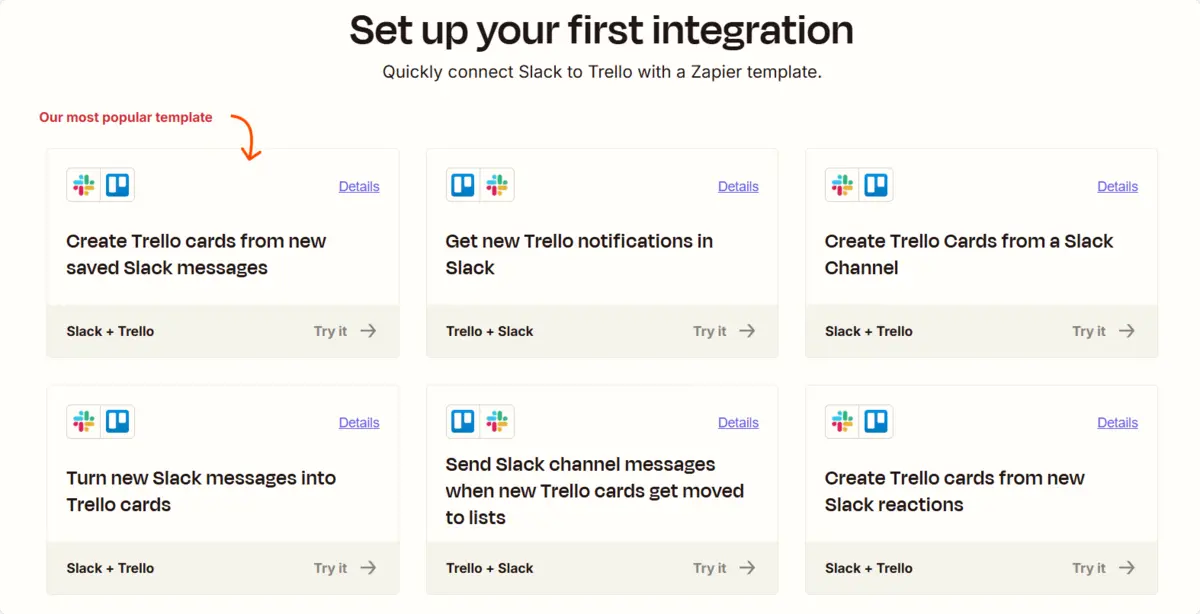
For example, maybe you want to automatically create a Trello card whenever a Slack message in #support gets a 🪲 reaction, or you want to post a weekly summary in Slack of all Trello cards still open. In Zapier, you create "Zaps" with a Trigger (e.g., something happens in Slack) and an Action (do something in Trello). Some useful Zapier workflows for Slack and Trello integration include:
- Create Trello Card from Slack Message: You can set the trigger as "New Message Posted to Slack" or "New Team Custom Emoji".
- Send Slack DM for Overdue Trello Card: In reverse, a Zap could trigger daily on Trello to check for overdue cards and send a Slack direct message or channel alert. This ensures nothing slips by unnoticed.
- Alert Slack on High-Priority Card: Trigger: "New Trello card in 'High Priority' list" -> Action: "Send Slack message to #dev-alerts". This way, if a card is marked high priority in Trello, the dev team’s Slack gets an immediate heads-up.
- Add Slack Channel Conversation Link to Trello Card: Zapier can even update Trello card descriptions with a link to the Slack message or thread ID if you want traceability. Some advanced zaps use Slack message metadata to insert a URL that deep-links back to Slack.
Zapier supports a wide range of Slack events (messages, reactions, mentions) and Trello actions (create card, update card, add comments, etc.), giving you flexibility. Many Zapier templates exist for Slack Trello integration – for example, "Slack -> Trello Quick Connect" templates create Trello cards from saved messages in one click.
Sidenote: The basic Zapier plan is free for a limited number of Zaps and tasks per month, which is usually enough to try out simple Trello integration with Slack automations. (For heavier usage or multi-step Zaps, you might need a paid plan.)
One thing to note: using Zapier means granting it access to your Slack and Trello data. Most companies are fine with this, but be mindful of data privacy and Trello Slack integration privacy settings especially if handling sensitive support data – ensure compliance with your policies when using third-party automation.
Bonus Tip: If you use Slack’s built-in Workflow Builder, you can create a custom workflow where a form in Slack creates a Trello card via webhook. This requires some technical setup and is a bit less straightforward than Zapier, but it's another option that stays within Slack’s ecosystem.
So, Manual vs. Automated Integration: Which One To Choose?
In practice, many teams start with the native Slack Trello integration because it's quick and free. Over time, if they find themselves doing too many repetitive actions (like copy-pasting info between Slack and Trello that could be automated), that’s when they introduce Zapier or other tools for a more automated Slack→Trello integration.
It doesn’t have to be either/or – you can use the native integration alongside custom Zaps. For instance, use the Trello app for on-demand tasks, but also have a Zap for a special case (like urgent alerts). The key is to ensure everyone on the team knows what’s automated and what’s not, so the workflow remains clear.
ClearFeed: A Slack-Native Alternative for Teams Using Trello as a Support Board
ClearFeed is not a Slack-Trello integration and does not sync Trello cards. If your goal is simply to connect Slack messages to Trello cards, use Trello's native Slack app, Zapier, or another automation layer. ClearFeed becomes relevant when the real problem is that Trello is being stretched into a support queue and the team needs ticket ownership, SLAs, private triage, AI assistance, and reporting inside Slack.
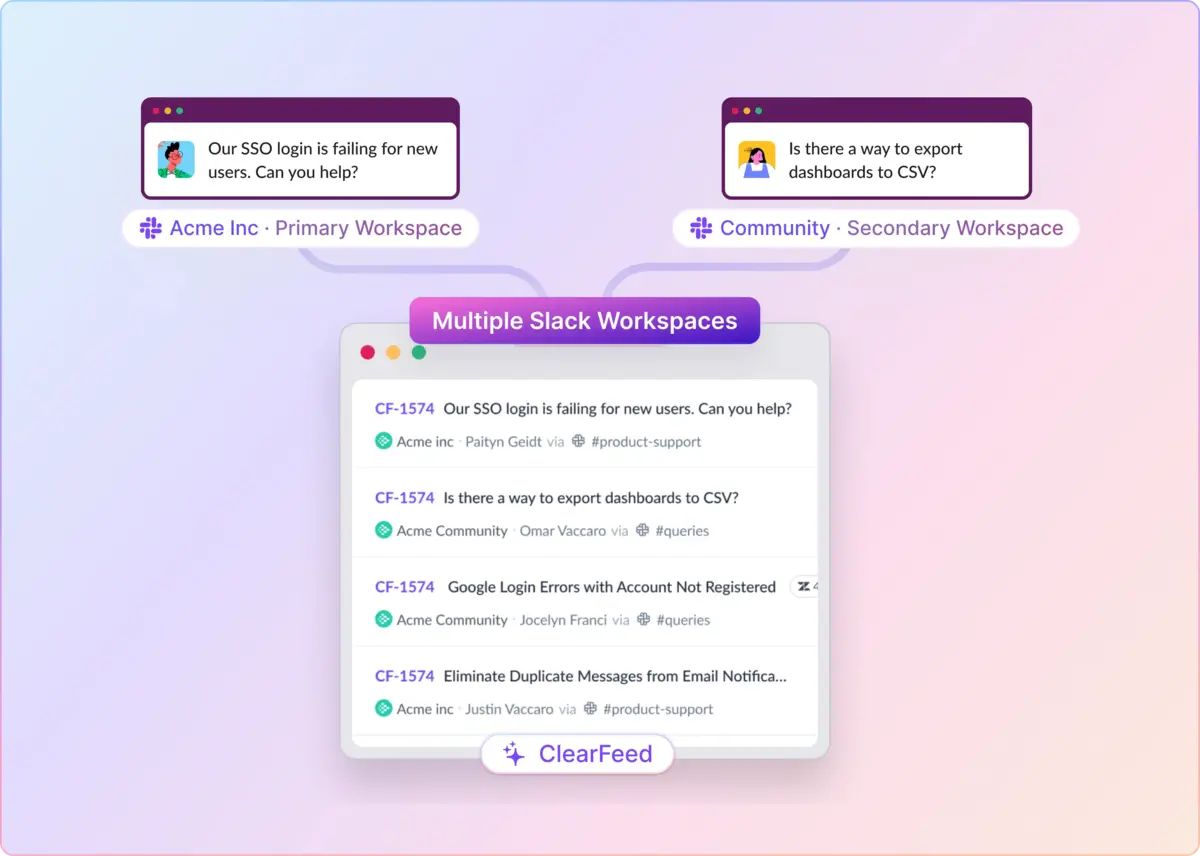
What does Slack-native mean here? ClearFeed lets teams capture and manage requests where they already happen, including Slack channels and Slack Connect, then work them from a triage channel or the ClearFeed web app. It can be used as a standalone ClearFeed ticketing system or alongside supported ticketing/task systems such as Zendesk, Freshdesk, Intercom, Jira Service Management, Salesforce, Jira, Linear, Asana, ClickUp, HubSpot, and GitHub. Trello is not on that supported sync list.
Here's where ClearFeed can help if Trello is starting to feel too manual for support:
- Ticket creation from Slack: Teams can create ClearFeed tickets via emoji triggers, commands, forms, message actions, or the Message Bar button. Collections can also be configured to automatically create tickets, so every request does not have to rely on someone copying a Slack message into a board.
- Triage channels with public/private control: ClearFeed routes requests to Slack triage channels, where responders can reply publicly to the requester or collaborate via private comments. That separation matters for support teams that need internal notes, customer-facing updates, and escalation context in the same workflow without exposing the wrong message.
- Forms, fields, and AI Fields: Instead of relying on free-form Trello card titles, ClearFeed supports ticket forms, custom fields, conditional fields, and AI Fields that can classify or auto-fill details such as request type, product area, urgency, summary, sentiment, or escalation risk. AI classifications should still be reviewed for accuracy, but they reduce the manual tagging that typically accumulates in Slack-to-board workflows.
- Slack Lists for queue visibility: ClearFeed custom views can be synced to Slack Lists on an hourly schedule, so teams can see queues such as unassigned, high-priority, or aging requests directly in Slack. These Slack Lists are view-only and do not convert to Trello boards, but they give support teams the kind of board-like visibility many teams were seeking from Trello.
- SLAs, assignment, and automations: ClearFeed supports business schedules, first-response and resolution SLAs, assignment rules, reminders, escalations, and automations. Automations can update fields, send Slack messages, create tickets, call webhooks, auto-fill fields with AI, and trigger connected actions such as Okta or HubSpot workflows, where configured.
- AI assistance and knowledge workflows: ClearFeed AI Agents can answer questions from connected knowledge sources, assist responders privately during triage, summarize context, and help locate previous requests. Newer AI workflows, such as Research Agent and DocAssist, are designed to answer operational questions using ClearFeed data and identify documentation gaps in resolved support conversations.
- Support reporting: ClearFeed Insights tracks request volume, response times, resolution times, SLA breaches, CSAT, and AI answer metrics, with breakdowns by collection, channel, assignee, customer, and custom fields. Teams can also schedule periodic CSV exports from saved views to Slack.
In short, ClearFeed should not be positioned as another way to connect Trello and Slack. It is better framed as the next step for teams that started with Slack plus Trello, then realized they needed a Slack-first helpdesk with cleaner intake, ownership, visibility, AI guardrails, and support metrics. Get in touch with us if you would like to know more about ClearFeed today!