September 30, 2026

How To Reduce Repeated Questions in Slack With Guru and ClearFeed?

WRITTEN BY
Happy Das
How To Reduce Repeated Questions in Slack With Guru and ClearFeed?
Table of Contents

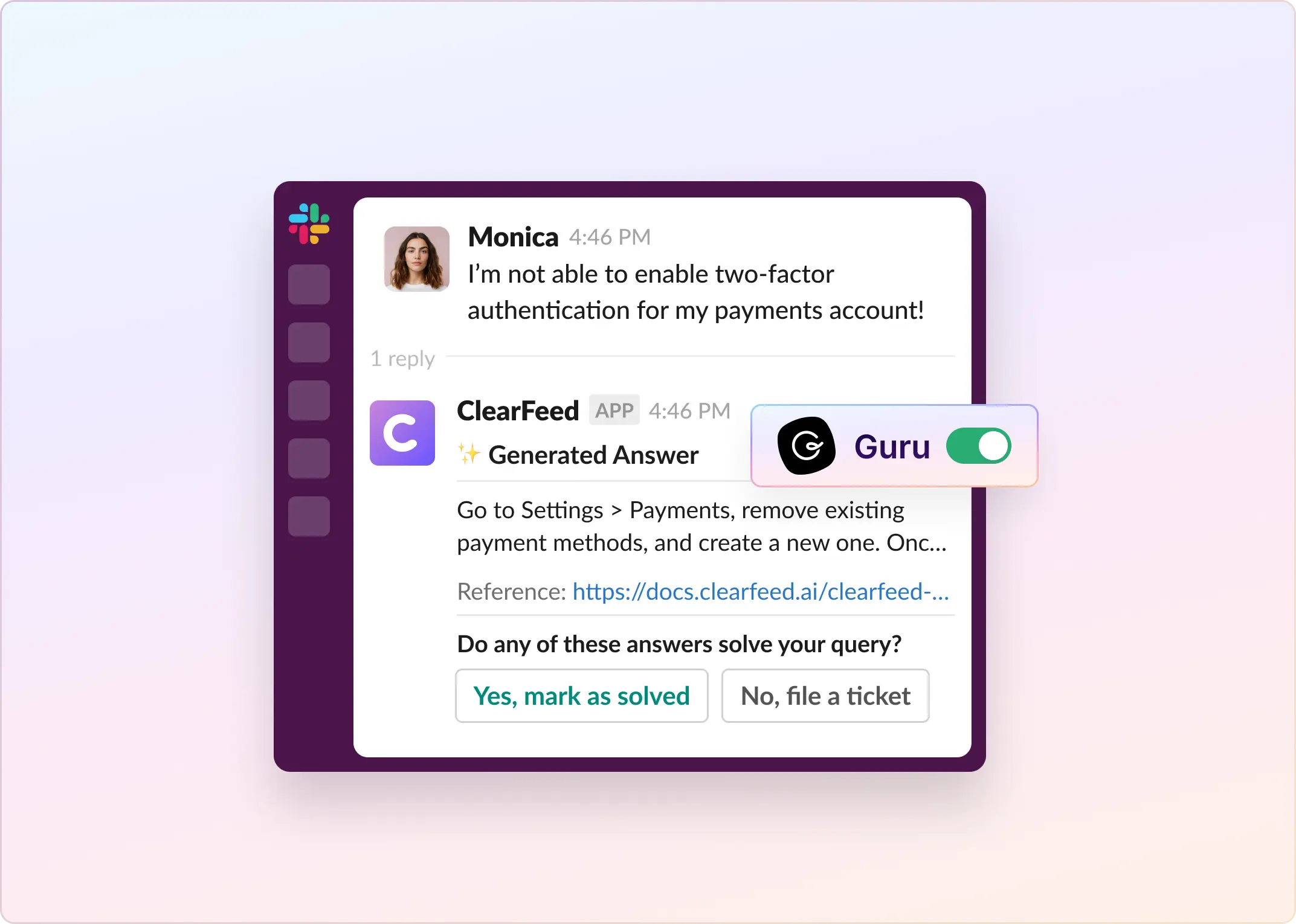
You can reduce the time your team spends answering repeated Slack questions by connecting Guru to ClearFeed and setting up an AI Agent to answer from your Guru cards.

Take a familiar question in #it-help: “How do I get access to the VPN?” The instructions are already in Guru, but an IT teammate still has to find the card, explain the steps, and share the link. A few days later, another new hire asks again.

With ClearFeed, an AI Agent can retrieve those instructions and reply in Slack. Your team can also review suggested answers before sending them. This guide walks through the setup, testing, and routing of unresolved questions to a person.

‍

TL;DR

  • Setup: Connect Guru, index selected collections, build an Answer Agent, test it, deploy it to a ClearFeed Collection, and check the workflow in Slack.
  • Response options: Virtual Agent replies directly to requesters; Agent Assistant drafts private suggestions for your team to review. Choose one per ClearFeed Collection.
  • Content updates: Enable reindexing every 24 hours, or manually reindex after an important change.
  • Human support: Configure ticketing separately so that questions the documentation cannot resolve have a route to your team.

‍

Before You Start

You’ll need ClearFeed connected to Slack, access to its AI features, and a Guru User Token. Creating that token requires Guru Admin access or a custom role with Manage Apps & Integrations permission.

Start with a focused set of Guru cards, such as VPN setup and device onboarding. Check that the instructions are up to date and suitable for everyone in the Slack channels where the agent will respond.

Two terms matter during setup: Guru collections contain the cards you want to index. A ClearFeed Collection groups request channels that share settings, including which AI Agent responds.

‍

How To Set Up Slack Answers From Guru in Six Steps

Step 1: Connect Guru to ClearFeed

  1. In Guru, generate a User Token.
  2. Open the ClearFeed web app and go to Settings → Integrations.
  3. Find Guru and click Connect.
Find Guru and click Connect.
  1. Enter the Guru account email associated with the token.
  2. Enter the User Token as the API key, then click Connect.
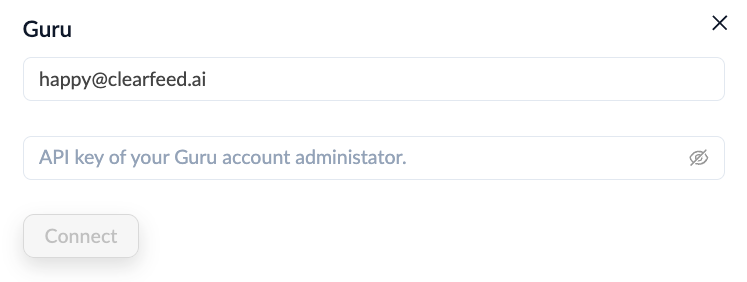
Enter the User Token as the API key, then click Connect.

ClearFeed validates the user's credentials and lists the Guru collections they can access.

The connected user’s permissions determine which content ClearFeed can index. Select collections appropriate for your Slack audience; the integration’s access to a card does not establish that every requester should see its contents.

‍

Step 2: Index Your Guru Content

  1. Go to AI → Knowledge Sources.
  2. Click Add Knowledge Source and select Guru from the dropdown menu.
  3. Give the source a recognizable name, such as “IT employee guides.”
  4. Add a tag, such as guru-help, to connect this source to your agent later.
  5. Select the Guru collections you want to index.
  6. Enable Auto Reindex Regularly to refresh the content every 24 hours.
  7. Click Add.

Leaving the Collections field empty includes all collections available to the connected Guru user. Select your intended collections explicitly for a focused first rollout.

The source enters the indexing queue or starts processing. Wait until its status is Indexed before testing answers. If indexing fails, retry using Reindex; contact ClearFeed support if the failure persists.

‍

Step 3: Build an Answer Agent

  1. In the ClearFeed web app, go to AI → Agent Studio.
  2. Click + New Answer Agent. The dropdown also offers Doc Updater Agent and Insights Agent; for this workflow, use the Answer Agent to answer Slack questions based on your Guru content.
  3. Under Knowledge Sources, choose Pick Specific and select the guru-help tag you added in Step 2.
  4. In the Knowledge Source Advanced Settings, enable Include AI generated answers. Enable Include References to include links to the documentation used in replies. You can display 
  5. Configure the agent’s role and response instructions, then publish your changes. For this example, you could use these instructions: Help employees answer routine IT questions using the connected Guru documentation. Keep instructions concise and easy to follow. Do not invent setup steps or approval requirements. If the documentation does not cover the issue, explain what is missing and direct the employee to IT support.
  6. Under Select AI Model, choose a provider and an available model for your Answer Agent. ClearFeed offers options from OpenAI, Groq, and Gemini for generating answers from Knowledge Sources, including your indexed Guru content. This provider selection applies when you are not using Bring Your Own Model (BYOM).
  7. Under Customize Look and Feel, set a display name, such as “IT help.” You can also add a profile photo and an internal description.
  8. Click Publish to apply your changes.

These instructions guide the response. You’ll configure the actual ticketing route separately.

‍

Step 4: Test Answers Against Your Guru Cards

Use Agent Studio’s chat-based testing to ask questions your team regularly receives. Check the responses and inspect the Execution Plan, including its references, to see what the agent used.

For the VPN example, try:

Test question What to check
“How do I get VPN access?” The answer follows the relevant Guru card and includes any documented approval step.
“I’ve got a new laptop. How do I connect to the VPN?” The agent finds the relevant setup instructions despite different wording.
“I followed the guide, but I still can’t connect.” The agent uses documented troubleshooting steps or acknowledges the gap without inventing a fix.

You can also test against an existing ticket or request to assess answers with real support context.

To compare models, run the same set of sample questions on each model and check answer accuracy, clarity, and response time. Choose the model that works best for your Guru content, and retest whenever you switch models.

If an answer is incomplete, check both the card and the agent’s source selection. Correct the documentation or configuration, reindex when needed, and repeat the test before deployment.

‍

Step 5: Deploy the Agent to Your Slack Channels

In ClearFeed, open the Collection that should use the agent. Its AI settings apply across the channels in that Collection, so check the channel list before enabling replies.

If your target channel is not already included:

  1. Open Collection Settings → Request Channels → + Add Channels.
  2. Select the Slack channel, then click Add.
  3. Assign a Channel Owner and click Start Monitoring.

For a private channel, first invite the ClearFeed bot in Slack using /invite @ClearFeed so the channel appears in the selector.

Next, attach your agent:

  1. Open the Collection’s Settings → AI Agent.
  2. Enable Virtual Agent or Agent Assistant.
  3. Select the Answer Agent you created.
  4. Configure the settings for your chosen mode.
Mode Where the answer appears When to use it
Virtual Agent Directly in the Slack request thread You want the agent to answer requesters using your documentation.
Agent Assistant Privately in the triage thread Your team wants to review, edit, and send suggested replies.

Only one conversation mode can be active per Collection. For automatic replies, choose Virtual Agent and set the trigger to Automatically respond with a generated answer. Instead, you can use an emoji trigger for on-demand replies by applying the emoji to the original request message.

‍

Step 6: Test the Workflow in Slack

Post a new question in a channel covered by the Collection, such as “How do I get VPN access?”

With automatic Virtual Agent replies enabled, check that the answer appears in the request thread and matches the Guru instructions. If you enabled references, check the linked card too. With Agent Assistant, review the suggestion in the triage channel and test sending it to the requester.

Then test an unresolved question. For example, ask about a VPN error that your cards do not cover. Confirm that the reply addresses the missing information appropriately and that your configured support workflow allows the employee to reach your team.

That second test matters: a useful rollout needs to work even when the documented answer is insufficient.

‍

Give Unresolved Questions a Route to Human Support

To let AI attempt a resolution before a ticket enters the queue, enable automatic ticketing and set Virtual Agent timing to Before Ticket Creation.

In this configuration, when the agent generates an answer, the requester can choose:

  • Yes, mark as solved: Close the request without creating a ticket.
  • No, create a ticket: Create a ticket for further help.

If no answer is generated or the requester provides no feedback within one hour, ClearFeed automatically creates a ticket. This behavior is specific to the automatic-ticketing, before-ticket-creation setup; other configurations behave differently.

For the employee who still cannot connect to the VPN, this creates a route to investigation after the standard instructions have failed.

‍

Keep Guru Answers Useful After Launch

Review unresolved conversations alongside the cards the agent used. In ClearFeed’s Inbox or Custom Views, Virtual Agent filters let you find unanswered requests, escalations to humans, and negative feedback.

If employees continue to need help after receiving the VPN guide, check what the guide omits. Does it assume software is already installed? Is an approval step missing? Update the card, manually Reindex the Knowledge Source, and test the question again.

As you expand coverage, add relevant Knowledge Sources to the agent. If Guru should remain the first reference, use Primary Knowledge Source tags: the agent searches primary sources first and consults secondary sources when the primary content does not sufficiently cover the question.

‍

Make the Next Repeated Question Less Work

The next new hire may still ask how to connect to the VPN. With Guru connected to ClearFeed, your documentation can directly answer that question in Slack, while your team handles cases that need investigation.

Start with one channel and a focused set of cards. Test both a routine question and an unresolved one, then expand as the answers prove useful.

Open ClearFeed to connect Guru and build your first Answer Agent.
You can reduce the time your team spends answering repeated Slack questions by connecting Guru to ClearFeed and setting up an AI Agent to answer from your Guru cards.

Take a familiar question in #it-help: “How do I get access to the VPN?” The instructions are already in Guru, but an IT teammate still has to find the card, explain the steps, and share the link. A few days later, another new hire asks again.

With ClearFeed, an AI Agent can retrieve those instructions and reply in Slack. Your team can also review suggested answers before sending them. This guide walks through the setup, testing, and routing of unresolved questions to a person.

‍

TL;DR

  • Setup: Connect Guru, index selected collections, build an Answer Agent, test it, deploy it to a ClearFeed Collection, and check the workflow in Slack.
  • Response options: Virtual Agent replies directly to requesters; Agent Assistant drafts private suggestions for your team to review. Choose one per ClearFeed Collection.
  • Content updates: Enable reindexing every 24 hours, or manually reindex after an important change.
  • Human support: Configure ticketing separately so that questions the documentation cannot resolve have a route to your team.

‍

Before You Start

You’ll need ClearFeed connected to Slack, access to its AI features, and a Guru User Token. Creating that token requires Guru Admin access or a custom role with Manage Apps & Integrations permission.

Start with a focused set of Guru cards, such as VPN setup and device onboarding. Check that the instructions are up to date and suitable for everyone in the Slack channels where the agent will respond.

Two terms matter during setup: Guru collections contain the cards you want to index. A ClearFeed Collection groups request channels that share settings, including which AI Agent responds.

‍

How To Set Up Slack Answers From Guru in Six Steps

Step 1: Connect Guru to ClearFeed

  1. In Guru, generate a User Token.
  2. Open the ClearFeed web app and go to Settings → Integrations.
  3. Find Guru and click Connect.
Find Guru and click Connect.
  1. Enter the Guru account email associated with the token.
  2. Enter the User Token as the API key, then click Connect.
Enter the User Token as the API key, then click Connect.

ClearFeed validates the user's credentials and lists the Guru collections they can access.

The connected user’s permissions determine which content ClearFeed can index. Select collections appropriate for your Slack audience; the integration’s access to a card does not establish that every requester should see its contents.

‍

Step 2: Index Your Guru Content

  1. Go to AI → Knowledge Sources.
  2. Click Add Knowledge Source and select Guru from the dropdown menu.
  3. Give the source a recognizable name, such as “IT employee guides.”
  4. Add a tag, such as guru-help, to connect this source to your agent later.
  5. Select the Guru collections you want to index.
  6. Enable Auto Reindex Regularly to refresh the content every 24 hours.
  7. Click Add.

Leaving the Collections field empty includes all collections available to the connected Guru user. Select your intended collections explicitly for a focused first rollout.

The source enters the indexing queue or starts processing. Wait until its status is Indexed before testing answers. If indexing fails, retry using Reindex; contact ClearFeed support if the failure persists.

‍

Step 3: Build an Answer Agent

  1. In the ClearFeed web app, go to AI → Agent Studio.
  2. Click + New Answer Agent. The dropdown also offers Doc Updater Agent and Insights Agent; for this workflow, use the Answer Agent to answer Slack questions based on your Guru content.
  3. Under Knowledge Sources, choose Pick Specific and select the guru-help tag you added in Step 2.
  4. In the Knowledge Source Advanced Settings, enable Include AI generated answers. Enable Include References to include links to the documentation used in replies. You can display 
  5. Configure the agent’s role and response instructions, then publish your changes. For this example, you could use these instructions: Help employees answer routine IT questions using the connected Guru documentation. Keep instructions concise and easy to follow. Do not invent setup steps or approval requirements. If the documentation does not cover the issue, explain what is missing and direct the employee to IT support.
  6. Under Select AI Model, choose a provider and an available model for your Answer Agent. ClearFeed offers options from OpenAI, Groq, and Gemini for generating answers from Knowledge Sources, including your indexed Guru content. This provider selection applies when you are not using Bring Your Own Model (BYOM).
  7. Under Customize Look and Feel, set a display name, such as “IT help.” You can also add a profile photo and an internal description.
  8. Click Publish to apply your changes.

These instructions guide the response. You’ll configure the actual ticketing route separately.

‍

Step 4: Test Answers Against Your Guru Cards

Use Agent Studio’s chat-based testing to ask questions your team regularly receives. Check the responses and inspect the Execution Plan, including its references, to see what the agent used.

For the VPN example, try:

Test question What to check
“How do I get VPN access?” The answer follows the relevant Guru card and includes any documented approval step.
“I’ve got a new laptop. How do I connect to the VPN?” The agent finds the relevant setup instructions despite different wording.
“I followed the guide, but I still can’t connect.” The agent uses documented troubleshooting steps or acknowledges the gap without inventing a fix.

You can also test against an existing ticket or request to assess answers with real support context.

To compare models, run the same set of sample questions on each model and check answer accuracy, clarity, and response time. Choose the model that works best for your Guru content, and retest whenever you switch models.

If an answer is incomplete, check both the card and the agent’s source selection. Correct the documentation or configuration, reindex when needed, and repeat the test before deployment.

‍

Step 5: Deploy the Agent to Your Slack Channels

In ClearFeed, open the Collection that should use the agent. Its AI settings apply across the channels in that Collection, so check the channel list before enabling replies.

If your target channel is not already included:

  1. Open Collection Settings → Request Channels → + Add Channels.
  2. Select the Slack channel, then click Add.
  3. Assign a Channel Owner and click Start Monitoring.

For a private channel, first invite the ClearFeed bot in Slack using /invite @ClearFeed so the channel appears in the selector.

Next, attach your agent:

  1. Open the Collection’s Settings → AI Agent.
  2. Enable Virtual Agent or Agent Assistant.
  3. Select the Answer Agent you created.
  4. Configure the settings for your chosen mode.
Mode Where the answer appears When to use it
Virtual Agent Directly in the Slack request thread You want the agent to answer requesters using your documentation.
Agent Assistant Privately in the triage thread Your team wants to review, edit, and send suggested replies.

Only one conversation mode can be active per Collection. For automatic replies, choose Virtual Agent and set the trigger to Automatically respond with a generated answer. Instead, you can use an emoji trigger for on-demand replies by applying the emoji to the original request message.

‍

Step 6: Test the Workflow in Slack

Post a new question in a channel covered by the Collection, such as “How do I get VPN access?”

With automatic Virtual Agent replies enabled, check that the answer appears in the request thread and matches the Guru instructions. If you enabled references, check the linked card too. With Agent Assistant, review the suggestion in the triage channel and test sending it to the requester.

Then test an unresolved question. For example, ask about a VPN error that your cards do not cover. Confirm that the reply addresses the missing information appropriately and that your configured support workflow allows the employee to reach your team.

That second test matters: a useful rollout needs to work even when the documented answer is insufficient.

‍

Give Unresolved Questions a Route to Human Support

To let AI attempt a resolution before a ticket enters the queue, enable automatic ticketing and set Virtual Agent timing to Before Ticket Creation.

In this configuration, when the agent generates an answer, the requester can choose:

  • Yes, mark as solved: Close the request without creating a ticket.
  • No, create a ticket: Create a ticket for further help.

If no answer is generated or the requester provides no feedback within one hour, ClearFeed automatically creates a ticket. This behavior is specific to the automatic-ticketing, before-ticket-creation setup; other configurations behave differently.

For the employee who still cannot connect to the VPN, this creates a route to investigation after the standard instructions have failed.

‍

Keep Guru Answers Useful After Launch

Review unresolved conversations alongside the cards the agent used. In ClearFeed’s Inbox or Custom Views, Virtual Agent filters let you find unanswered requests, escalations to humans, and negative feedback.

If employees continue to need help after receiving the VPN guide, check what the guide omits. Does it assume software is already installed? Is an approval step missing? Update the card, manually Reindex the Knowledge Source, and test the question again.

As you expand coverage, add relevant Knowledge Sources to the agent. If Guru should remain the first reference, use Primary Knowledge Source tags: the agent searches primary sources first and consults secondary sources when the primary content does not sufficiently cover the question.

‍

Make the Next Repeated Question Less Work

The next new hire may still ask how to connect to the VPN. With Guru connected to ClearFeed, your documentation can directly answer that question in Slack, while your team handles cases that need investigation.

Start with one channel and a focused set of cards. Test both a routine question and an unresolved one, then expand as the answers prove useful.

Open ClearFeed to connect Guru and build your first Answer Agent.

Related Blogs

See all Blog Posts
TOC heading
Text LinkText Link Active
Get a Free consultation with a Support Expert
Learn how fast growing companies like Teleport, Chronosphere and Acryl Data have scaled Support processes with ClearFeed
Thank you for contacting us. Our team will reach out to you shortly.
Oops! Something went wrong while submitting the form.