June 16, 2026

Microsoft Teams Shared Channels: Setup, Use Cases, and FAQs

WRITTEN BY
Happy Das
Microsoft Teams Shared Channels: Setup, Use Cases, and FAQs
Table of Contents

Microsoft Teams shared channels can feel a little confusing at first because they sit somewhere between a standard channel, a private channel, and external guest access. They let people from different teams, departments, and even other organizations work together in one focused space without giving everyone access to the full parent team.

That makes them useful for customer collaboration, MSP-client communication, partner projects, internal cross-functional work, and customer success workflows. But it also raises many practical questions: who can see what, how access works, whether external users need guest accounts, which apps are supported, how files are stored, and when shared channels are actually better than creating a new team.

In this FAQ, we’ll break down the most common questions about Microsoft Teams shared channels, with practical examples to help you decide when to use them and how to manage them properly.

‍

Section 1: Microsoft Teams Shared Channel Basics

1. What Is a Microsoft Teams Shared Channel?

A Teams shared channel is a Microsoft Teams channel that lets a specific group collaborate without granting them access to the whole team. It’s useful when you need a shared workspace for people across different teams, departments, or even external organizations. 

Only the people added as shared channel owners or members can see its chats, files, and activity. Other members of the parent team do not automatically get access.

‍

2. Why Should I Use a Microsoft Teams Shared Channel for Cross-Organization Collaboration?

  1. No guest account sprawl: External users authenticate through their own tenant. You don’t create or maintain guest objects in your directory, slashing admin overhead and the risk of stale accounts.
  2. Security boundaries stay intact: Each organization’s data loss prevention, retention, and conditional access policies apply to its own users. You never compromise your compliance posture for theirs—and vice versa.
  3. Simplified file collaboration: The channel gets its own SharePoint site. Members co-author and sync files using their own credentials, without needing guest licenses or access to your wider SharePoint environment.
  4. Zero license cost for externals: External participants don’t need a paid license from your side. Any Teams-enabled identity in their own tenant works.
  5. One place for chat, meetings, and apps: Persistent chat, ad-hoc and scheduled meetings, file co-authoring, and shared tabs (like task boards or dashboards) live in one channel—replacing fragmented email threads and portals.
  6. Perfect for project-based work: Add a shared channel to an existing internal team for joint development, client deal coordination, M&A, or co-marketing. Your team stays in its core workspace and pivots to the shared channel only when engaging externally.

If you’re still toggling between tenants or managing guest lists, shared channels offer a cleaner, more secure, and professional experience—for both sides.

‍

3. How Is Microsoft Teams Shared Channel Different From Standard and Private Channels?

Here's how the three channel types differ:

Feature Standard Channel Private Channel Shared Channel
Who can access it? Everyone in the team Only added members (same team) Only invited members (any org)
Can it include people outside the parent team? No No Yes
Can it include external organizations? No No Yes, via B2B Direct Connect
Visibility to team members Visible to all Hidden unless added Hidden unless added
File storage Team's SharePoint site Separate SharePoint site Separate SharePoint site
Best for Company-wide announcements, team collaboration Confidential internal discussions Cross-team projects, vendor partnerships, customer support

‍

4. How Do Microsoft Teams Shared Channels Work?

When you create a shared channel in Teams, Microsoft gives that channel its own SharePoint site. It is separate from the main SharePoint folder for the team.

People outside your organization join through Microsoft Entra B2B Direct Connect. You do not need to create guest accounts for them.

The files and conversations still live in your tenant, but invited external members can open them from their normal Teams setup.

The channel is visible only to the people you add. Other team members will not see it unless they are invited.

That is the part that matters for users: they keep using their own work account. They do not switch tenants or sign into a guest account. The shared channel simply appears in their Teams.

‍

5. What's the Difference Between Microsoft Teams "Shared Channels" and Microsoft "Teams Connect"?

These terms are often used together, so the confusion is understandable. The simplest way to think about it is this:

  • Shared channels are the actual channel type inside Microsoft Teams. They let you create a focused collaboration space and share it with specific people or teams, either inside your organization or externally.
  • Teams Connect is Microsoft’s broader branding for the cross-organization collaboration capability that makes this kind of external shared-channel work possible.

In other words, Teams Connect is the capability, and shared channels are how you use it inside Teams.

For example, if you create a shared channel for a customer project and invite people from the customer’s organization, you are using a Microsoft Teams shared channel. The external collaboration experience behind it is part of Teams Connect.

‍

6. How Many Microsoft Teams Shared Channels Can I Create, and What Are the Hard Limits?

Microsoft sets these limits:

Limit Type Maximum
Shared + Standard channels per team Up to 1,000 total (any mix)
Private channels per team Up to 30
Individual members per shared channel Up to 5,000
Teams that can share a single channel Up to 50 teams (each counts as 1 toward the 5,000-member limit)
External organizations in one channel Multiple organizations can collaborate in the same channel

For most organizations, these limits won't be a blocker. Even companies supporting 50+ customers via shared channels stay well below these thresholds.

‍

7. Are Microsoft Teams Shared Channels Free?

Shared channels are not a free Teams feature, but they don't come with an additional cost either. They come included with:

  • Microsoft Teams business, enterprise, and education subscriptions
  • Microsoft 365 Business Standard or higher
  • NOT available on Teams Free or personal Microsoft 365 plans

For external collaboration specifically:

  • Both organizations need work/school Teams accounts
  • Your admins must configure B2B Direct Connect (setup takes 30-60 minutes)
  • Azure AD Free is sufficient for B2B connectivity; Azure AD Premium 1 is needed for advanced trust settings
  • External users don't count toward your licensing, and they use their own organization's licenses

‍

8. What Is a Microsoft "Host Tenant" and Why Does It Matter?

The host tenant is your organization, the one that created and owns the shared channel. The external tenant is the partner’s organization, whose users are invited to join it. This matters for governance because

  • You can control the channel setup, including naming, privacy settings, and who gets added
  • You can apply Teams policies. That means shared channels follow your organization's retention rules, DLP policies, and conditional access settings
  • Data lives in your tenant. Files are stored in your SharePoint site; external users access them from their tenant through secure B2B Direct Connect
  • You can manage the lifecycle (for example, who stays, who's removed, and when to archive or delete)

External users benefit from your organization's compliance controls, but they continue to use their own work accounts and don't create additional accounts.

‍

Section 2: Understanding the Setup and Invitation Process

1. How Do I Create a Microsoft Teams Shared Channel?

Here's the step-by-step process:

  1. Go to your team and hover over the team name
  2. Click the three dots (â‹®) next to the team name and select "Add channel"

Click the three dots (â‹®) next to the team name and select "Add channel"
  1. Enter a channel name and add a description (optional but recommended)
  2. Choose a channel type as “Shared” and click “Create”

You're now a shared channel owner and can add members.
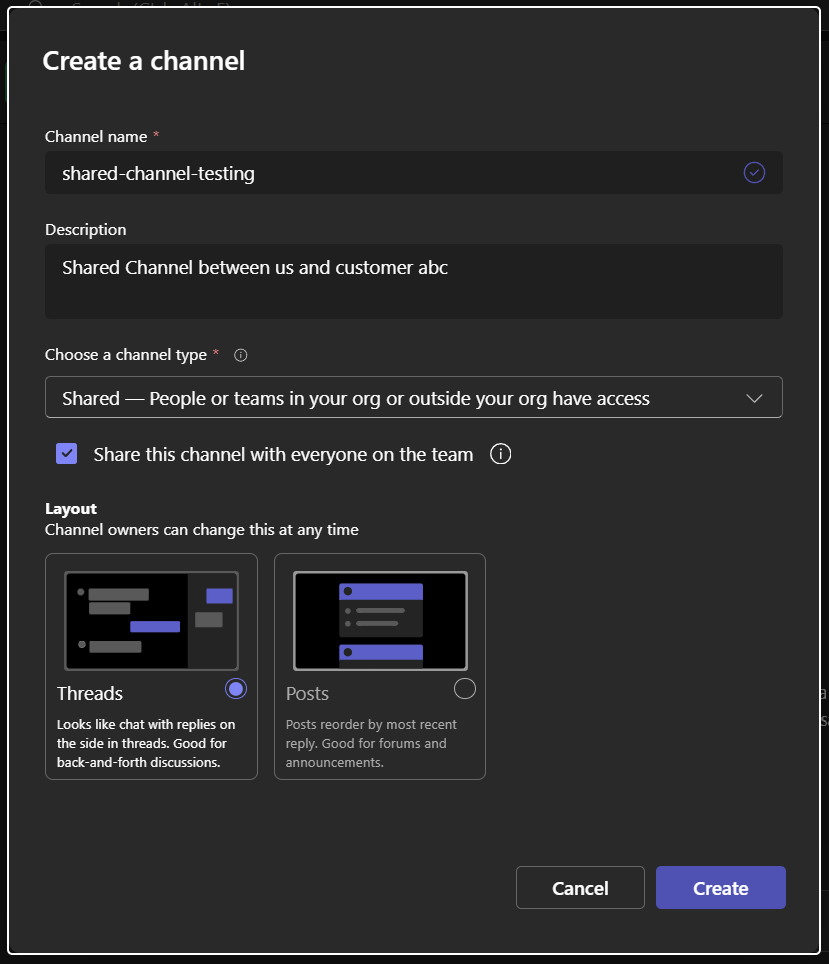
Choose a channel type as “Shared” and click “Create”

‍

2. Who Can You Create Microsoft Teams Shared Channels, and How Do I Control This?

By default, any team owner can create shared channels. If you want to restrict this:

  1. Go to Microsoft 365 Admin Center → Teams → Teams policies
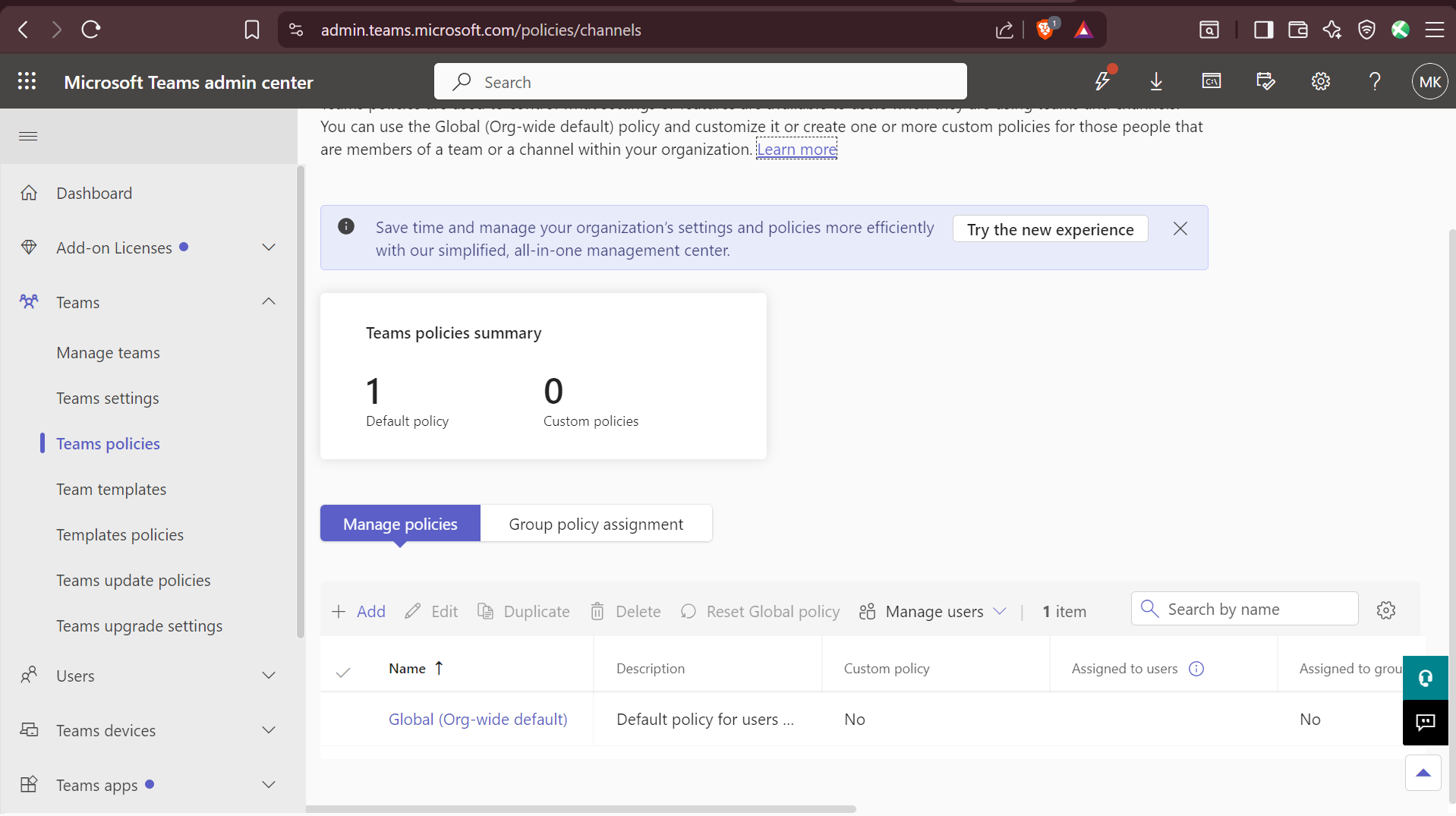
Go to Microsoft 365 Admin Center → Teams → Teams policies
  1. Select Global (Org-wide default) or create a custom policy
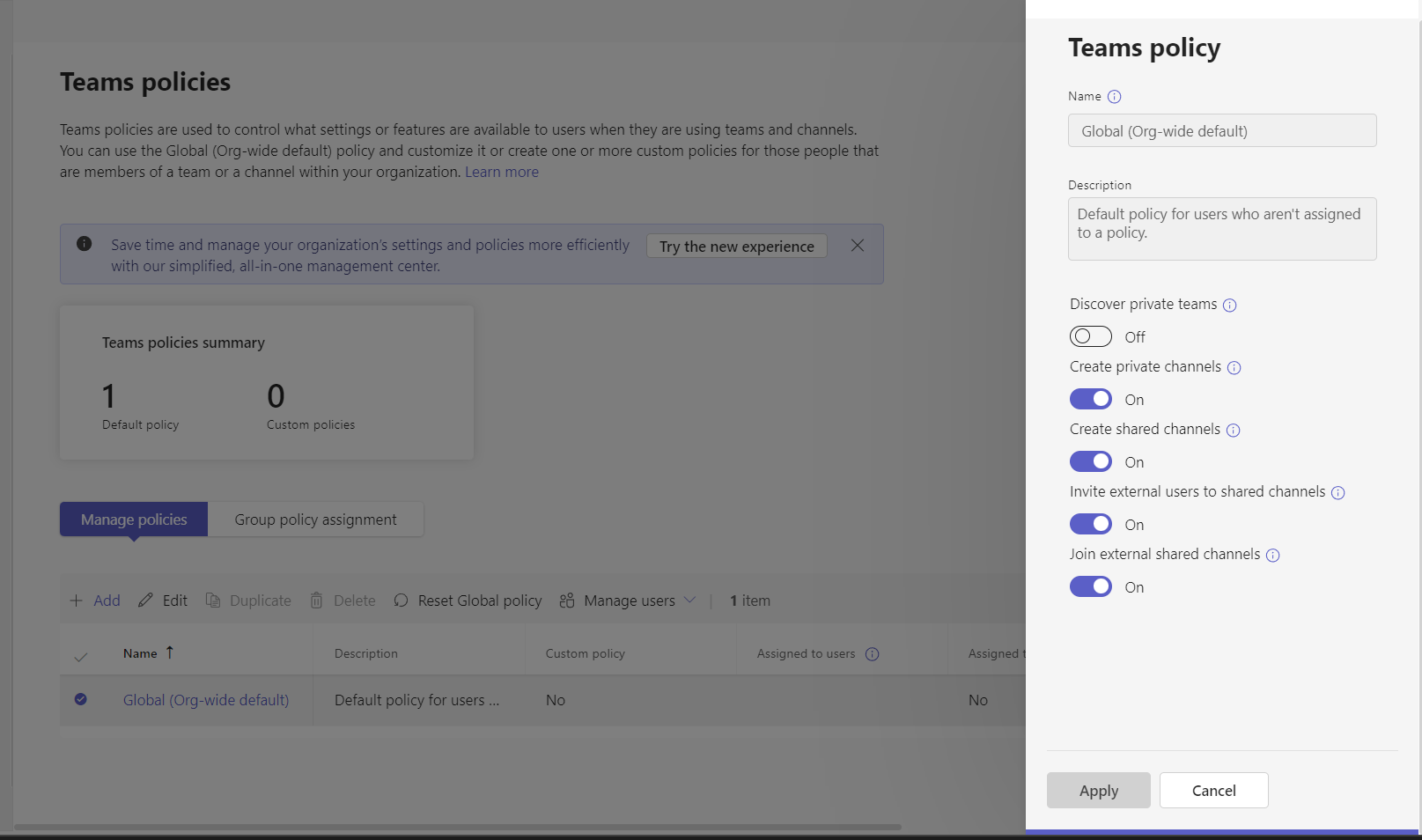
Select Global (Org-wide default) or create a custom policy
  1. Toggle "Create shared channels" to Off and assign this policy to the teams where you want to restrict creation

Pro tip: If you need a formal approval process before shared channels are created, use Power Automate to trigger an approval flow when someone submits a request form.

‍

3. How Do I Invite External Organizations to a Microsoft Teams Shared Channel?

Prerequisites:

  • The external person must have a work or school Teams account in Microsoft 365 (not a personal account or Gmail)
  • Your organization and theirs must have B2B Direct Connect enabled (your IT admins handle this)

Steps to invite:

  1. Go to your shared channel → More options (⋮) next to the channel name
  2. Select "Share channel" and choose "Share with people" (or "Share with team" if inviting an entire team)
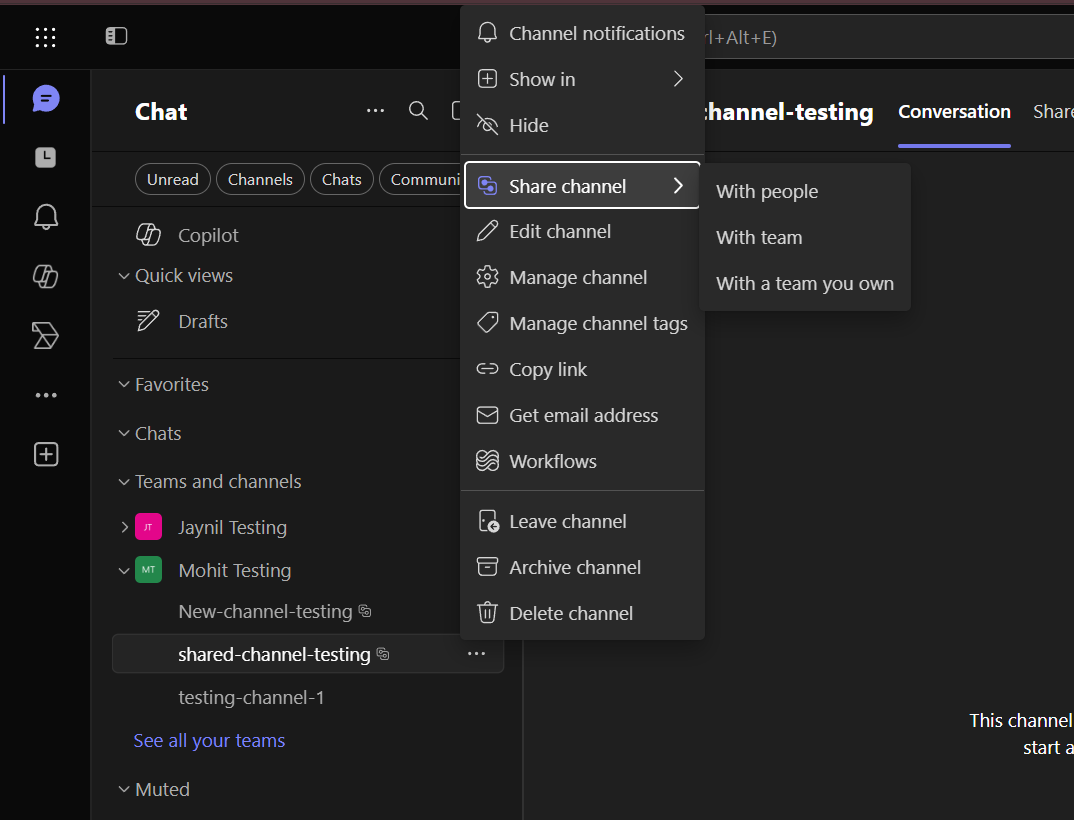
Select "Share channel" and choose "Share with people" (or "Share with team" if inviting an entire team)
  1. Type the external person's email address and click Share

They'll receive a notification and can access the channel immediately from their Teams environment.

‍

4. Can I Invite Individual People, Entire Teams, or Both?

Yes, you have flexibility:

Invitation Type How It Works
Individual people Search by name or email within your organization
External individuals Use their email address; they get access immediately
Entire teams Invite the team owner (not the team itself); they can approve and manage membership on their side
Mixed membership You can have internal people, external individuals, and entire external teams all in the same channel

Important: When you share a channel with another team’s owner, they can choose to add it to their team’s view. This does not automatically give access to every member of their team. The external team owner still controls who on their side can access the shared channel.

‍

5. Can One Microsoft Teams Shared Channel Be Used by Multiple Teams?

Absolutely. This is a powerful feature for cross-organizational collaboration:

  1. Channel Can Bring Many Teams Together: A single shared channel can connect up to 50 different teams, including both internal teams and external organizations.
  2. Different Departments Can Work in the Same Space: Sales, Engineering, Support, or any other internal teams can collaborate in a shared channel alongside external partners, without requiring everyone to be on the same parent team.
  3. External Partners Only See the Channel They’re Invited To: Partners do not get visibility into the parent team or other channels. They only see the specific shared channel where collaboration is happening.
  4. It Works Well for Project-Based Collaboration: Shared channels are especially useful when multiple functions need to work with the same customer or partner on a specific project, implementation, escalation, or account.

‍

6. What Happens When a Microsoft Teams Shared Channel Is Deleted?

When you delete a shared channel, all data is permanently deleted:

Data Type Status
Channel conversations Deleted forever
Files in SharePoint Deleted forever
Apps and tabs Deleted
Connection to external teams Severed

Important: There's no recovery unless retention policies are enabled.

‍

Section 3: Security, Permissions, and Governance

1. What Can External Members See in My Organization?

An external member can only see the shared channel and nothing else. They cannot see:

  • Other channels in your team
  • Files outside the shared channel
  • Team membership or org structure
  • Your other teams or projects
  • Internal announcements or standard channels

They can only:

  • See the one shared channel they're invited to
  • Access files posted in that channel
  • Read and post messages
  • Join meetings scheduled in the channel

‍

2. How Do I Control Who Can Add Members to a Microsoft Teams Shared Channel?

By default, only shared channel owners can add new people. To manage this:

  1. Go to the shared channel → More options (⋮) → Manage channel
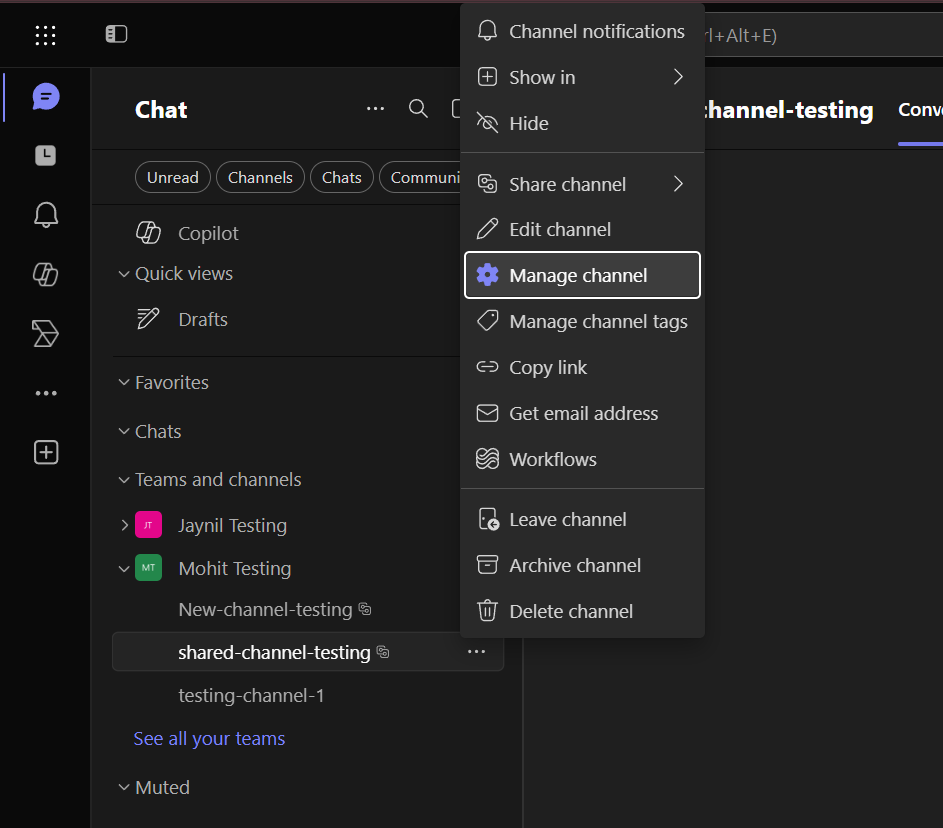
Go to the shared channel → More options (⋮) → Manage channel
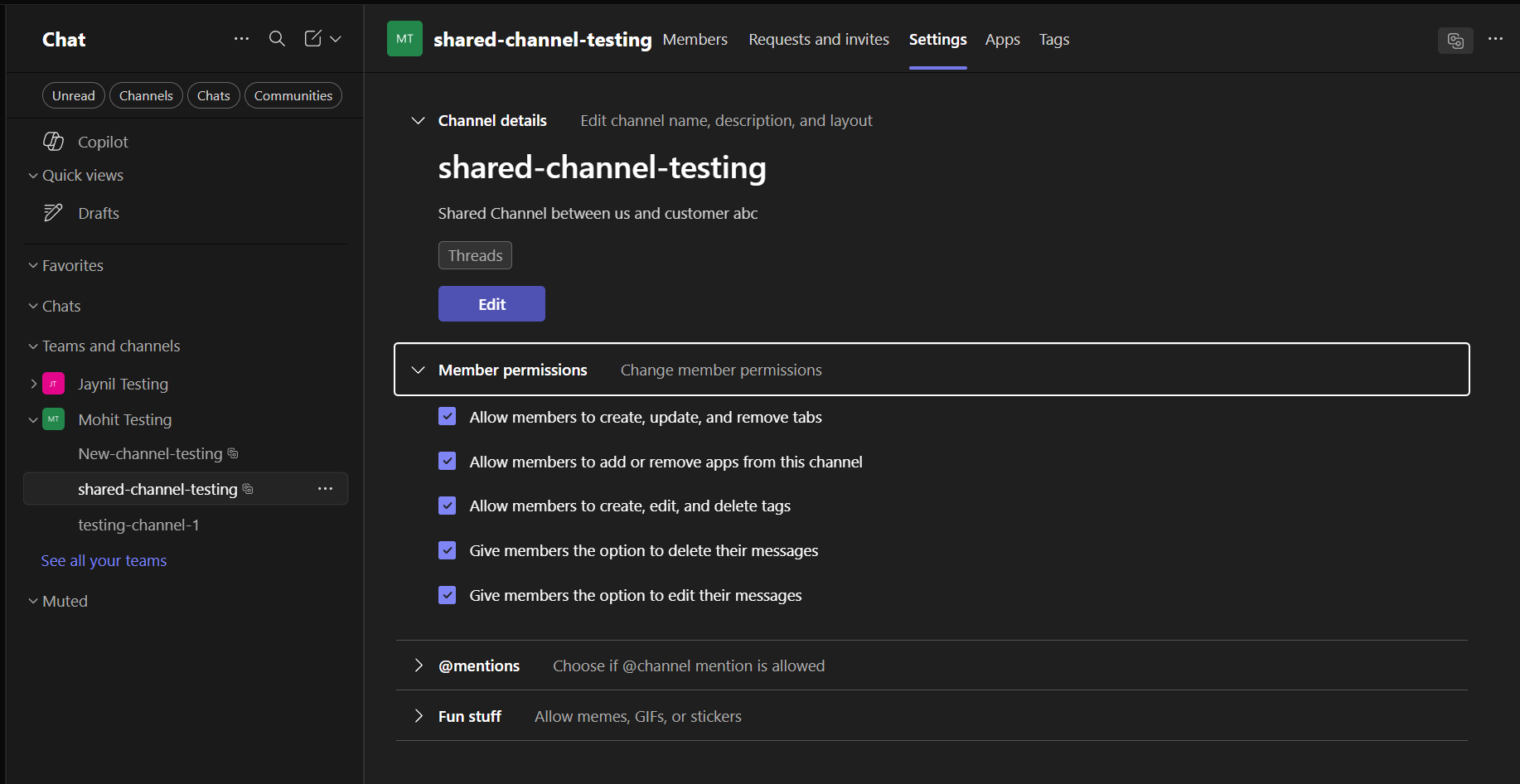
  1. Click Settings → Member permissions
Click Settings → Member permissions
  1. You'll see toggles for:
    • Allow members to add other members (toggle on/off)
    • Allow members to share with teams (toggle on/off)

Recommendation: Keep this restricted to owners for security, especially with external partners.

‍

3. Can External Members Be Channel Owners?

No. External users can only be members, not owners. This is a Microsoft-level restriction for security reasons. You can have multiple internal owners, but external partners will always be members.

‍

4. Do My Compliance Policies Apply to Microsoft Teams Shared Channels?

Yes, mostly. Here's what's covered:

Policy Type Coverage
Retention policies Yes. Messages and files can be retained per your org's policies
Data Loss Prevention (DLP) Yes. DLP rules apply to shared channel content
Sensitivity labels Yes. You can enforce labels on files in shared channels
Conditional Access Mostly. External users go through both their org's and your org's policies
eDiscovery Yes. Shared channel content is discoverable for legal holds

One caveat: If an external user has a file open in SharePoint, their organization's policies also apply. It's a combination of both organizations' rules.

‍

5. Can Admins See Microsoft Teams Shared Channels They're Not a Member of?

Yes. As an admin, you have full visibility:

Where you can see shared channels:

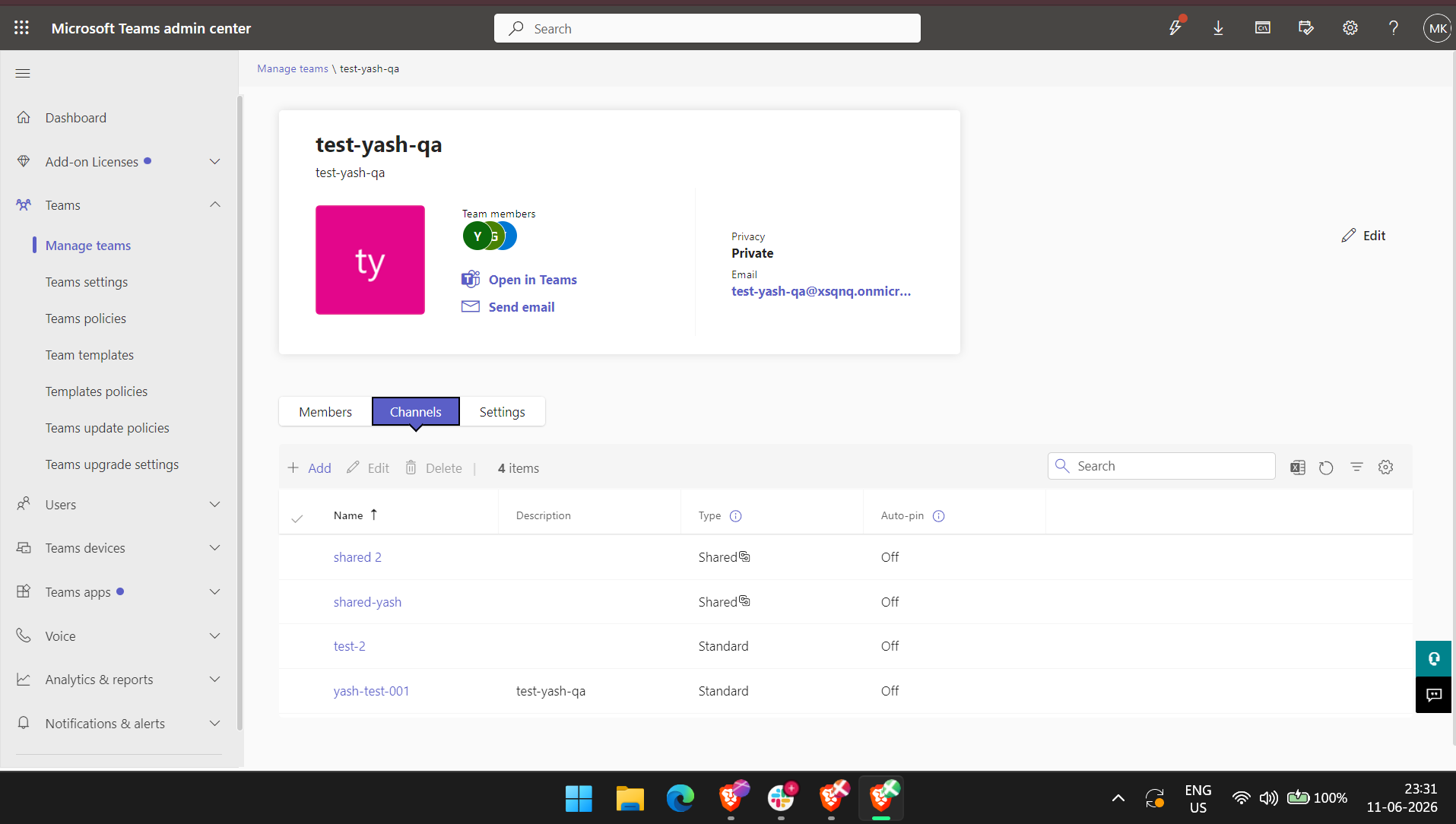
  1. Teams Admin Center
    • Navigate to Teams → Manage teams
Can Admins See Microsoft Teams Shared Channels They're Not a Member of
  • Select your team
  • Click on the Shared Channels tab
  • View all members (internal and external)
  1. SharePoint permissions
    • Go to the shared channel's SharePoint site
    • Add /\_layouts/15/user.aspx to the URL
    • See all users with access, including their tenant IDs
  2. Audit logs
    • Use Microsoft Purview → Audit logs
    • Search for shared channel activities: who was added, when, changes to settings
  3. Reports
    • Use Office 365 reports or third-party tools (Admindroid, Teams Manager)
    • Get a snapshot of all external access across your organization

‍

6. How Do I Audit Who Has Access to Microsoft Teams Shared Channels?

Here are the three best methods:

Method 1: Quick check (through the channel)

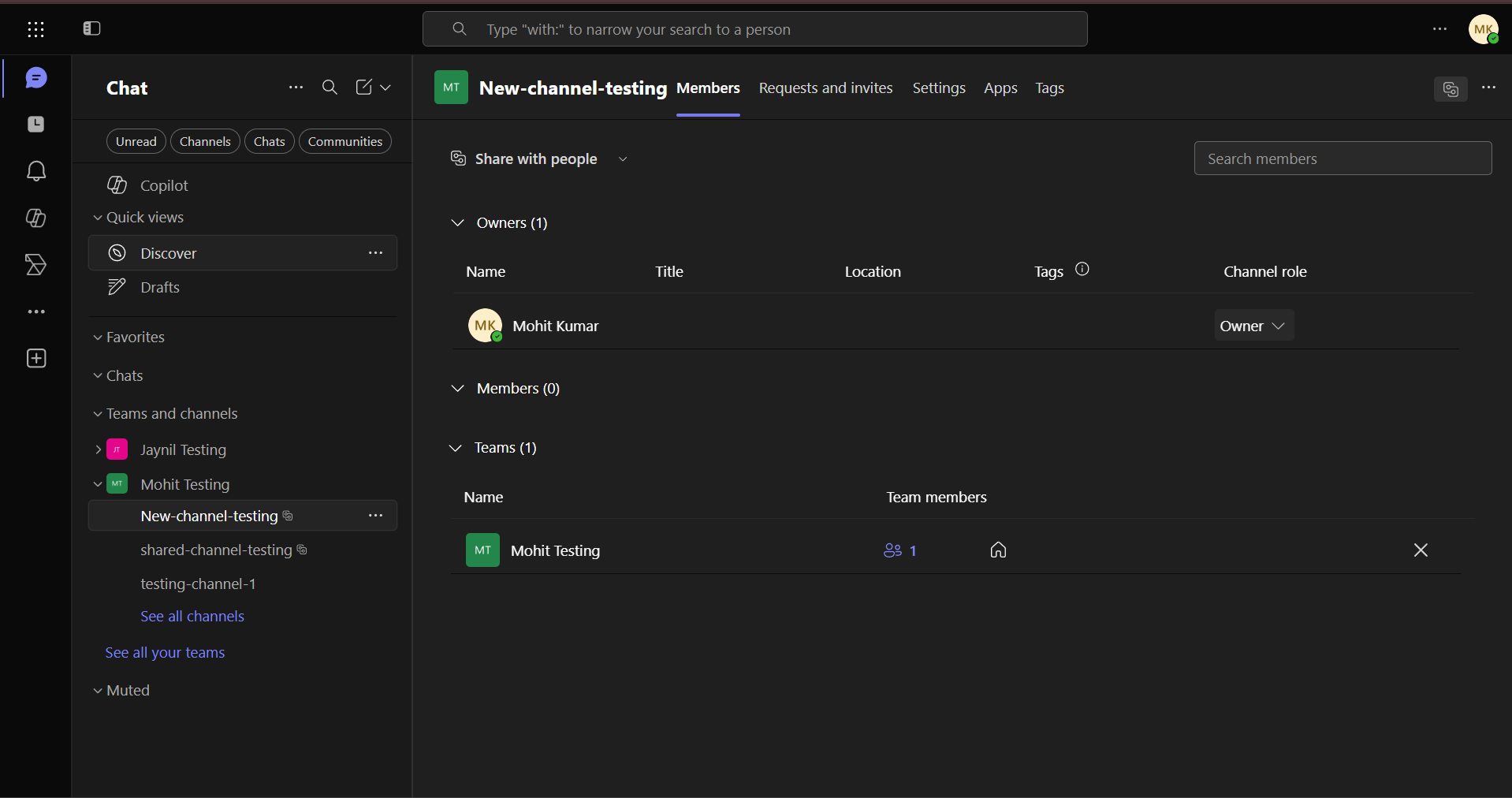
  • Go to shared channel → More options (â‹®) → Manage channel
  • Click the Members tab
  • See everyone with access
How Do I Audit Who Has Access to Microsoft Teams Shared Channels

Method 2: Comprehensive audit (through SharePoint)

  1. Find the shared channel's SharePoint site
  2. Go to Site Permissions
  3. Export the user list with their organization/tenant info

Method 3: Automated tracking (via audit logs)

  • Set up Microsoft Purview alerts for:
    • When external users are added
    • When members are removed
    • When sharing settings change

Pro tip: Set a quarterly review to catch stale external access and remove people who no longer need the channel.

‍

7. How Do I Remove an Entire Partner Organization From All Microsoft Teams Shared Channels?

This is a manual process (Microsoft doesn't have bulk removal):

  1. Identify all channels where this organization has members
    • Use Teams Admin Center or an audit report
  2. Remove users one by one
    • Go to each shared channel → Manage channel → Members
    • Remove each user from that organization
    • Repeat for every channel
  3. Verify removal
    • Check SharePoint site permissions for orphaned access
    • Review audit logs to confirm removal was successful

Note: Use PowerShell or the Graph API if you have many channels to manage, as scripting is more efficient than using the UI.

‍

Section 4: Managing Apps, Bots, and Integrations

1. Which Apps and Integrations Work in Microsoft Teams Shared Channels?

Microsoft Teams shared channels support many apps, but they behave a little differently from apps in standard channels. Apps must be allowed by the host organization, installed in the host team, and added to the specific shared channel.

  1. Microsoft 365 Apps: Core apps like Files, Word, Excel, PowerPoint, OneNote, Lists, SharePoint, SharePoint Pages, PDF, Web, and YouTube can be used as tabs in shared channels. These are useful when you want documents, lists, notebooks, dashboards, or reference links available directly inside the channel.
  2. Project and Task Management Apps: Shared channels can support tools like Asana, Trello, monday.com, MeisterTask, and Zoho Projects in a Box. These work well when the shared channel is tied to a customer project, partner rollout, or cross-functional task list.
  3. Support, DevOps, and Service Tools: Apps like ClearFeed, Jira Cloud, and Zendesk can help teams manage tickets, issues, approvals, remote support, and customer escalations without moving the conversation out of Teams.
  4. Whiteboarding and Visual Collaboration Apps: Tools such as Miro, MURAL, Lucidchart, Conceptboard, Freehand by InVision, MindMeister, and Mindomo are useful for workshops, architecture diagrams, customer onboarding plans, process maps, and brainstorming sessions.
  5. Polling, Training, and Engagement Apps: Apps like Slido, SurveyMonkey, Kahoot!, Quizlet, Nearpod, Pear Deck, Wooclap, Vevox, and Testportal can be used for surveys, quizzes, training sessions, customer feedback, and partner workshops.
  6. Custom and Line-of-Business Apps: Custom Teams apps can work in shared channels, but developers may need to update the app manifest and validate that the app handles shared-channel membership, storage, permissions, and external users correctly.
  7. Workflow and Webhook Integrations: Automation is also possible. Microsoft notes that Workflows can post as a flow bot in shared channels, which is useful for alerts, notifications, and external system updates.

Important: App access follows the host team’s app roster and the host tenant’s app policies. External participants can use supported apps in the shared channel, but they can’t manage tabs and apps themselves.

‍

2. How Do I Integrate a Helpdesk or Ticketing Tool With a Microsoft Teams Shared Channel?

For customer support teams, here are the most practical integration approaches:

Option 1: Native Teams App (Recommended)

  1. Go to shared channel → More options (⋮) → Add app
  2. Search for your tool (e.g., Zendesk, Jira, ClearFeed)
  3. Install and configure
  4. Your team can now see tickets and statuses right in Teams

Option 2: Add as a Tab

  1. Click the + button in the channel
  2. Add a tab for your ticketing system
  3. Configure to show open tickets, customer dashboards, or status views
  4. Updates sync in real time

Option 3: Incoming Webhooks

  1. Set up an Incoming Webhook in the shared channel
  2. Configure your ticketing system to send notifications to the webhook URL
  3. Whenever a ticket is created or updated, a message appears in the channel

Option 4: Power Automate Workflow

  1. Create a flow: "When a new message in the shared channel → Create ticket in Zendesk/Freshdesk."
  2. You can also do the reverse: "When a ticket is resolved → Post update in the channel."

Best practice for customer support: Use a combination—add your helpdesk tab for visibility, and use incoming webhooks or Power Automate to post notifications when customers reply, or issues are resolved.

‍

3. Can I Use Copilot and AI Features in Microsoft Teams Shared Channels?

Yes. Copilot works in shared channels with these capabilities:

  • Meeting summaries: Automatically summarize meetings held in the channel
  • Conversation summaries: Copilot can recap threads and decisions
  • Status reports: Generate summaries of activity for stakeholder updates
  • Content search: Copilot can search and synthesize information from channel conversations

Important limitation: Copilot only accesses content you have permission to see. External members' Copilot access is bound by B2B Direct Connect boundaries, and they can't search beyond their authorized channel.

‍

Section 5: Advanced Topics and Governance at Scale

1. How Do I Set Up Governance for Microsoft Teams Shared Channels Across My Organization?

If you're running 20+ shared channels (especially with multiple customers), governance becomes critical:

1. Establish naming conventions

  • Pattern: [Partner/Customer Name] - [Purpose]
  • Examples: Acme Corp - Support, TechVendor - Engineering, ClientABC - Implementation
  • Benefit: Easy to scan and understand which channels are for

2. Assign clear ownership

  • Each shared channel needs one primary owner (usually a CS rep or account manager)
  • They're responsible for: adding members, archiving when done, staying compliant with policies
  • Use Teams policies to enforce that only designated people can create new channels

3. Document what's shared and why

  • Keep a spreadsheet: Channel name, external org, purpose, owner, start date, renewal date
  • Helps with audits and prevents "zombie channels" that are no longer needed

4. Set up automatic reviews

  • Schedule quarterly reviews of active shared channels
  • Ask: Is this channel still needed? Are the members current? Should anyone be removed?
  • Delete or archive channels that are no longer active

5. Create channel templates

  • Use Teams templates for common scenarios (customer support, partner projects)
  • Pre-configure apps, tabs, and initial messages
  • Saves time and ensures consistency

‍

2. How Do I Use Microsoft Teams Shared Channel for B2B Customer Support?

Before you start, both organizations must have Microsoft Entra B2B Direct Connect configured. Once that’s done, follow these steps:

  1. In your internal support team, create a new shared channel and share the channel with the customer’s tenant by entering their tenant domain or ID. This step sends an invitation to the external organization’s admin. Assign the appropriate channel owner(s) from your side.
  2. The customer’s Microsoft 365 admin receives the request and approves the shared channel. The customer then adds their own users (e.g., procurement lead, operations manager, IT contact) to the channel from their Teams client. They manage their own membership independently.
  3. Turn the shared channel into a structured support hub:
    1. Tabs: Pin a shared OneNote or a SharePoint page for a known-issues list, a Power BI dashboard showing SLA compliance, or an Asana board for tracking action items.
    2. Pinned posts: Use an adaptive card or a simple formatted post at the top of the channel with key contacts, emergency escalation paths, and links to your self-service portal.
    3. Channel calendar: Schedule recurring support reviews or QBRs directly from the channel; all sides see the same meeting history and recordings.
  4. Run day-to-day support right in the channel
    1. Conversations: The customer starts a new conversation thread for each issue. Your support team replies in-thread, keeping every case neatly separated and searchable.
    2. Files: Share error logs, screenshots, or configuration files directly into the conversation. The customer drops them in the channel’s Files tab; everyone with access can co-edit and version-track in real time without leaving Teams.
    3. Escalation and @mentions: Tag the specific support engineer or the entire support team using @mentions. Your triage bot or incoming webhook connector can also post automated alerts when a ticket is raised in your ITSM system.
  5. Create a separate shared channel for each customer within the same internal support team. For each shared channel, you can define information barriers and compliance policies that apply to your support team’s access, without imposing them on the customer’s users.

Check out our detailed guide on how to use Microsoft Teams for customer support today!

‍

3. How Do I Avoid Microsoft Teams Shared Channel Sprawl When Supporting 50+ Customers?

This is a real challenge for SaaS companies and MSPs. Here's how to scale responsibly:

Strategy Implementation
Use shared channels as the default Instead of creating separate teams for each customer, use one "Customer Support" team with many shared channels
Standardize naming ClientName-Support, not "New Channel for Bob's Company"
Restrict creation rights Only 2-3 people can create new shared channels; everyone else requests them
Automated lifecycle management Delete/archive unused channels after 90 days of inactivity automatically
Single source of truth Keep a spreadsheet or database of all channels, their status, and owners
Quarterly audits Review all channels with external members and clean up stale ones

Pro tip: Use Power Automate to flag channels that haven't had activity in 90 days. Have the owner confirm whether it's still needed or should be archived.

‍

4. How Do I Onboard a New Customer Into a Microsoft Teams Shared Channel Smoothly?

Here's a repeatable onboarding playbook:

Step 1: Create the channel

  • Hover over your team → Add channel → Select "Shared"
  • Name it: [Customer Name] - Support (or Implementation, Engineering, etc.)
  • Add description: "Dedicated channel for [Customer] and [Your Team]"

Step 2: Add your team members

  • Go to channel → Members tab
  • Add your support reps, account managers, or whoever needs to be involved

Step 3: Invite the customer

  • Channel → More options (â‹®) → Share channel
  • Enter customer contact's email
  • Click Share
  • They get a notification immediately

Step 4: Set up initial content

  • Add a welcome tab with onboarding docs, SLA expectations, and hours of support
  • Post a welcome message explaining the channel's purpose and how to use it
  • Add any needed apps (Zendesk, Jira, etc.)

Step 5: Kick off a meeting

  • Schedule a quick Teams meeting to intro your team
  • Explain how the channel works
  • Confirm how they'll reach you (response time, escalation path)
  • Answer first-day questions

‍

5. How Do I Measure Response Time and SLAs Inside a Microsoft Teams Shared Channel?

Native Teams has no built-in SLA tracking, so here are practical workarounds:

Approach Best For
Power Automate + Dataverse Custom SLA tracking; trigger timers when messages arrive, alert on breach
Zendesk/ServiceNow/Freshdesk tabs If you already use a helpdesk system; it tracks SLAs natively
Adaptive Cards Simple SLA status display that customers can see in the channel
Graph API + Power BI Automated reporting on response times across all customer channels
Manual tracking in a shared spreadsheet Simple for small teams, but doesn't scale

What to track:

  • First response time: How long until your team replies to the first customer message
  • Ongoing response time: How quickly you respond to each customer follow-up
  • Resolution time: How long until an issue is marked resolved
  • Escalation time: If applicable, how fast do critical issues get escalated

‍

Microsoft Teams Shared Channels Work Best When Collaboration Needs Boundaries

Microsoft Teams shared channels are useful when you need collaboration that is focused, controlled, and easy for both sides to access. They provide internal teams, customers, MSP clients, and external partners with a shared workspace without forcing everyone into the same team or creating guest accounts for each relationship.

The biggest advantage is balance. Shared channels are more organized than email, lighter than creating a new team, and more flexible than private channels. They help the right people work together while keeping unrelated teams, clients, and conversations separate.

If your work regularly crosses team, department, or organization boundaries, shared channels are worth considering. Used thoughtfully, they can make collaboration cleaner, safer, and much easier to manage over time.
Microsoft Teams shared channels can feel a little confusing at first because they sit somewhere between a standard channel, a private channel, and external guest access. They let people from different teams, departments, and even other organizations work together in one focused space without giving everyone access to the full parent team.

That makes them useful for customer collaboration, MSP-client communication, partner projects, internal cross-functional work, and customer success workflows. But it also raises many practical questions: who can see what, how access works, whether external users need guest accounts, which apps are supported, how files are stored, and when shared channels are actually better than creating a new team.

In this FAQ, we’ll break down the most common questions about Microsoft Teams shared channels, with practical examples to help you decide when to use them and how to manage them properly.

‍

Section 1: Microsoft Teams Shared Channel Basics

1. What Is a Microsoft Teams Shared Channel?

A Teams shared channel is a Microsoft Teams channel that lets a specific group collaborate without granting them access to the whole team. It’s useful when you need a shared workspace for people across different teams, departments, or even external organizations. 

Only the people added as shared channel owners or members can see its chats, files, and activity. Other members of the parent team do not automatically get access.

‍

2. Why Should I Use a Microsoft Teams Shared Channel for Cross-Organization Collaboration?

  1. No guest account sprawl: External users authenticate through their own tenant. You don’t create or maintain guest objects in your directory, slashing admin overhead and the risk of stale accounts.
  2. Security boundaries stay intact: Each organization’s data loss prevention, retention, and conditional access policies apply to its own users. You never compromise your compliance posture for theirs—and vice versa.
  3. Simplified file collaboration: The channel gets its own SharePoint site. Members co-author and sync files using their own credentials, without needing guest licenses or access to your wider SharePoint environment.
  4. Zero license cost for externals: External participants don’t need a paid license from your side. Any Teams-enabled identity in their own tenant works.
  5. One place for chat, meetings, and apps: Persistent chat, ad-hoc and scheduled meetings, file co-authoring, and shared tabs (like task boards or dashboards) live in one channel—replacing fragmented email threads and portals.
  6. Perfect for project-based work: Add a shared channel to an existing internal team for joint development, client deal coordination, M&A, or co-marketing. Your team stays in its core workspace and pivots to the shared channel only when engaging externally.

If you’re still toggling between tenants or managing guest lists, shared channels offer a cleaner, more secure, and professional experience—for both sides.

‍

3. How Is Microsoft Teams Shared Channel Different From Standard and Private Channels?

Here's how the three channel types differ:

Feature Standard Channel Private Channel Shared Channel
Who can access it? Everyone in the team Only added members (same team) Only invited members (any org)
Can it include people outside the parent team? No No Yes
Can it include external organizations? No No Yes, via B2B Direct Connect
Visibility to team members Visible to all Hidden unless added Hidden unless added
File storage Team's SharePoint site Separate SharePoint site Separate SharePoint site
Best for Company-wide announcements, team collaboration Confidential internal discussions Cross-team projects, vendor partnerships, customer support

‍

4. How Do Microsoft Teams Shared Channels Work?

When you create a shared channel in Teams, Microsoft gives that channel its own SharePoint site. It is separate from the main SharePoint folder for the team.

People outside your organization join through Microsoft Entra B2B Direct Connect. You do not need to create guest accounts for them.

The files and conversations still live in your tenant, but invited external members can open them from their normal Teams setup.

The channel is visible only to the people you add. Other team members will not see it unless they are invited.

That is the part that matters for users: they keep using their own work account. They do not switch tenants or sign into a guest account. The shared channel simply appears in their Teams.

‍

5. What's the Difference Between Microsoft Teams "Shared Channels" and Microsoft "Teams Connect"?

These terms are often used together, so the confusion is understandable. The simplest way to think about it is this:

  • Shared channels are the actual channel type inside Microsoft Teams. They let you create a focused collaboration space and share it with specific people or teams, either inside your organization or externally.
  • Teams Connect is Microsoft’s broader branding for the cross-organization collaboration capability that makes this kind of external shared-channel work possible.

In other words, Teams Connect is the capability, and shared channels are how you use it inside Teams.

For example, if you create a shared channel for a customer project and invite people from the customer’s organization, you are using a Microsoft Teams shared channel. The external collaboration experience behind it is part of Teams Connect.

‍

6. How Many Microsoft Teams Shared Channels Can I Create, and What Are the Hard Limits?

Microsoft sets these limits:

Limit Type Maximum
Shared + Standard channels per team Up to 1,000 total (any mix)
Private channels per team Up to 30
Individual members per shared channel Up to 5,000
Teams that can share a single channel Up to 50 teams (each counts as 1 toward the 5,000-member limit)
External organizations in one channel Multiple organizations can collaborate in the same channel

For most organizations, these limits won't be a blocker. Even companies supporting 50+ customers via shared channels stay well below these thresholds.

‍

7. Are Microsoft Teams Shared Channels Free?

Shared channels are not a free Teams feature, but they don't come with an additional cost either. They come included with:

  • Microsoft Teams business, enterprise, and education subscriptions
  • Microsoft 365 Business Standard or higher
  • NOT available on Teams Free or personal Microsoft 365 plans

For external collaboration specifically:

  • Both organizations need work/school Teams accounts
  • Your admins must configure B2B Direct Connect (setup takes 30-60 minutes)
  • Azure AD Free is sufficient for B2B connectivity; Azure AD Premium 1 is needed for advanced trust settings
  • External users don't count toward your licensing, and they use their own organization's licenses

‍

8. What Is a Microsoft "Host Tenant" and Why Does It Matter?

The host tenant is your organization, the one that created and owns the shared channel. The external tenant is the partner’s organization, whose users are invited to join it. This matters for governance because

  • You can control the channel setup, including naming, privacy settings, and who gets added
  • You can apply Teams policies. That means shared channels follow your organization's retention rules, DLP policies, and conditional access settings
  • Data lives in your tenant. Files are stored in your SharePoint site; external users access them from their tenant through secure B2B Direct Connect
  • You can manage the lifecycle (for example, who stays, who's removed, and when to archive or delete)

External users benefit from your organization's compliance controls, but they continue to use their own work accounts and don't create additional accounts.

‍

Section 2: Understanding the Setup and Invitation Process

1. How Do I Create a Microsoft Teams Shared Channel?

Here's the step-by-step process:

  1. Go to your team and hover over the team name
  2. Click the three dots (â‹®) next to the team name and select "Add channel"
Click the three dots (â‹®) next to the team name and select "Add channel"
  1. Enter a channel name and add a description (optional but recommended)
  2. Choose a channel type as “Shared” and click “Create”

You're now a shared channel owner and can add members.

Choose a channel type as “Shared” and click “Create”

‍

2. Who Can You Create Microsoft Teams Shared Channels, and How Do I Control This?

By default, any team owner can create shared channels. If you want to restrict this:

  1. Go to Microsoft 365 Admin Center → Teams → Teams policies
Go to Microsoft 365 Admin Center → Teams → Teams policies
  1. Select Global (Org-wide default) or create a custom policy
Select Global (Org-wide default) or create a custom policy
  1. Toggle "Create shared channels" to Off and assign this policy to the teams where you want to restrict creation

Pro tip: If you need a formal approval process before shared channels are created, use Power Automate to trigger an approval flow when someone submits a request form.

‍

3. How Do I Invite External Organizations to a Microsoft Teams Shared Channel?

Prerequisites:

  • The external person must have a work or school Teams account in Microsoft 365 (not a personal account or Gmail)
  • Your organization and theirs must have B2B Direct Connect enabled (your IT admins handle this)

Steps to invite:

  1. Go to your shared channel → More options (⋮) next to the channel name
  2. Select "Share channel" and choose "Share with people" (or "Share with team" if inviting an entire team)
Select "Share channel" and choose "Share with people" (or "Share with team" if inviting an entire team)
  1. Type the external person's email address and click Share

They'll receive a notification and can access the channel immediately from their Teams environment.

‍

4. Can I Invite Individual People, Entire Teams, or Both?

Yes, you have flexibility:

Invitation Type How It Works
Individual people Search by name or email within your organization
External individuals Use their email address; they get access immediately
Entire teams Invite the team owner (not the team itself); they can approve and manage membership on their side
Mixed membership You can have internal people, external individuals, and entire external teams all in the same channel

Important: When you share a channel with another team’s owner, they can choose to add it to their team’s view. This does not automatically give access to every member of their team. The external team owner still controls who on their side can access the shared channel.

‍

5. Can One Microsoft Teams Shared Channel Be Used by Multiple Teams?

Absolutely. This is a powerful feature for cross-organizational collaboration:

  1. Channel Can Bring Many Teams Together: A single shared channel can connect up to 50 different teams, including both internal teams and external organizations.
  2. Different Departments Can Work in the Same Space: Sales, Engineering, Support, or any other internal teams can collaborate in a shared channel alongside external partners, without requiring everyone to be on the same parent team.
  3. External Partners Only See the Channel They’re Invited To: Partners do not get visibility into the parent team or other channels. They only see the specific shared channel where collaboration is happening.
  4. It Works Well for Project-Based Collaboration: Shared channels are especially useful when multiple functions need to work with the same customer or partner on a specific project, implementation, escalation, or account.

‍

6. What Happens When a Microsoft Teams Shared Channel Is Deleted?

When you delete a shared channel, all data is permanently deleted:

Data Type Status
Channel conversations Deleted forever
Files in SharePoint Deleted forever
Apps and tabs Deleted
Connection to external teams Severed

Important: There's no recovery unless retention policies are enabled.

‍

Section 3: Security, Permissions, and Governance

1. What Can External Members See in My Organization?

An external member can only see the shared channel and nothing else. They cannot see:

  • Other channels in your team
  • Files outside the shared channel
  • Team membership or org structure
  • Your other teams or projects
  • Internal announcements or standard channels

They can only:

  • See the one shared channel they're invited to
  • Access files posted in that channel
  • Read and post messages
  • Join meetings scheduled in the channel

‍

2. How Do I Control Who Can Add Members to a Microsoft Teams Shared Channel?

By default, only shared channel owners can add new people. To manage this:

  1. Go to the shared channel → More options (⋮) → Manage channel
Go to the shared channel → More options (⋮) → Manage channel
  1. Click Settings → Member permissions
Click Settings → Member permissions
  1. You'll see toggles for:
    • Allow members to add other members (toggle on/off)
    • Allow members to share with teams (toggle on/off)

Recommendation: Keep this restricted to owners for security, especially with external partners.

‍

3. Can External Members Be Channel Owners?

No. External users can only be members, not owners. This is a Microsoft-level restriction for security reasons. You can have multiple internal owners, but external partners will always be members.

‍

4. Do My Compliance Policies Apply to Microsoft Teams Shared Channels?

Yes, mostly. Here's what's covered:

Policy Type Coverage
Retention policies Yes. Messages and files can be retained per your org's policies
Data Loss Prevention (DLP) Yes. DLP rules apply to shared channel content
Sensitivity labels Yes. You can enforce labels on files in shared channels
Conditional Access Mostly. External users go through both their org's and your org's policies
eDiscovery Yes. Shared channel content is discoverable for legal holds

One caveat: If an external user has a file open in SharePoint, their organization's policies also apply. It's a combination of both organizations' rules.

‍

5. Can Admins See Microsoft Teams Shared Channels They're Not a Member of?

Yes. As an admin, you have full visibility:

Where you can see shared channels:

  1. Teams Admin Center
    • Navigate to Teams → Manage teams
Can Admins See Microsoft Teams Shared Channels They're Not a Member of
  • Select your team
  • Click on the Shared Channels tab
  • View all members (internal and external)
  1. SharePoint permissions
    • Go to the shared channel's SharePoint site
    • Add /\_layouts/15/user.aspx to the URL
    • See all users with access, including their tenant IDs
  2. Audit logs
    • Use Microsoft Purview → Audit logs
    • Search for shared channel activities: who was added, when, changes to settings
  3. Reports
    • Use Office 365 reports or third-party tools (Admindroid, Teams Manager)
    • Get a snapshot of all external access across your organization

‍

6. How Do I Audit Who Has Access to Microsoft Teams Shared Channels?

Here are the three best methods:

Method 1: Quick check (through the channel)

  • Go to shared channel → More options (â‹®) → Manage channel
  • Click the Members tab
  • See everyone with access
How Do I Audit Who Has Access to Microsoft Teams Shared Channels

Method 2: Comprehensive audit (through SharePoint)

  1. Find the shared channel's SharePoint site
  2. Go to Site Permissions
  3. Export the user list with their organization/tenant info

Method 3: Automated tracking (via audit logs)

  • Set up Microsoft Purview alerts for:
    • When external users are added
    • When members are removed
    • When sharing settings change

Pro tip: Set a quarterly review to catch stale external access and remove people who no longer need the channel.

‍

7. How Do I Remove an Entire Partner Organization From All Microsoft Teams Shared Channels?

This is a manual process (Microsoft doesn't have bulk removal):

  1. Identify all channels where this organization has members
    • Use Teams Admin Center or an audit report
  2. Remove users one by one
    • Go to each shared channel → Manage channel → Members
    • Remove each user from that organization
    • Repeat for every channel
  3. Verify removal
    • Check SharePoint site permissions for orphaned access
    • Review audit logs to confirm removal was successful

Note: Use PowerShell or the Graph API if you have many channels to manage, as scripting is more efficient than using the UI.

‍

Section 4: Managing Apps, Bots, and Integrations

1. Which Apps and Integrations Work in Microsoft Teams Shared Channels?

Microsoft Teams shared channels support many apps, but they behave a little differently from apps in standard channels. Apps must be allowed by the host organization, installed in the host team, and added to the specific shared channel.

  1. Microsoft 365 Apps: Core apps like Files, Word, Excel, PowerPoint, OneNote, Lists, SharePoint, SharePoint Pages, PDF, Web, and YouTube can be used as tabs in shared channels. These are useful when you want documents, lists, notebooks, dashboards, or reference links available directly inside the channel.
  2. Project and Task Management Apps: Shared channels can support tools like Asana, Trello, monday.com, MeisterTask, and Zoho Projects in a Box. These work well when the shared channel is tied to a customer project, partner rollout, or cross-functional task list.
  3. Support, DevOps, and Service Tools: Apps like ClearFeed, Jira Cloud, and Zendesk can help teams manage tickets, issues, approvals, remote support, and customer escalations without moving the conversation out of Teams.
  4. Whiteboarding and Visual Collaboration Apps: Tools such as Miro, MURAL, Lucidchart, Conceptboard, Freehand by InVision, MindMeister, and Mindomo are useful for workshops, architecture diagrams, customer onboarding plans, process maps, and brainstorming sessions.
  5. Polling, Training, and Engagement Apps: Apps like Slido, SurveyMonkey, Kahoot!, Quizlet, Nearpod, Pear Deck, Wooclap, Vevox, and Testportal can be used for surveys, quizzes, training sessions, customer feedback, and partner workshops.
  6. Custom and Line-of-Business Apps: Custom Teams apps can work in shared channels, but developers may need to update the app manifest and validate that the app handles shared-channel membership, storage, permissions, and external users correctly.
  7. Workflow and Webhook Integrations: Automation is also possible. Microsoft notes that Workflows can post as a flow bot in shared channels, which is useful for alerts, notifications, and external system updates.

Important: App access follows the host team’s app roster and the host tenant’s app policies. External participants can use supported apps in the shared channel, but they can’t manage tabs and apps themselves.

‍

2. How Do I Integrate a Helpdesk or Ticketing Tool With a Microsoft Teams Shared Channel?

For customer support teams, here are the most practical integration approaches:

Option 1: Native Teams App (Recommended)

  1. Go to shared channel → More options (⋮) → Add app
  2. Search for your tool (e.g., Zendesk, Jira, ClearFeed)
  3. Install and configure
  4. Your team can now see tickets and statuses right in Teams

Option 2: Add as a Tab

  1. Click the + button in the channel
  2. Add a tab for your ticketing system
  3. Configure to show open tickets, customer dashboards, or status views
  4. Updates sync in real time

Option 3: Incoming Webhooks

  1. Set up an Incoming Webhook in the shared channel
  2. Configure your ticketing system to send notifications to the webhook URL
  3. Whenever a ticket is created or updated, a message appears in the channel

Option 4: Power Automate Workflow

  1. Create a flow: "When a new message in the shared channel → Create ticket in Zendesk/Freshdesk."
  2. You can also do the reverse: "When a ticket is resolved → Post update in the channel."

Best practice for customer support: Use a combination—add your helpdesk tab for visibility, and use incoming webhooks or Power Automate to post notifications when customers reply, or issues are resolved.

‍

3. Can I Use Copilot and AI Features in Microsoft Teams Shared Channels?

Yes. Copilot works in shared channels with these capabilities:

  • Meeting summaries: Automatically summarize meetings held in the channel
  • Conversation summaries: Copilot can recap threads and decisions
  • Status reports: Generate summaries of activity for stakeholder updates
  • Content search: Copilot can search and synthesize information from channel conversations

Important limitation: Copilot only accesses content you have permission to see. External members' Copilot access is bound by B2B Direct Connect boundaries, and they can't search beyond their authorized channel.

‍

Section 5: Advanced Topics and Governance at Scale

1. How Do I Set Up Governance for Microsoft Teams Shared Channels Across My Organization?

If you're running 20+ shared channels (especially with multiple customers), governance becomes critical:

1. Establish naming conventions

  • Pattern: [Partner/Customer Name] - [Purpose]
  • Examples: Acme Corp - Support, TechVendor - Engineering, ClientABC - Implementation
  • Benefit: Easy to scan and understand which channels are for

2. Assign clear ownership

  • Each shared channel needs one primary owner (usually a CS rep or account manager)
  • They're responsible for: adding members, archiving when done, staying compliant with policies
  • Use Teams policies to enforce that only designated people can create new channels

3. Document what's shared and why

  • Keep a spreadsheet: Channel name, external org, purpose, owner, start date, renewal date
  • Helps with audits and prevents "zombie channels" that are no longer needed

4. Set up automatic reviews

  • Schedule quarterly reviews of active shared channels
  • Ask: Is this channel still needed? Are the members current? Should anyone be removed?
  • Delete or archive channels that are no longer active

5. Create channel templates

  • Use Teams templates for common scenarios (customer support, partner projects)
  • Pre-configure apps, tabs, and initial messages
  • Saves time and ensures consistency

‍

2. How Do I Use Microsoft Teams Shared Channel for B2B Customer Support?

Before you start, both organizations must have Microsoft Entra B2B Direct Connect configured. Once that’s done, follow these steps:

  1. In your internal support team, create a new shared channel and share the channel with the customer’s tenant by entering their tenant domain or ID. This step sends an invitation to the external organization’s admin. Assign the appropriate channel owner(s) from your side.
  2. The customer’s Microsoft 365 admin receives the request and approves the shared channel. The customer then adds their own users (e.g., procurement lead, operations manager, IT contact) to the channel from their Teams client. They manage their own membership independently.
  3. Turn the shared channel into a structured support hub:
    1. Tabs: Pin a shared OneNote or a SharePoint page for a known-issues list, a Power BI dashboard showing SLA compliance, or an Asana board for tracking action items.
    2. Pinned posts: Use an adaptive card or a simple formatted post at the top of the channel with key contacts, emergency escalation paths, and links to your self-service portal.
    3. Channel calendar: Schedule recurring support reviews or QBRs directly from the channel; all sides see the same meeting history and recordings.
  4. Run day-to-day support right in the channel
    1. Conversations: The customer starts a new conversation thread for each issue. Your support team replies in-thread, keeping every case neatly separated and searchable.
    2. Files: Share error logs, screenshots, or configuration files directly into the conversation. The customer drops them in the channel’s Files tab; everyone with access can co-edit and version-track in real time without leaving Teams.
    3. Escalation and @mentions: Tag the specific support engineer or the entire support team using @mentions. Your triage bot or incoming webhook connector can also post automated alerts when a ticket is raised in your ITSM system.
  5. Create a separate shared channel for each customer within the same internal support team. For each shared channel, you can define information barriers and compliance policies that apply to your support team’s access, without imposing them on the customer’s users.

Check out our detailed guide on how to use Microsoft Teams for customer support today!

‍

3. How Do I Avoid Microsoft Teams Shared Channel Sprawl When Supporting 50+ Customers?

This is a real challenge for SaaS companies and MSPs. Here's how to scale responsibly:

Strategy Implementation
Use shared channels as the default Instead of creating separate teams for each customer, use one "Customer Support" team with many shared channels
Standardize naming ClientName-Support, not "New Channel for Bob's Company"
Restrict creation rights Only 2-3 people can create new shared channels; everyone else requests them
Automated lifecycle management Delete/archive unused channels after 90 days of inactivity automatically
Single source of truth Keep a spreadsheet or database of all channels, their status, and owners
Quarterly audits Review all channels with external members and clean up stale ones

Pro tip: Use Power Automate to flag channels that haven't had activity in 90 days. Have the owner confirm whether it's still needed or should be archived.

‍

4. How Do I Onboard a New Customer Into a Microsoft Teams Shared Channel Smoothly?

Here's a repeatable onboarding playbook:

Step 1: Create the channel

  • Hover over your team → Add channel → Select "Shared"
  • Name it: [Customer Name] - Support (or Implementation, Engineering, etc.)
  • Add description: "Dedicated channel for [Customer] and [Your Team]"

Step 2: Add your team members

  • Go to channel → Members tab
  • Add your support reps, account managers, or whoever needs to be involved

Step 3: Invite the customer

  • Channel → More options (â‹®) → Share channel
  • Enter customer contact's email
  • Click Share
  • They get a notification immediately

Step 4: Set up initial content

  • Add a welcome tab with onboarding docs, SLA expectations, and hours of support
  • Post a welcome message explaining the channel's purpose and how to use it
  • Add any needed apps (Zendesk, Jira, etc.)

Step 5: Kick off a meeting

  • Schedule a quick Teams meeting to intro your team
  • Explain how the channel works
  • Confirm how they'll reach you (response time, escalation path)
  • Answer first-day questions

‍

5. How Do I Measure Response Time and SLAs Inside a Microsoft Teams Shared Channel?

Native Teams has no built-in SLA tracking, so here are practical workarounds:

Approach Best For
Power Automate + Dataverse Custom SLA tracking; trigger timers when messages arrive, alert on breach
Zendesk/ServiceNow/Freshdesk tabs If you already use a helpdesk system; it tracks SLAs natively
Adaptive Cards Simple SLA status display that customers can see in the channel
Graph API + Power BI Automated reporting on response times across all customer channels
Manual tracking in a shared spreadsheet Simple for small teams, but doesn't scale

What to track:

  • First response time: How long until your team replies to the first customer message
  • Ongoing response time: How quickly you respond to each customer follow-up
  • Resolution time: How long until an issue is marked resolved
  • Escalation time: If applicable, how fast do critical issues get escalated

‍

Microsoft Teams Shared Channels Work Best When Collaboration Needs Boundaries

Microsoft Teams shared channels are useful when you need collaboration that is focused, controlled, and easy for both sides to access. They provide internal teams, customers, MSP clients, and external partners with a shared workspace without forcing everyone into the same team or creating guest accounts for each relationship.

The biggest advantage is balance. Shared channels are more organized than email, lighter than creating a new team, and more flexible than private channels. They help the right people work together while keeping unrelated teams, clients, and conversations separate.

If your work regularly crosses team, department, or organization boundaries, shared channels are worth considering. Used thoughtfully, they can make collaboration cleaner, safer, and much easier to manage over time.
Related Blogs

See all Blog Posts
TOC heading
Text LinkText Link Active
Get a Free consultation with a Support Expert
Learn how fast growing companies like Teleport, Chronosphere and Acryl Data have scaled Support processes with ClearFeed
Thank you for contacting us. Our team will reach out to you shortly.
Oops! Something went wrong while submitting the form.