Table of Contents

Picture this: It’s Monday morning. Your Slack is buzzing, and requests are pouring in. A customer reports a bug in one channel. A teammate reminds everyone of a deadline in another. Someone sends you a direct message with a "quick" question.
A few hours later, many of those messages are lost under a pile of GIFs, status updates, and new conversations. No one is sure what is urgent, what is being worked on, or who is responsible. By the end of the day, important tasks have been forgotten.
Now, imagine if every request had a spot on a simple board. You could see all your tasks, track their progress, and easily move them from "to-do" to "done." This is what a Kanban board inside Slack gives you: a simple way to turn chat chaos into clear, organized progress.
TL;DR
You can get a Kanban board in Slack using the native Lists feature, but it's only worth it for lightweight workflows — anything complex needs a third-party tool.
The gist
- Slack Lists can be switched to a Board layout and grouped by status to create a drag-and-drop Kanban view. Setup: Plus icon → Lists → filter icon → Board layout → Group by Status.
- Four hard limits of native Slack Kanban: no task dependencies or Gantt charts, cards lack rich fields and automation rules, no workflow automation across tools, and it gets unwieldy past ~50 active tasks.
- Use Slack Lists when: the workflow is simple (To Do / Doing / Done), the team lives in Slack and tool-switching creates friction, tasks turn over quickly, or you're testing whether you even need task management.
- Use third-party tools (Trello, Jira, Asana, ClickUp, monday.com, Notion) when: you need visual workflow management, multi-stage projects, cross-team views with filters and permissions, reporting and analytics, or work that needs to persist after a channel is archived.
- The recommended layered approach: Slack Lists for personal and internal to-dos, dedicated Kanban tools for structured project execution, and a Slack-native helpdesk layer such as ClearFeed for support request triage. ClearFeed offers a drag-and-drop Kanban view in its web app and can sync saved views into a Slack List on an hourly schedule, giving support teams Kanban visibility without leaving Slack.
What Is a Kanban Board in Slack?
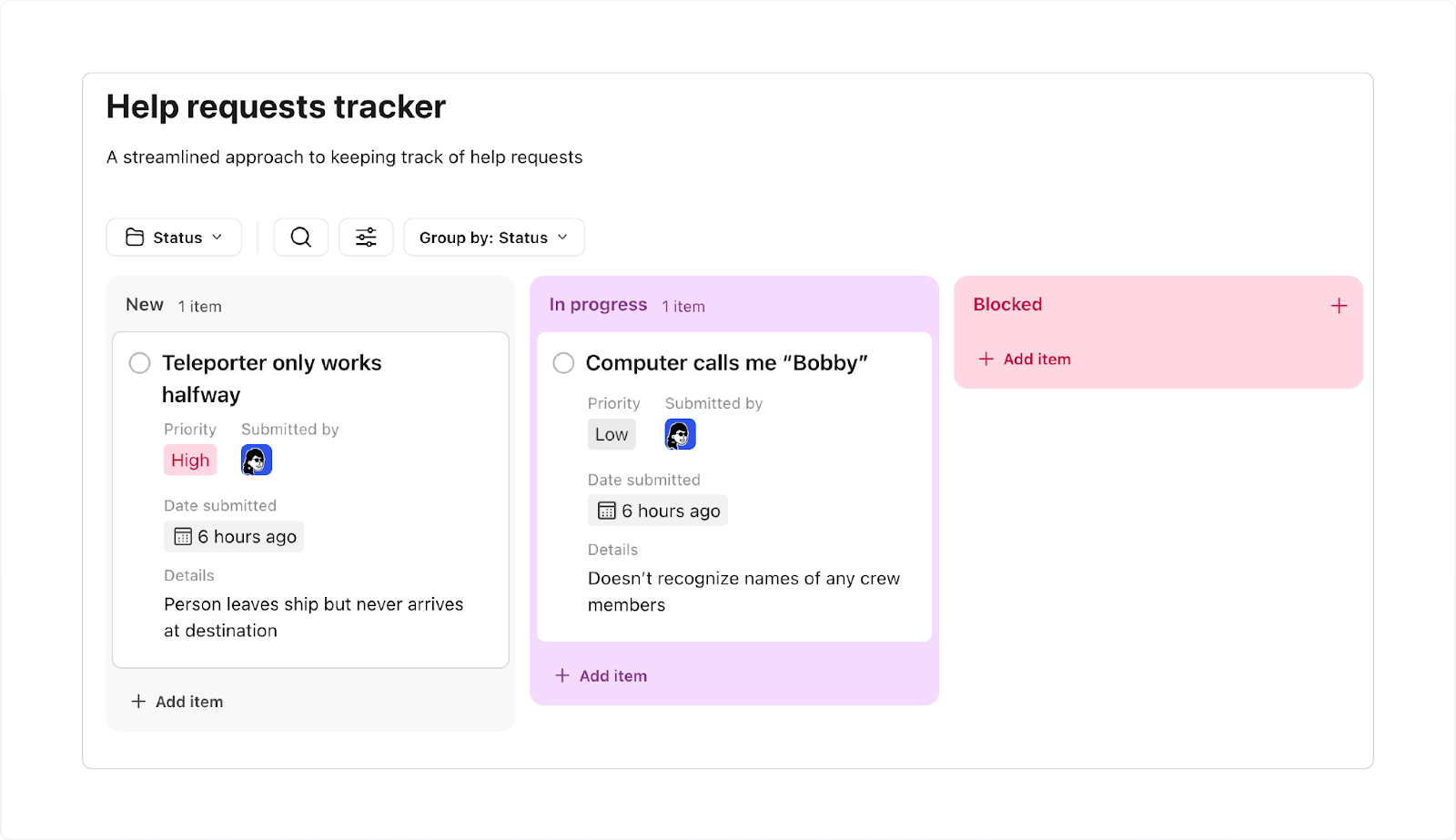
A Kanban board is a visual tool for tracking work as it moves through stages. These stages are usually "To Do," "In Progress," and "Done." Imagine a digital whiteboard with sticky notes, where each note is a single task.
When you put this system inside Slack, you connect your team's conversations directly to this visual workflow. Instead of letting requests get lost in the chat, you turn each one into a card on a shared board. Everyone can see it and update it.
Why Should I Use a Kanban Board Inside Slack?
Using a Kanban board in Slack is a game-changer for teams that use Slack all day but struggle to keep work organized. Here’s why it works so well:
- You stay where work actually happens: Your team already talks about work in Slack. A Kanban board built right into it means you don't have to switch to another app to manage tasks. You can turn any message into a task, assign it to someone, and update its status without ever leaving your conversations.
- You never lose a request again: Requests and bugs shared in channels often get lost in the chat history. A Kanban board pulls these items into a clear List, helping you see what's still pending, what's blocked, and what's finished. This way, nothing gets forgotten.
- You get instant visibility: A Kanban board turns messy chats into a neat, visual queue. At a glance, you can see what needs to be done, what's being worked on, and what's ready for review. The whole team gets the same clear picture without needing to ask for updates.
- You build accountability and flow: Every task on the board has a clear owner. This makes it easy to see who is responsible for what, so work gets done, and everyone is accountable. You won't need as many status meetings or complicated spreadsheets.
- You reduce tool fatigue: Instead of switching between Slack, project tools, and spreadsheets, your board lives right where you talk. That's one less tab to open, one less login to remember, and a much simpler way to stay organized.
- You can automate the boring stuff: Connect your board to other tools like Jira or Trello. When a ticket updates in another app, the card on your Slack board can move automatically, saving you time and manual work.
How Do You Use a Built-In Kanban Board in Slack?
Slack’s built-in Lists feature can be adapted into a simple Kanban board. By creating columns such as To Do, In Progress, and Done, and then moving items between them, you can mimic the flow of a traditional Kanban system without leaving Slack. This works best for lightweight workflows and smaller teams that don’t need advanced features.
For step-by-step instructions on setting up Slack Lists, check out our detailed guide here.
How To Create a Kanban Board in Slack?
You can create a Kanban board in Slack manually by populating items in a List, or by using a tool like ClearFeed, which tracks tickets and support requests in Slack and can automatically sync them into a Slack List so you don’t have to populate entries by hand. Once you have populated a Slack List, follow the steps below to view the items in a Kanban board.
- In Slack, click the Plus icon (➕) next to your Avatar and select the "Lists" section in your sidebar to create a new one.
- If you already have a pre-built Slack List, click the filter icon and select the Board layout.
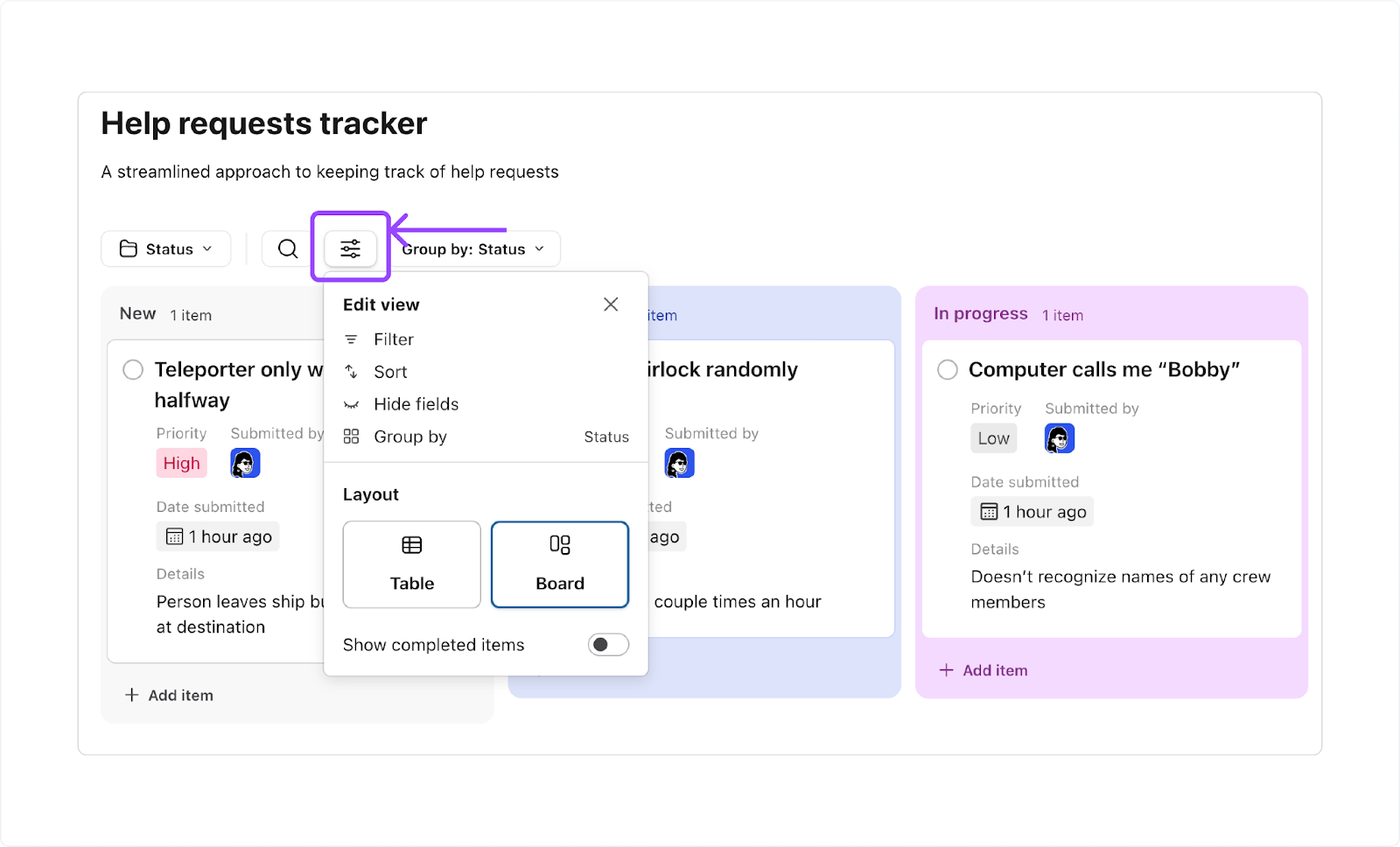
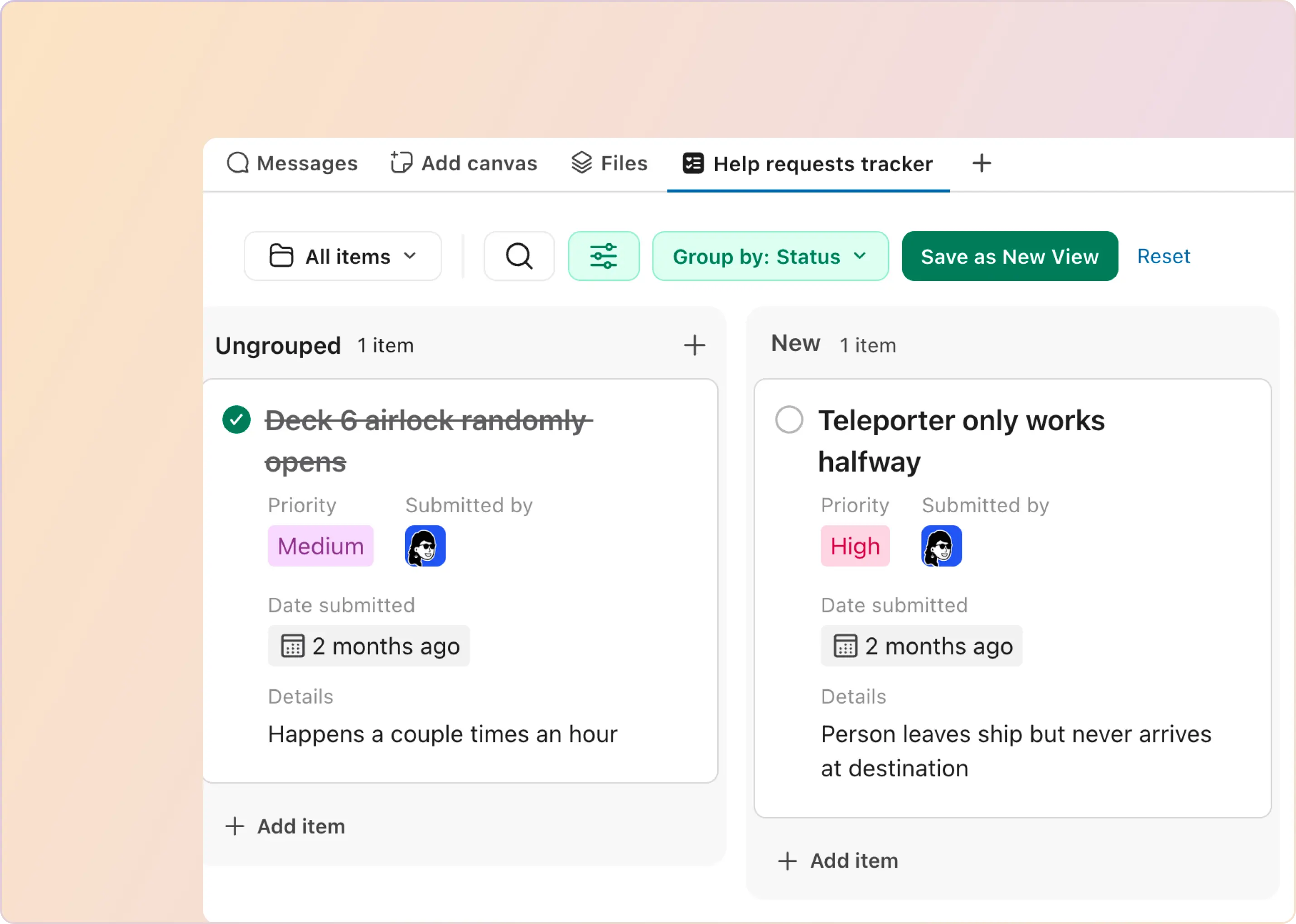
- You can then Group the items by a field (like "Status" or "Stage") to create your Kanban columns (To Do, In Progress, Done). You can drag and drop items between these columns.
How Do I Add a Kanban Board to a Slack Channel?
To add a Kanban board to a Slack channel, first add the Slack List. Once done, follow the steps to complete the action.
- Go to your Slack channel where you want to add the Kanban board.
- Click the plus icon (+) in the top navigation bar and select List.
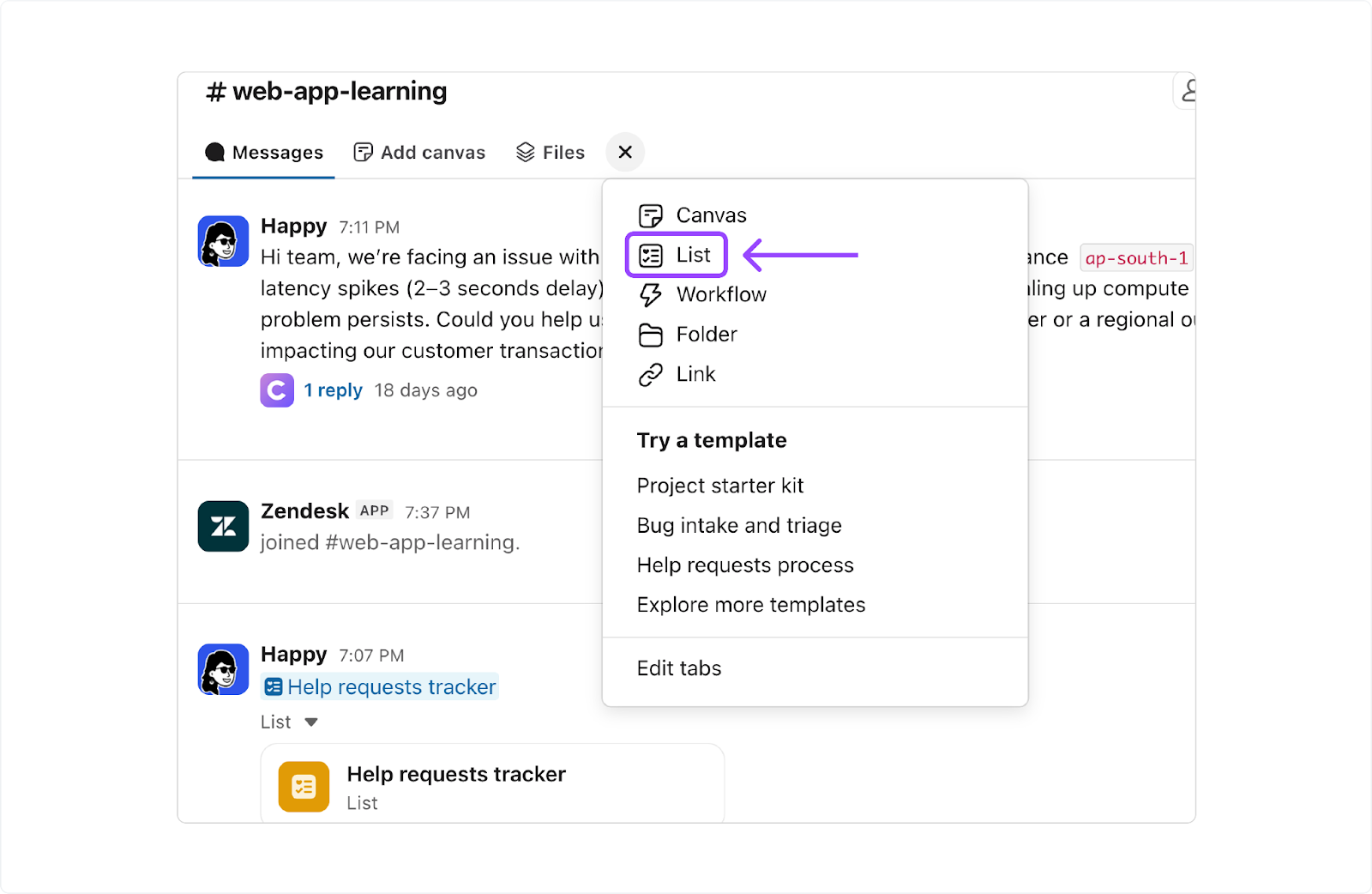
- Search for your Slack List and click Insert.
- Once done, you will see your task Lists in the default state (i.e., table format). Switch the Table view to Board view to enable the Kanban layout in the Slack List.
How Do I Share a Kanban Board With My Team in Slack?
You don't typically share a live, interactive Kanban board directly in a Slack message, but you share the List that is saved as a visual in the Kanban layout.
- In the Slack List, select the three dots, then click Share List.
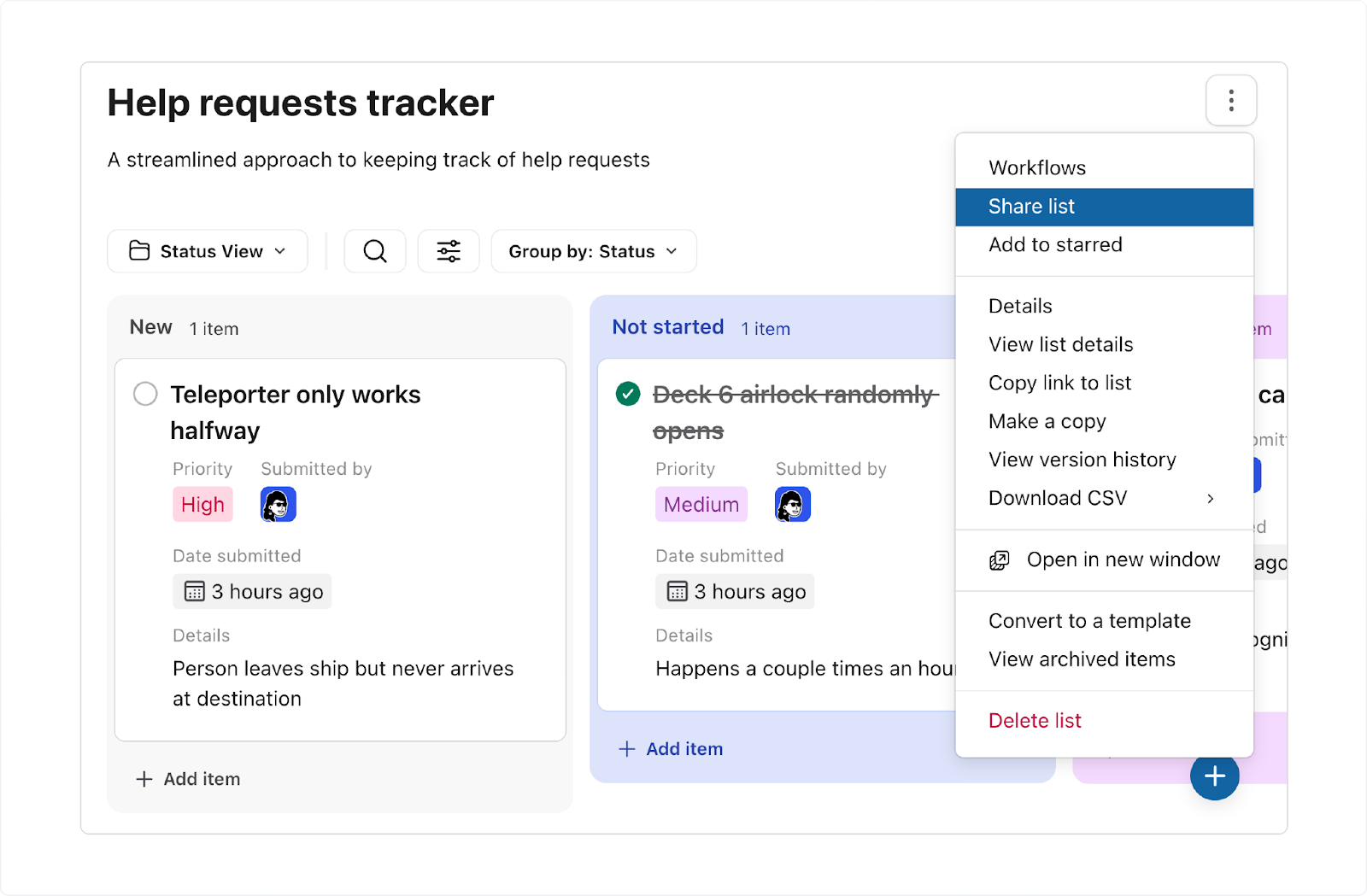
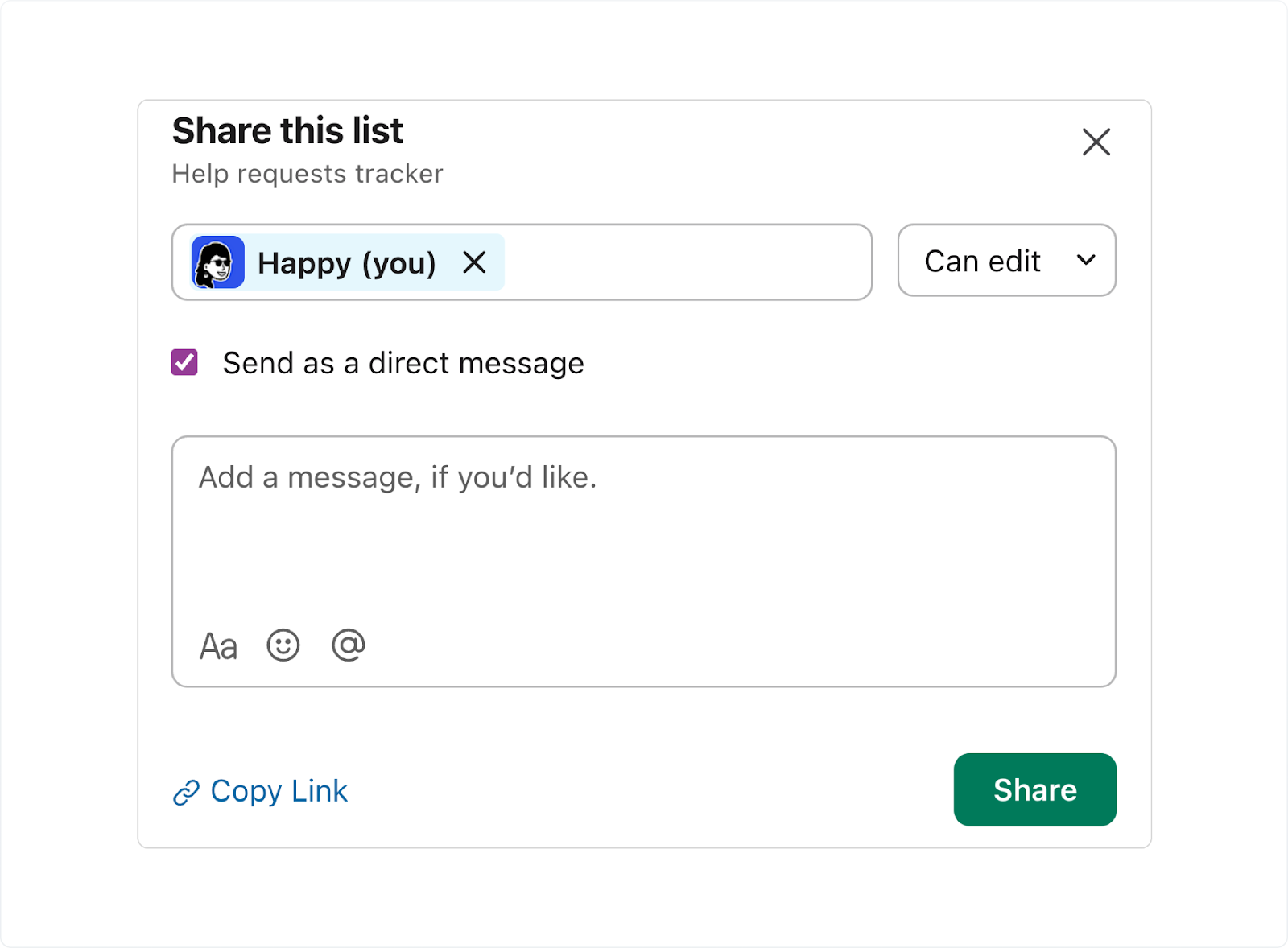
- Select the name of the user with whom you want to share or the channel name where you want to share the Kanban board.
What Are the Limits of Using Kanban in Slack?
The native Kanban board functionality in Slack (using Slack Lists in its board view) is designed for lightweight project management and task tracking. While it's convenient and keeps work centralized, it has limitations, especially when compared to dedicated Kanban or project management software. Here are the key ones:
- No Advanced PM Features: They lack critical project management capabilities such as task dependencies, Gantt charts, workload management, time tracking, and resource allocation.
- Simple Card Structure: Cards are simple List items. They do not offer the rich fields, custom automation rules, or complex checklists found in tools like Trello or Asana.
- No Workflow Automation: You cannot easily configure advanced automations, such as "If a card moves to 'Done,' send a congratulatory message and update a field in an external ticketing system."
- Scalability Issues: For large projects or team-wide processes with many steps, a simple Slack List can quickly become overwhelming, cluttered, and difficult to maintain compared to a dedicated PM app.
That’s where third-party integrations come in—connecting Slack with tools like Trello, Asana, or ClearFeed lets you keep the Kanban visibility inside Slack while getting the fields, automation, and reporting that Slack Lists don’t provide.
Which Third-Party Kanban Tools Integrate With Slack?
For power users seeking a robust Kanban tool integrated with Slack, the best choices are typically platforms that offer advanced features, deep customizability, and powerful automation beyond simple task tracking. Based on advanced features and integration capabilities, the following tools are highly recommended for power users:
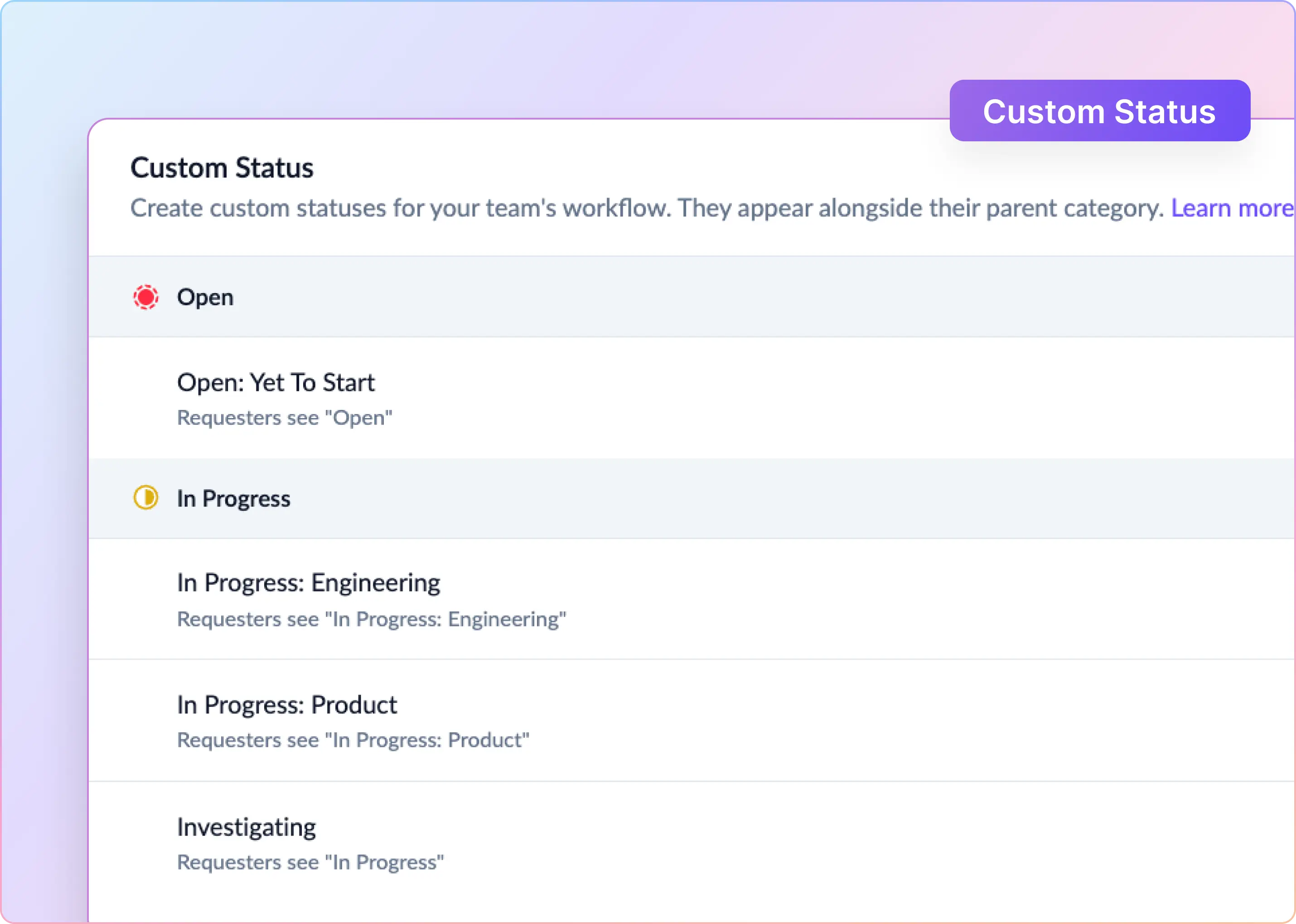
- ClearFeed: A Slack-native helpdesk that offers a drag-and-drop Kanban View in its web app for tickets and support requests created from Slack conversations. Requests can be grouped and sub-grouped by Status or Assignee, and inline card icons let responders update Priority, Assignee, or Status without opening the request. ClearFeed can also sync a saved Custom View into a Slack List on an hourly schedule (up to 200 requests and up to 15 custom fields), so the same queue appears as a board inside Slack. The synced Slack List is view-only—ticket edits still happen in the ClearFeed web app or triage channel.
- Trello: Known for its simplicity, visual boards, and strong native Slack integration.
- Jira: Powerful tool, especially for software development teams, with flexible Kanban boards and a robust Slack app.
- Asana: Offers various project views, including Kanban, and has a native Slack integration for updates and task creation.
- ClickUp: A comprehensive work management platform with a customizable Kanban view and deep Slack integration.
- monday.com: Highly customizable Work OS with a Kanban board view and strong automation capabilities that integrate with Slack.
- Notion: A flexible workspace where you can create a database with a Kanban board view and integrate it with Slack for notifications.
When Should I Use Slack Lists vs. Third-Party Apps for Kanban Boards?
The honest answer depends on what you’re actually trying to solve, not what looks impressive in a setup guide. Here’s the framework we use when advising teams.
Use Slack Lists when…
- You’re keeping it simple. If your workflow is "To Do → Doing → Done" with maybe 10–30 tasks at a time, Lists handles it. You don’t need swimlanes, dependencies, or custom fields—you need a shared checklist with assignments.
- Your team lives entirely in Slack. Lists means zero context switching. No new login. No "which tool was that in again?" If asking your team to open another app creates friction, Lists wins by proximity alone.
- You’re managing lightweight, fast-moving work. Think daily team tasks, quick requests, and internal asks that turn over in days, not weeks. Support ticket triage. Social media approvals. Bug reports that get fixed same day.
- You want native notifications without configuration. List updates appear in the channel where the List lives. No bot setup. No webhook configuration. No "why am I not getting pinged?" troubleshooting.
- Budget is tight or IT approval is slow. Lists comes with your paid Slack plan. No new vendor relationships. No security reviews. No procurement cycles.
- You’re testing whether your team even needs task management. Start here. If Lists feels limiting after two weeks, you’ve learned something. If it solves 80% of your problems, you just saved yourself tool bloat.
Use third-party Kanban apps when…
- You need real visual workflow management. Slack Lists is list-based (the name isn’t lying). If your team needs to spot bottlenecks, drag cards between columns, and understand work distribution at a glance, you need a real Kanban board.
- You’re managing complex, multi-stage projects. Software development, product launches, or content production with 8+ workflow stages. When "status" isn’t enough and you need custom fields, labels, priorities, due dates, subtasks, attachments, and comments, Lists will frustrate you fast.
- Multiple teams touch the same work. Third-party tools let you create views, filters, and permissions that Slack Lists can’t match. Support sees their cards, engineering sees theirs, and both work from the same board.
- You need integrations beyond Slack. If your Kanban needs to talk to your CRM, ticketing system, or task manager, third-party apps have the APIs and integration ecosystems Lists lacks.
- You’re already using a project management tool. If your team already uses Asana, Trello, ClickUp, or Jira, integrate them with Slack rather than maintaining two systems. Don’t force a migration to Lists just because it’s "native."
- You need reporting and analytics. Cycle time, throughput, burndown charts, blocked-task alerts, WIP limit warnings—Lists gives you none of this. Kanban tools built for workflow management give you all of it.
- Work needs to outlive the Slack channel. List data lives and dies with its channel. Third-party boards exist independently, so history stays searchable when projects wrap, and channels are archived.
- You’re scaling beyond 50 active tasks. Lists gets messy fast at volume. Scrolling through 100+ items in a channel sidebar isn’t workflow management—it’s chaos management.
Wrapping It Up
The smartest approach isn’t choosing one tool—it’s layering them.
- Slack Lists keep internal priorities and personal to-dos on track.
- Kanban tools (Trello, Jira, Asana, Linear) handle structured project execution.
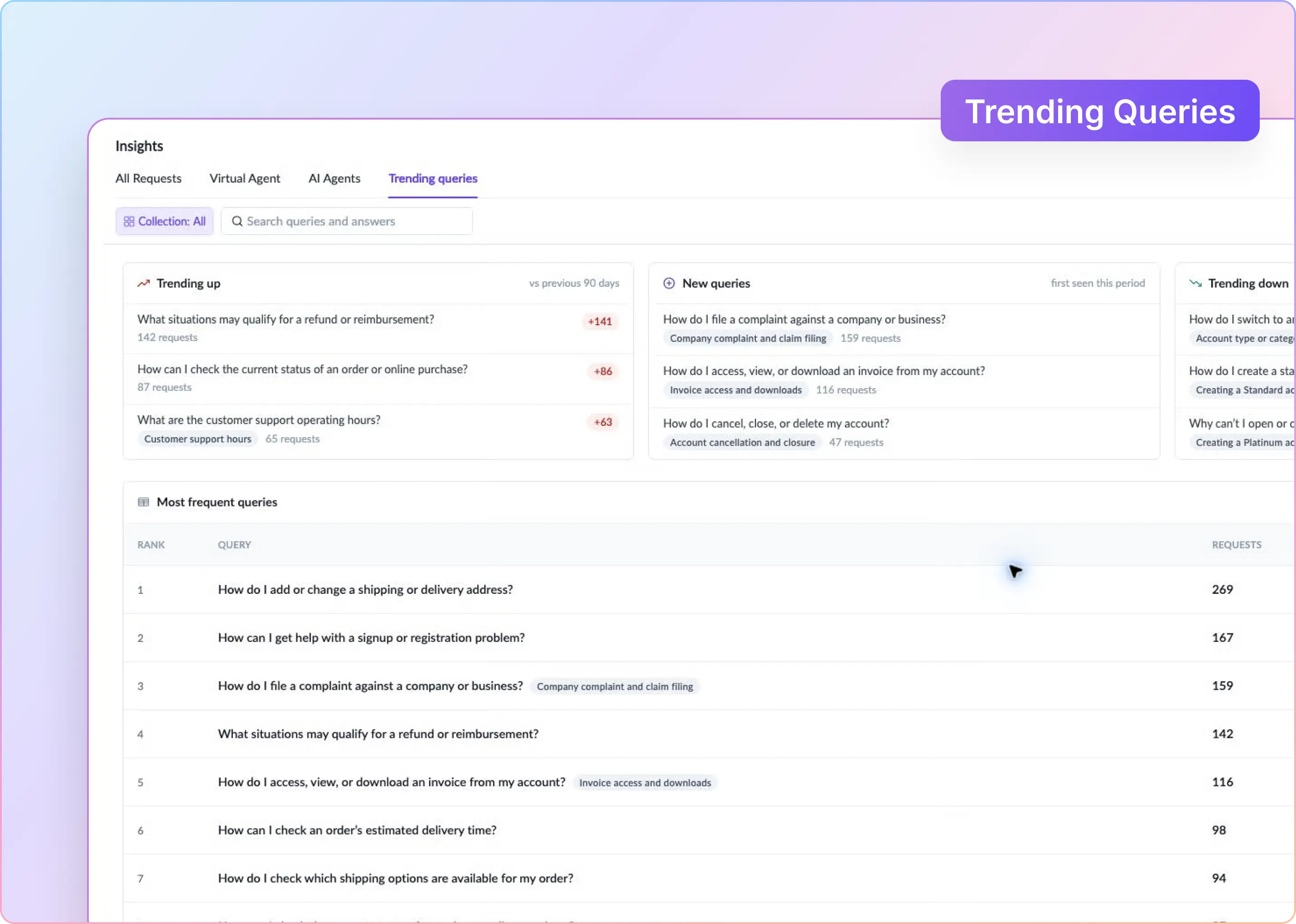
- ClearFeed bridges the gap for support work: it captures requests in Slack, triages them, routes them to the right assignee, and offers a Kanban view of those requests in the web app—or, via saved-view sync, inside Slack itself as a Slack List in Board layout.
This hybrid setup stops work from slipping through the cracks, keeps customer-facing teams in Slack, and lets backend teams stay in the project tools they already know. Want to see it in action? Book a demo or start a 14-day free trial today.