Table of Contents

At ClearFeed, we rely heavily on Slack Connect channels to collaborate with prospects and customers. As I mentioned in a previous post detailing how we manage more than 500 Slack Connect channels, this is a core part of how we run our business. One challenge we faced early on was the friction of manually sending Slack Connect invites. When someone signed up, we'd have to remember to send them an invite through Slack's interface. This manual step was easy to forget, and delays meant losing the momentum of a fresh signup.
In this post, I'll walk through how we automated Slack Connect invites during our onboarding flow - including key Slack API details that other developers might find useful.
The Problem: Manual Slack Connect Invites
Our onboarding flow collects basic contact information from new signups. Historically, after this step, someone on our team would manually:
- Go to Slack, create a new channel (or find an existing one)
- Send a Slack Connect invite from this channel to the user's email
- Invite some internal team members to the channel
This process had several issues:
- It was easy to forget - in the rush of other tasks, we'd sometimes miss sending invites
- It was slow - invites weren't sent immediately, reducing how quickly we could engage customers
- Difficult to coordinate as a team - we had no systematic way to know who had been invited
- No consent process - Slack’s accceptable-use policy prohibits unsolicited communication. That means we should have consent before sending a Slack Connect invite - and we did not have a good process to do so.
We wanted to solve all the issues above and automate this entirely.
The Solution: Automated Slack Connect During Onboarding
The core idea was simple: add an opt-in checkbox during onboarding (for our web application), and if the user consents, automatically send them a Slack Connect invite. Here's how it works:
1. Setting Up the Slack App
The first step to automatically creating channels and inviting users - is to have a custom Slack app with the right permissions, using whose token, we perform these operations. Create a custom Slack App and install it in your workspace with the following OAuth scopes:
Channels:manage- Create channelsConversations.connect:write- Send InvitesChannels:read- List channels and view channel informationGroups:read- List private channels and view channel informationChat:write- Write to channelsGroups:write- Write to private channels
The bot token should be stored securely (in a secrets vault or a an environment variable in your production app) and used to instantiate the Slack Web Client on the backend.
2. Frontend: The Opt-In Checkbox
During our onboarding Contact Info step, we added a simple checkbox. The checkbox value gets sent to our backend as part of the onboarding payload:
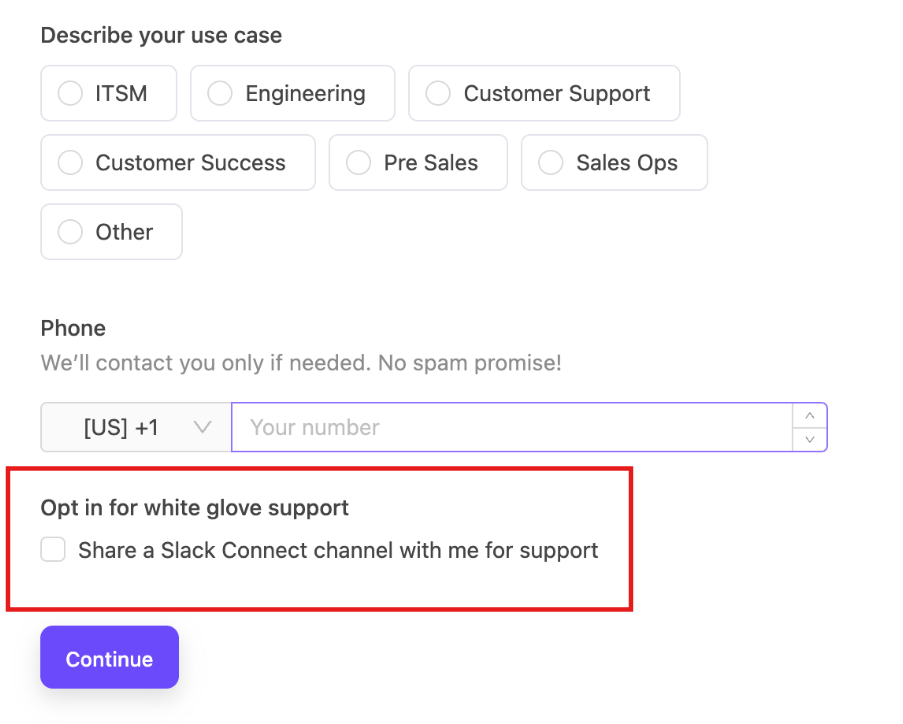
3. Backend: Creating the Channel and Sending the Invite
On the backend, when we receive the onboarding request with send_slack_connect_invite = true, we perform the following steps:
- Generate a Channel Name: We generate a channel name based on the domain name of the company that has signed up. For example if joe@stealthstartup.com signs up - the channel name becomes
#clearfeed-stealthstartup. - Create a New Channel (If it doesn’t exist): Using the bot token of our Slack app - we check if the channel name already exists in our workspace - otherwise we create one using Slack’s
web.conversations.createAPI. - Send the Slack Connect Invite: We use Slack’s
web.conversations.inviteSharedAPI to invite the user who just signed up to the channel above. (We also invite a couple of our internal team members to every such Slack Connect channel automatically).
Once external users get the Invite and click "Accept", the channel becomes a fully functional Slack Connect channel.
From Invite to Monitored Channel
Once the external user accepts the Slack Connect invite, something important happens automatically: ClearFeed starts monitoring the new channel. This is a auto-monitoring functionality in ClearFeed can be easily setup for Slack Connect channels that conform to a predictable naming pattern.
A few things happen when the channel is picked up for monitoring by ClearFeed:
- New Slack Connect channel notification: ClearFeed alerts us that a new customer channel has been added.
- Automated Welcome message: is posted automatically to this channel.
- Automated Message Routing to Triage: New messages from this channel appear in our Triage channels (where other customer channels are also routed)
- Automated Reminder Alerts, Broadcasts: We also benefit from all the other standard functionality of ClearFeed like alerting if a customer message doesn’t have a response, an Ask widget on the customer channel, automatically being part of any future product announcements on Slack etc.
This means from the moment a prospect accepts our invite, we're aware of it - and ready to provide fast, responsive support.
Results
Since implementing this automation:
- Every new prospect who opts in gets an invite immediately
- No manual steps required from our team
- Channels are automatically monitored by ClearFeed
- We've seen higher engagement from prospects who connect on Slack early
- We have an engagement channel with users on Slack - even if they don’t become customers
The reduction in friction has been significant - what used to be a manual, forgettable step is now a seamless part of our onboarding flow. Not everything's perfect - the automation only sends an invite once - we have seen that it's useful to send the invitation again if it has expired. This step is not automated right now.
If you're using Slack for customer support and engagement and want to automate the invitation process, I hope this helps. The Slack Web API makes it relatively straightforward, and the payoff in terms of reduced friction is substantial. If you need assistance setting up such a system and with managing a lot of customer channels - feel free to setup a call with our team!