Table of Contents

Knowledge bases are a core part of customer support. They help customers self-serve and give internal teams a structured way to document how the product works and how to resolve common issues.
Today, we're thrilled to introduce Atlas - the ClearFeed Native Knowledge Base as part of ClearFeed external helpdesk suite. With Atlas, we’re bringing customer documentation directly into ClearFeed, creating a single system for managing conversations, tickets, and self-serve content. Support teams can now publish guides, FAQs, and help articles directly from ClearFeed, keeping documentation accurate, up to date, and easy for customers to access.
Let’s take a closer look at how you can use ClearFeed’s native Knowledge Base to host and manage support content effortlessly.
Getting Started with Atlas
Atlas is available to teams using ClearFeed’s External Helpdesk and is designed to be easy to adopt without a long setup process. It comes with a public site for customers and an admin workspace for your team to create, organize, and maintain content.
- Public Knowledge Base for Customers
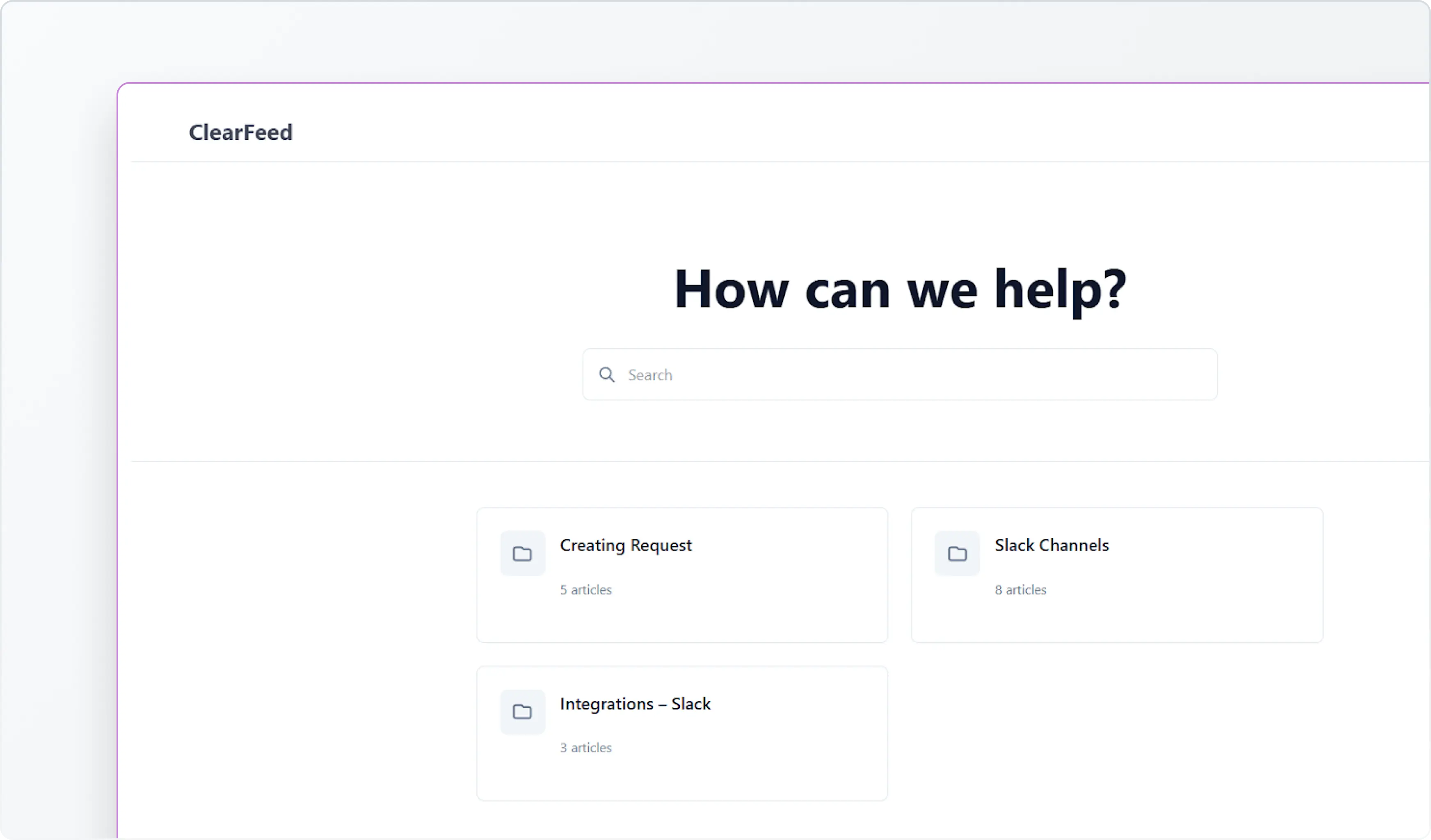
Each workspace gets a public knowledge base site where customers can browse published articles, FAQs, and guides, organized for easy discovery. This site becomes a single destination customers can rely on for help content.
Your public knowledge base is available at: <subdomain>.clearfeed.app/docs
- Admin Workspace for Your Team
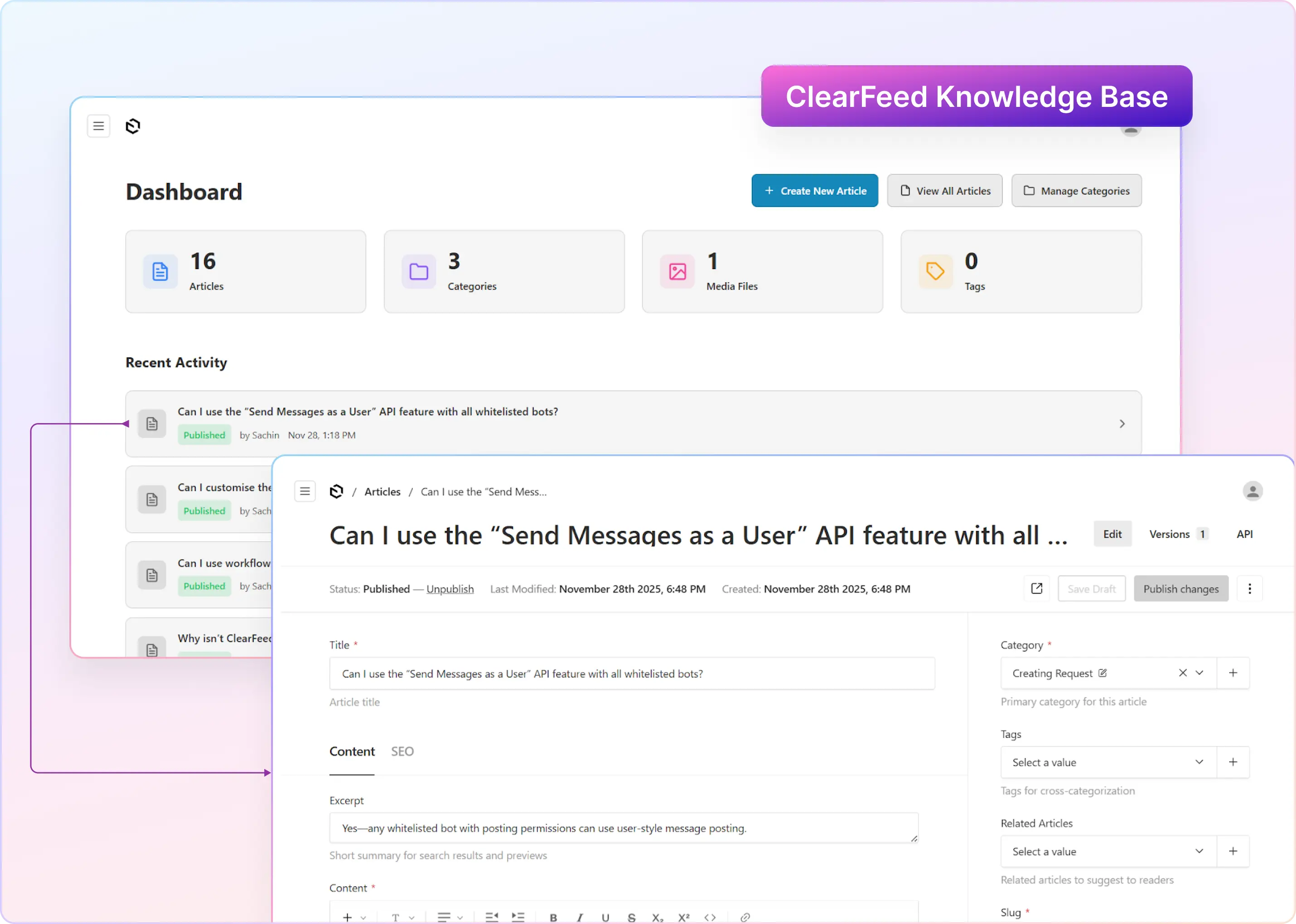
ClearFeed’s KB also includes a dedicated admin dashboard where your team manages all knowledge base content. From here, admins and editors can create and update articles, organize content, and control how the knowledge base is structured.The admin workspace is accessible at: <subdomain>.clearfeed.app/docs/admin
Atlas uses email-based login, and only users explicitly added in ClearFeed’s Atlas settings can access the admin area. This makes it simple to bring the right people into the workflow.
What You Can Do with ClearFeed’s Knowledge Base
Atlas gives you a complete, built-in setup to publish and run a customer-facing knowledge base, without stitching together multiple tools.
1. Role-based Ownership in Knowledge Base
Atlas supports role-based access so ownership is clear:
- Admins get full permissions to manage global settings like edit site or theme and navigation
- Editors can create and publish articles but can’t change site settings
This is especially useful when you want multiple contributors creating content, while keeping ownership of the KB structure and brand settings with a smaller group.
2. Create well-structured articles
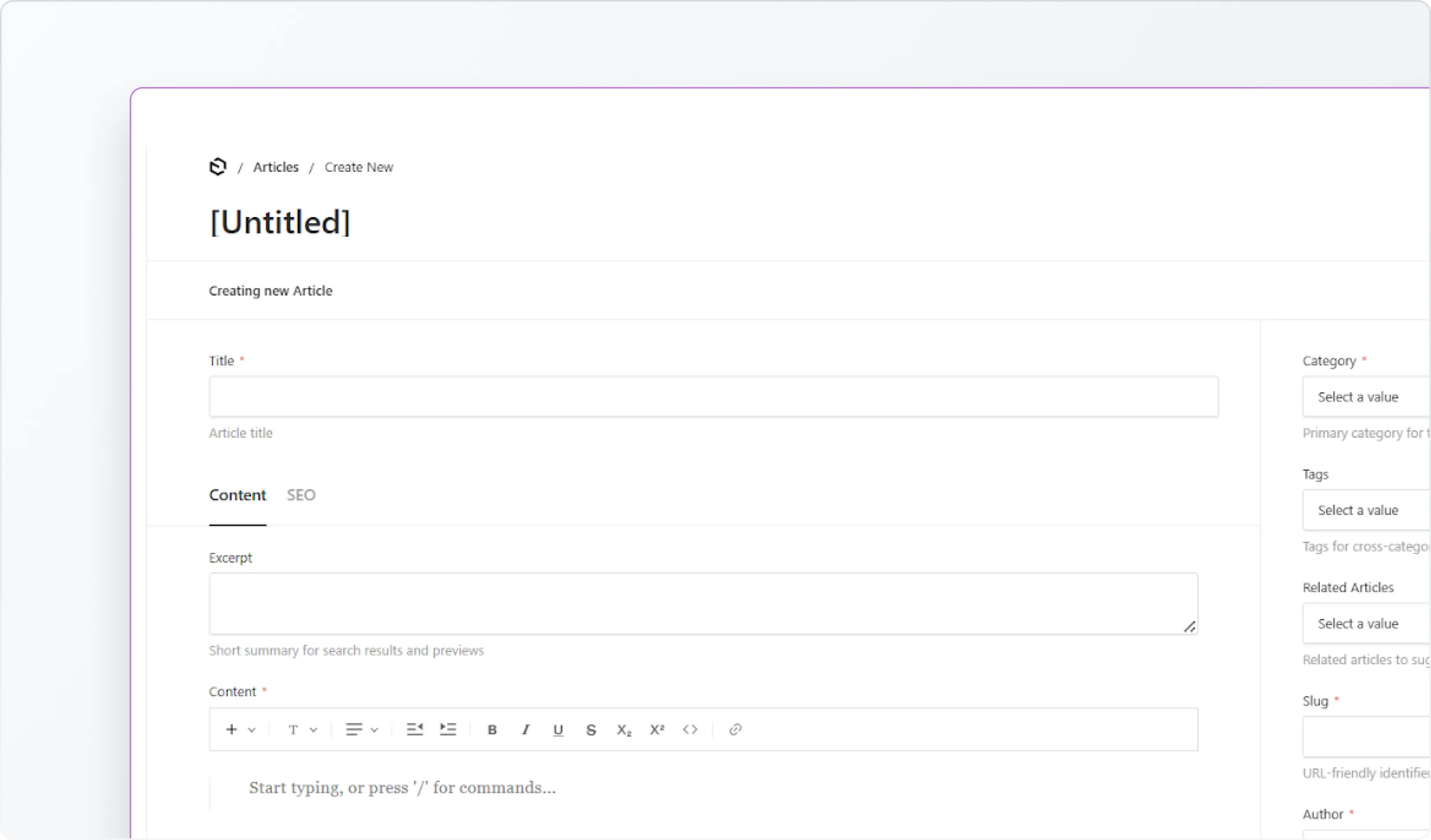
Atlas articles support the elements you need to publish content that’s easy to find and understand and not just raw text. When creating an article, teams can define:
- Title and excerpt (for previews/search results)
- Full content in a rich-text editor
- Category, tags, and related articles for organization
- Author attribution and URL slug
- Optional SEO metadata (meta title + meta description)
You can save work as a draft and publish when it’s ready.
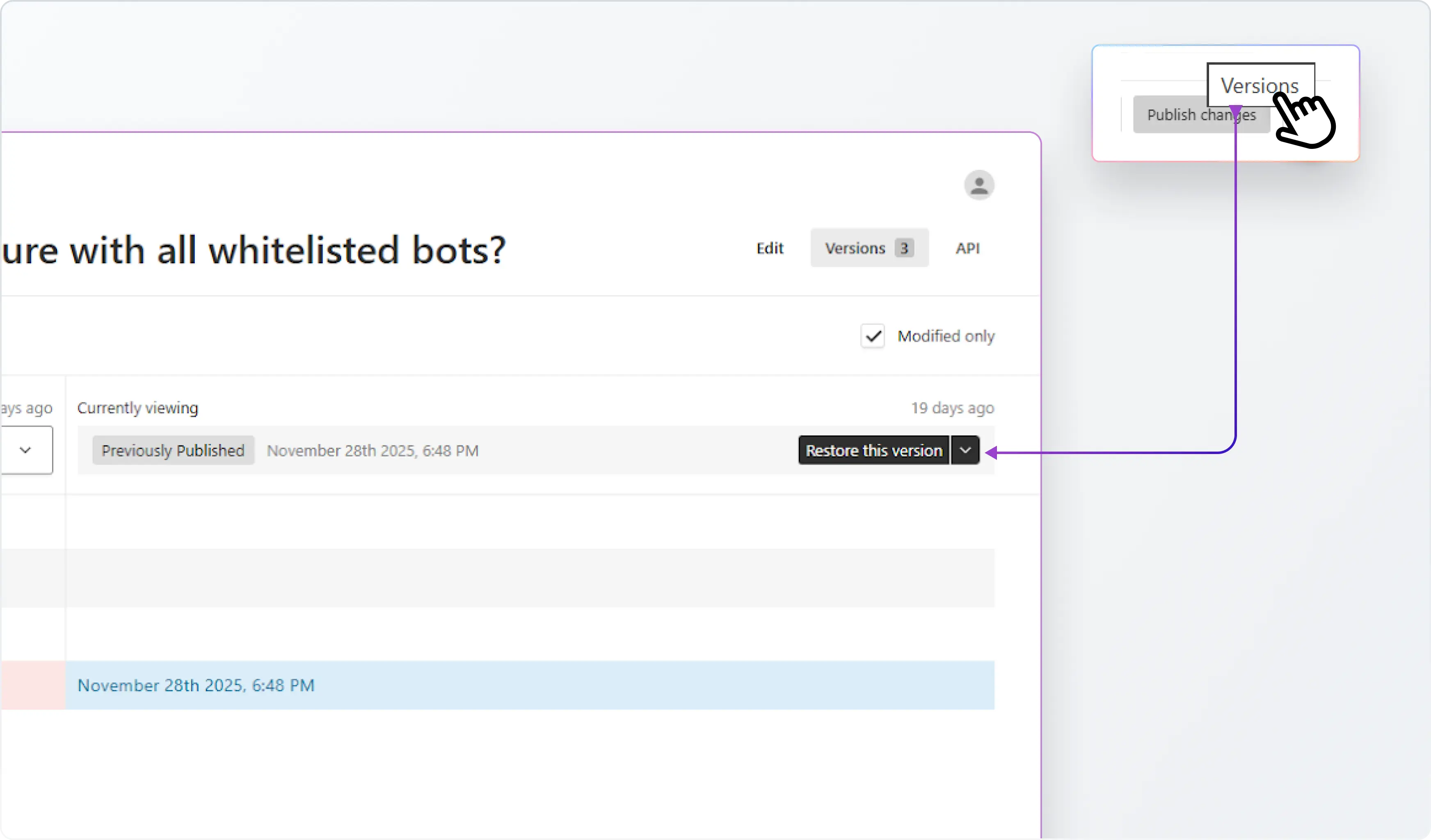
3. Edit confidently with version history and comparisons
ClearFeed’s Knowledge Base gives you flexibility to edit articles effortlessly. For each article, teams can:
- Publish updates or unpublish when needed
- View and restore previous versions
- Compare versions to understand what changed
This makes it easier to improve articles over time without worrying about losing context or accidentally overwriting something important.
4. Manage your library at scale (filters, columns, bulk actions)
Once your KB grows beyond a handful of articles, day-to-day management matters as much as writing. Atlas makes this manageable by allowing teams to:
- Filter articles by category, author, status, and more
- Configure which columns appear in the article list
- Use bulk actions to edit, publish/unpublish, or delete multiple articles at once
So maintenance tasks like reorganizing categories or publishing a batch of new articles don’t become tedious manual work.
.webp)
5. Organize your KB using Categories and Tags
Atlas gives you two layers of organization:
- Categories define the top-level structure of your KB. You can create nested categories, control the ordering in navigation, and add icons/emojis to make browsing clearer.
- Tags let you cross-label content across categories, for example, grouping articles that relate to a specific product area or workflow. Tags also support color configuration, which can help with visual scanning and consistency.
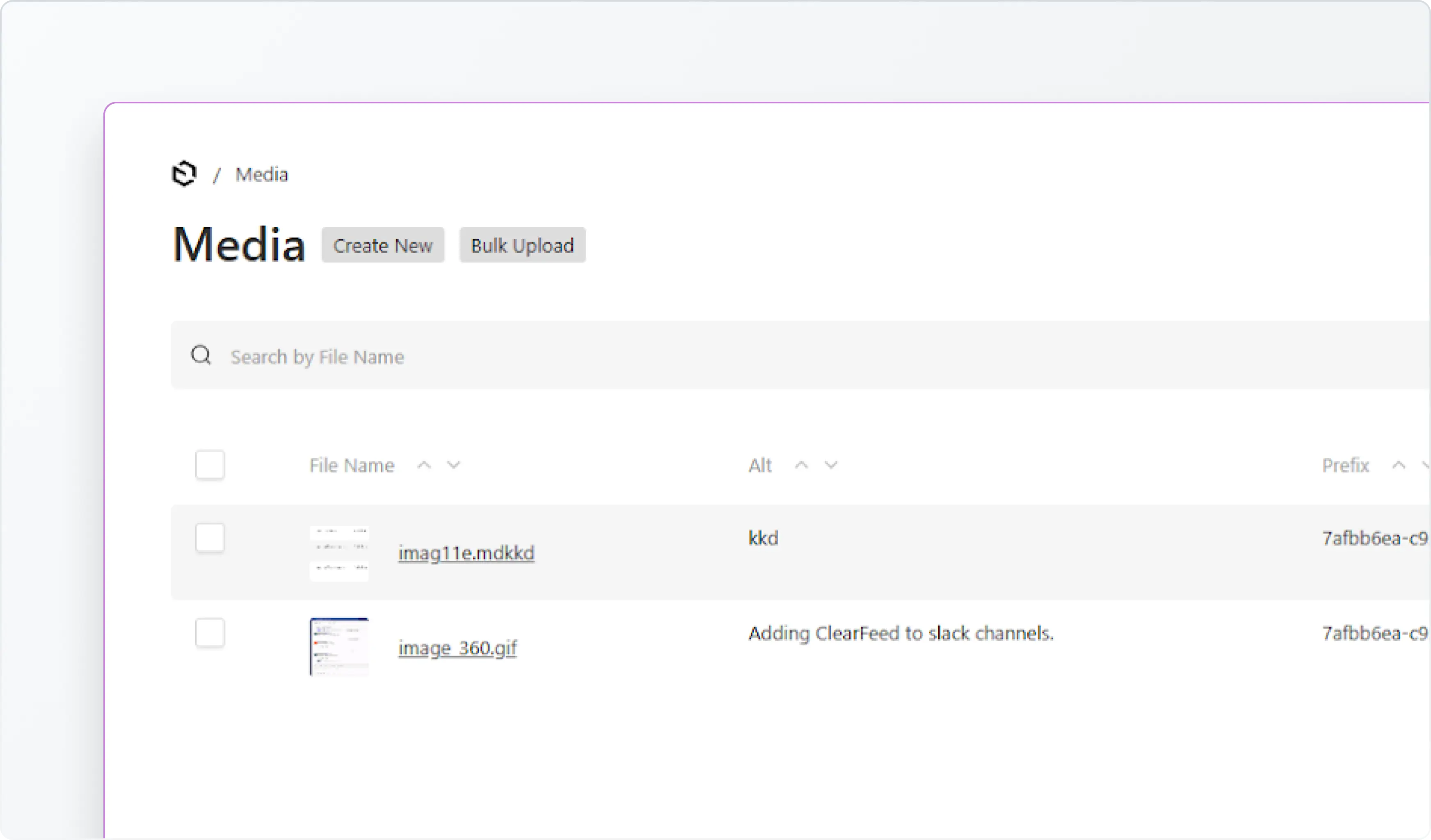
6. Manage screenshots and files in a Media library
Atlas includes a Media section to handle the assets your articles depend on - screenshots, diagrams, attachments, etc. Teams can upload media in multiple ways (file upload, drag-and-drop, or via URL), add alt text, and manage assets in bulk. Individual files can also be edited or replaced, which is helpful when product UI changes and screenshots need refreshes.
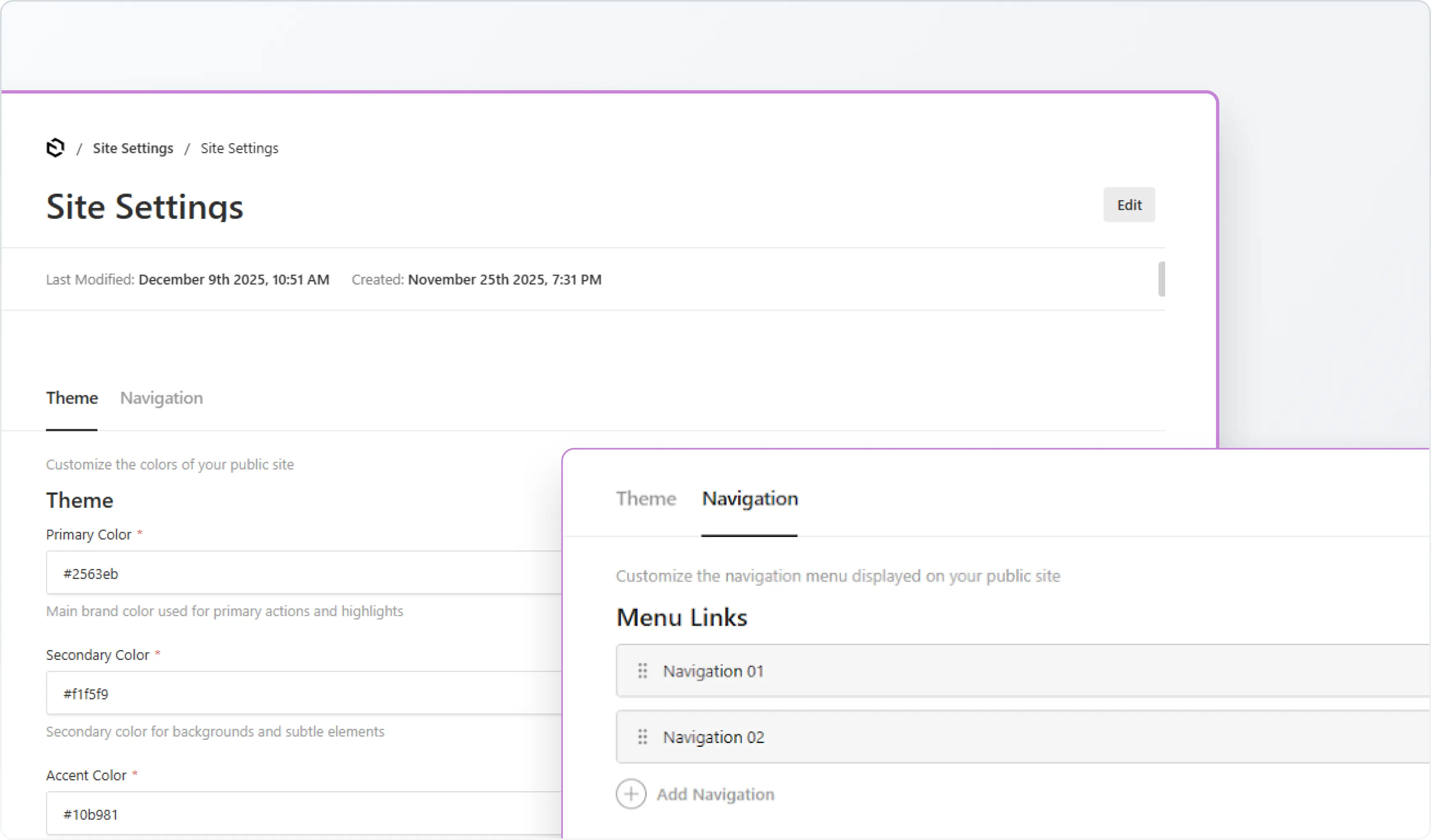
7. Customize the look and navigation of your public KB
Atlas includes basic site settings so your knowledge base feels consistent with your brand. Teams can configure:
- Theme colors (primary / secondary / accent)
- Navigation editor (add links, reorder,open in new tab)
Wrapping Up
Atlas adds a native Knowledge Base to ClearFeed, giving support teams a structured way to publish customer-facing documentation from the same place they manage support conversations, without introducing another system to manage.
If you’re already using ClearFeed’s External Helpdesk, Atlas is now available for you to start building and sharing your customer knowledge base. If you want to learn more about the new functionality, please reach out to us on Slack or email us at support@clearfeed.ai.