Table of Contents

Trying to set up the Slack Asana integration so your team can turn Slack conversations into trackable work in Asana? Yes, Asana integrates with Slack. Once you integrate Asana with Slack (or connect Asana to Slack), you can create Asana tasks from Slack messages, link projects to channels for updates, and take quick actions right inside Slack using Asana Slack commands like /asana.
This is most useful for teams that live in Slack day-to-day but want Asana to stay clean as the system of record. The win is simple: fewer lost action items, clearer ownership, and better visibility without turning channels into noise from nonstop Asana notifications in Slack.
If you’re still comparing options across tools, this roundup of the best Slack task management apps can help you sanity-check what “good” looks like for your use case. Otherwise, start with the official setup steps below, then we’ll cover commands, notification control, and what to do when the Asana Slack integration not working becomes the problem you’re here to solve.
How To Connect Asana To Slack (Official Setup in 3 Steps)
Setting up the Slack Asana integration is pretty straightforward with the official Asana app. Once you connect Asana to Slack, you can create Asana tasks from Slack messages, link an Asana project to a channel, and get the right Asana notifications in Slack without bouncing between tabs all day.
Before you start (so setup doesn’t fail later)
You might need permission to install apps in Slack, depending on how locked down your workspace is. Also make sure you’re logged into the right Asana workspace, and that you actually have access to the Asana project you’re planning to connect to a channel.
Do you need admin access to connect Asana to Slack?
Not always. If your Slack workspace restricts app installs, a Slack admin may need to approve the Asana Slack integration first. Otherwise, most people can connect their own Asana account.
Step 1: add Asana to Slack (install the official app)
Open Slack’s App Directory and search for Asana. Click Add to Slack, then approve the permissions to install the Slack Asana integration in your workspace. If you don’t see “Add to Slack” (or it’s blocked), your workspace likely restricts apps, so you’ll need admin approval.
Step 2: connect your Asana account and confirm the app is working
In Slack, run /asana help to confirm the app is active and to see the available Asana Slack commands. Then create a quick test task using /asana to confirm you can create and manage tasks from Slack.
Step 3: connect Asana to Slack channels (link a project)
Go to the Slack channel where you want updates. Type /asana link, then select the Asana project you want to connect to that channel. Once linked, you’ll start receiving Asana notifications in Slack for that project’s updates.
What Can You Do With the Slack Asana Integration? (Core Features)
The Asana Slack integration is built around a few workflows that matter most: capturing work from conversations, keeping ownership clear, and sending the right updates to the right channel.
- You can create Asana tasks from Slack messages so action items don’t vanish into the scroll. When you convert a message into a task, you can usually add key details, such as an assignee and a due date, while keeping the original Slack context intact.
- You can use Asana in Slack to handle quick task actions without switching apps. That includes lightweight things like commenting on tasks, marking tasks complete, or listing tasks right from Slack when you just need to move work forward.
- You can get Asana notifications in Slack for linked projects. When you link an Asana project to a Slack channel, the channel can receive updates as tasks are created, updated, commented on, or completed, so the team doesn’t have to keep checking Asana just to stay in the loop.
- Asana Slack commands (like /asana) make all of this usable in the moment. You can search tasks, view project lists, and mark tasks complete from inside a conversation, without breaking your flow.
These features cover task capture and basic visibility. As teams scale, though, the native Slack Asana integration can start to feel strained (things like thread-to-task drift and notification noise), which we’ll unpack in the limitations section later.
Asana Slack Commands: What You Can Do With /Asana in Slack
Once the Slack Asana integration is installed, you can type /asana in any Slack channel to do the most common task actions without leaving Slack, like creating a task, listing tasks, marking something complete, or adding a comment.
Here are the commands you’ll actually use:
Start here: /asana help
This shows the available Asana Slack commands and confirms the app is active in your workspace.
Connect a channel to a project: /asana link
This links the Slack channel to an Asana project so you can get Asana notifications in Slack for that project’s activity.
Create a task while you’re chatting: /asana → choose “create task”
Typing /asana opens task actions (create, list, complete, comment), and “create task” is the one you’ll hit most often mid-conversation.
Turn a specific message into a task: Slack message actions → “Create task in Asana”
This is great when the original message already contains the context you want attached to the task.
Quick sanity check: run /asana in the channel
If commands run, the Asana Slack integration is set up correctly.
A simple workflow that keeps things from slipping:
It usually goes like this: someone drops an action item in Slack, you turn it into a task right there (using /asana or message actions), you assign it and add it to the right project, and if the channel is linked with /asana link, the team stays updated through Asana notifications in Slack as the task moves forward.
Troubleshooting: Asana Slack Integration Not Working
If your Slack Asana integration is installed but something feels off, don’t guess. Start by figuring out where it’s breaking: the Slack app, the account connection, or the channel-to-project linking.
60-second triage (find the failure point fast)
First, try /asana help in Slack. If that doesn’t work, the app isn’t active (or isn’t installed properly). Next, try creating a quick test task using /asana. If that fails, your account connection is usually the issue. Finally, double-check you linked the right Asana project to the right Slack channel using /asana link. This is the most common reason updates never show up.
Issue 1: /asana commands don’t work (or the app looks “missing”)
This usually happens when the app isn’t installed in your workspace, your workspace blocks app installs, or the app needs re-authorization. Fix it by confirming the Asana app is installed (some workspaces need admin approval), then re-connect using /asana settings if the connection has gone stale.
Issue 2: Asana notifications not working in Slack
When Asana notifications in Slack stop showing up, it’s almost always one of these: the channel isn’t linked to the right project, you don’t have access to the project, or the connection needs a reset. Fix checklist: re-check the project link via /asana link, confirm you have access to the project, then deauthorize Slack in Asana and reconnect if it previously worked and suddenly stopped. If you’re troubleshooting on mobile, also verify Slack notification settings and run Slack’s notification troubleshooting test.
Issue 3: you can’t find the right project when linking a channel
This is usually the wrong Asana workspace, missing permissions, or the wrong account connected in Slack. Fix it by confirming you’re logged into the correct Asana workspace/account, verifying you have access to the project, then checking /asana settings in Slack to confirm the connected account/workspace is the one you expect.
Issue 4: tasks get created… but they’re messy or incomplete
This is the “it technically works, but it’s not usable” version of Slack Asana integration problems. If you’re crating tasks from Slack messages, treat it as capture first, then immediately add the task to the correct project and fill the key fields (priority, due date, category). If you need required fields, routing, and follow-ups, you’re past what /asana commands can solve on their own.
Remove/Disconnect: Remove Asana From Slack
Sometimes the Slack Asana integration is working fine, you just want less noise, a clean reset, or to remove it entirely. Here are the three common ways to do that, depending on what you’re trying to achieve.
Option A: Stop updates in one channel (keep the app installed)
If your goal is simply to stop Asana notifications in Slack for a specific channel, don’t uninstall anything. Just unlink the project from that channel.
In the channel that’s getting updates, run /asana link again and choose the option to unlink.
Option B: Fully disconnect your account (reset or remove)
If notifications are stuck, or you want a clean reset, you can disconnect Asana from Slack at the account level.
In Asana, go to your settings, find Apps or Authorized Apps, then deauthorize Slack. You can reconnect later if needed.
Option C: Uninstall the app from the Slack workspace
If you want it gone for everyone in the workspace, you’ll need to uninstall Asana from Slack.
In Slack, go to Manage apps, then Installed apps, find Asana, and choose Remove app (the wording may vary slightly by workspace settings).
What Are the Limitations of the Native Slack Asana Integration?
The Slack Asana integration is great for quick task capture and basic visibility. But it isn’t an end-to-end workflow, so as volume grows, teams usually run into missing context, noisy channels, and fuzzy ownership.
- No true sync between Slack threads and Asana tasks
Teams expect the Slack thread to be the “home” for the work, but the thread and the task drift apart. Decisions stay in Slack, the Asana task gets stale, and updates in Asana don’t reliably land back in the original thread. That’s how you end up with repeated questions, lost context, and rework.
- Task creation from Slack is lightweight (and often incomplete)
Creating tasks from Slack is fast, but it’s rarely a complete task-creation flow. Many tasks are created with only a title and assignee, while important fields such as priority, due date, category, and effort are missing. The real context remains in the Slack conversation rather than being captured in the task.
- Limited intake and routing automation
Most teams don’t only want to create Asana tasks from Slack messages. They want an intake flow that collects missing info, assigns a priority/category, routes to the right project, assigns an owner, and confirms it all in the same Slack thread. The native Slack–Asana integration isn’t designed to be an intake engine, so teams end up doing this manually in Slack. At scale, that leads to missed requests, duplicate work, and unassigned tasks.
- Asana Slack notifications are hard to tune without creating noise
Visibility usually breaks in one of two directions. On one end, you get too many updates: every small change pings the channel, threads multiply, and people mute it. On the other end, you get too few updates: tasks get created, then priorities shift and work quietly goes stale, and Slack silence becomes ambiguous (done, blocked, or forgotten).
Either way, you end up with alert fatigue and blind spots, because the native integration struggles to deliver high-signal updates without spamming everyone.
How ClearFeed Enhances the Slack Asana Integration (When Native Isn’t Enough)
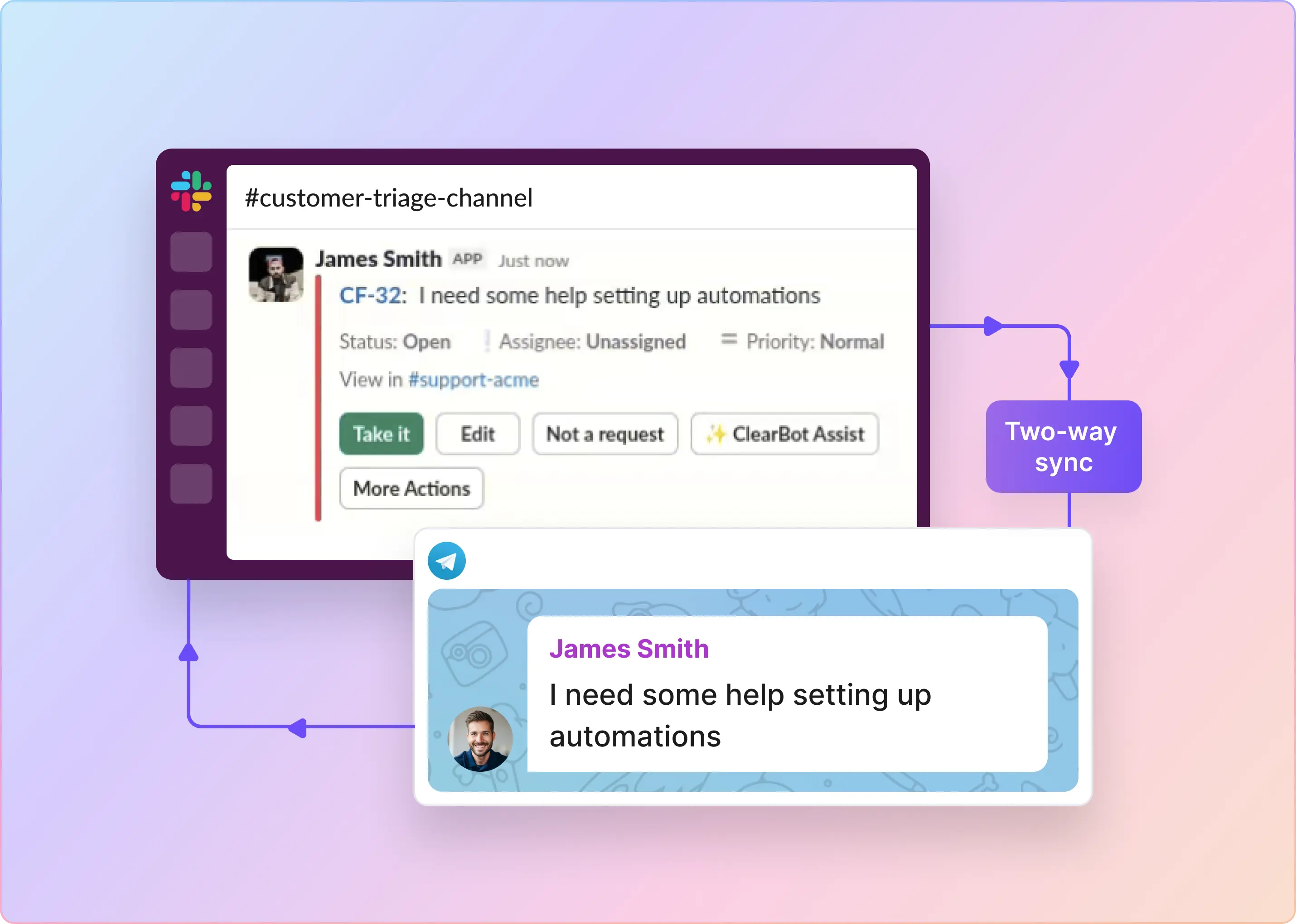
ClearFeed acts as the workflow layer between Slack request channels and Asana. Instead of relying solely on manual Asana actions, workspace admins connect Asana in ClearFeed Settings > Integrations, choose the project, and then create tasks directly from Slack conversations.
- You can file an Asana task from a request-channel message with a configured emoji reaction, so the conversation becomes trackable work with minimal friction.
- If you want more control over what gets included, use Slack's More Actions menu to file an Asana issue and pick the exact messages that should land in the task description.
- ClearFeed posts the task ID and link back in the Slack thread, along with the message content, requester info, and relevant metadata for the task.
- When comment sync is enabled, updates can flow in both directions, so the Slack thread and the Asana task stay aligned as work progresses.
- Blocker tasks are supported, which means critical work can prevent the request from closing until the dependent Asana task is complete.
- The Screens section lets you hide the confirmation block entirely, or show and hide the Asana ticket URL depending on how much detail you want in Slack.
- The Unlink Ticket action is visible to responders by default, and you can show it to requesters if you choose. If the request is Solved or Closed, unlinking is blocked.
- A few guardrails still matter: only workspace admins can connect Asana with ClearFeed, custom field support is limited to specific field types, and internal notes are not synced between Asana and Slack.
In practice, that means Slack stays the place where the conversation happens, while ClearFeed keeps the Asana task complete, visible, and tied back to the right request.
Frequently Asked Questions
What Is the Slack Asana Integration?
The Slack Asana integration basically connects chat to task management. It lets you turn Slack messages into Asana tasks, view task details directly in Slack, and take quick actions without opening Asana each time. You can comment on tasks, complete them, or list them from Slack, which makes the handoff from “talking about work” to “tracking work” way less clunky.
Do I Need Admin Access To Connect Asana To Slack?
Not always. Most people can connect Asana to Slack themselves. The exception is when your Slack workspace restricts app installs. In that case, a workspace admin needs to approve or enable the Asana Slack integration in the Slack settings first.
Can I assign the task and add it to a project from Slack?
Yes. You can assign tasks and add them to an Asana project directly from Slack using the Slack Asana integration, so the outcome is a real Asana task (not just a reminder floating in a channel).
Can I Comment on Tasks or Mark Them Complete From Slack?
Yep. The Asana Slack integration supports commenting and completing tasks from Slack, so you can update progress without context switching just to tick a box.
Can I View Asana Projects, Milestones, or Portfolios Inside Slack?
Yes. You can view projects, milestones, portfolios, and other task info inside Slack. It’s a handy way to check status quickly while you’re already mid-conversation.
What Asana Notifications Can Appear in Slack Channels?
When a Slack channel is linked to an Asana project, Asana notifications in Slack can include things like task creation, task completion, and new comments. The idea is simple: the channel stays updated without everyone needing to “go check Asana.”
How Do I Reduce Asana Notifications in Slack Without Losing Visibility?
Keep it intentional. Link only the projects that truly need shared visibility, consider using a dedicated channel like #asana-updates, and use Asana Rules so Slack posts only for meaningful triggers (status changes, due date changes), not every tiny edit.
Can I Automatically Create an Asana Task for Every Message in a Channel?
Native setups usually rely on manual triggers like Asana Slack commands, message actions, or emoji workflows. If you need fully automatic per-channel task creation with no manual steps, teams generally end up using an API-based approach or a workflow layer on top of the native Slack Asana integration.