Table of Contents

Slack's support system is tiered by plan level, offering everything from self-service resources for free users to dedicated account managers for enterprise organizations. This guide covers all the ways to reach Slack support, response time expectations, and where to find community help. At ClearFeed - we get a lot of people inadvertently reaching out to us to contact Slack Support by mistake (since we help companies manage customer and employee support on Slack!). We wrote this guide to help users quickly understand how to reach Slack Support instead!
TL;DR
A practical reference for reaching Slack support, with six contact methods, plan-based response times, and a troubleshooting checklist to try before filing a ticket.
The gist
- Six ways to contact Slack: live chat (paid plans only, 24/7), the contact form at slack.com/help/contact or feedback@slack.com, the in-app
/feedbackcommand, the website chatbot, social media (@SlackHQ, slower), and phone (sales and legal only, no general support line). - Response times by plan: Free (24–72+ hours, email only), Pro (within 8 hours), Business+ (4-hour guaranteed, live chat typically minutes), Enterprise Grid (4-hour guaranteed, dedicated account manager).
- Any workspace member can contact Slack support. There is no built-in ticket history view — track correspondence in your email inbox using ticket numbers from Slack's replies.
- Most common issues: connectivity and login, notifications, message history limits on free plans, audio/video in Huddles, and billing confusion.
Worth knowing: Before contacting support, it's worth checking status.slack.com for known outages and running the built-in connection test (Help > Troubleshooting). Free plan users often get faster help from r/Slack or the Slack Community Forum than from official support.
What are the different ways of reaching Slack Customer Support?
There are 6 ways to get in touch with Slack for your Support needs. Here’s a quick summary of these:
- Live chat (paid plans): On eligible paid plans, you can start a real-time chat with a Slack support agent for faster back-and-forth than email.
- Support contact form (web/email): Submit a ticket via Slack’s Help Center contact flow (or email-based support), which is the standard asynchronous route for most requests.
- /feedback command: Send issues and questions straight from Slack using the /feedback command, which routes your message to Slack’s support pipeline.
- Help Center chatbot: Start with Slack’s Help Center virtual assistant to self-serve common fixes and, when needed, escalate toward contacting Support.
- Social media escalation: For non-sensitive issues, Slack’s public social channels can sometimes help point you to the right official support path.
- Phone Support (limited): Only for very specific needs.
We’ll dive into each of these options in more detail below, including which plans get which channels, what to expect for response times, and how to choose the fastest route for your situation.
1. Reaching Slack Support via Live Chat (Paid Plans Only)
Live chat is the fastest way to get help if you have a paid plan. Access it directly within the Slack application by clicking the question mark (?) icon in the top right corner. The screenshot below shows what happens when you click on the (?) icon:
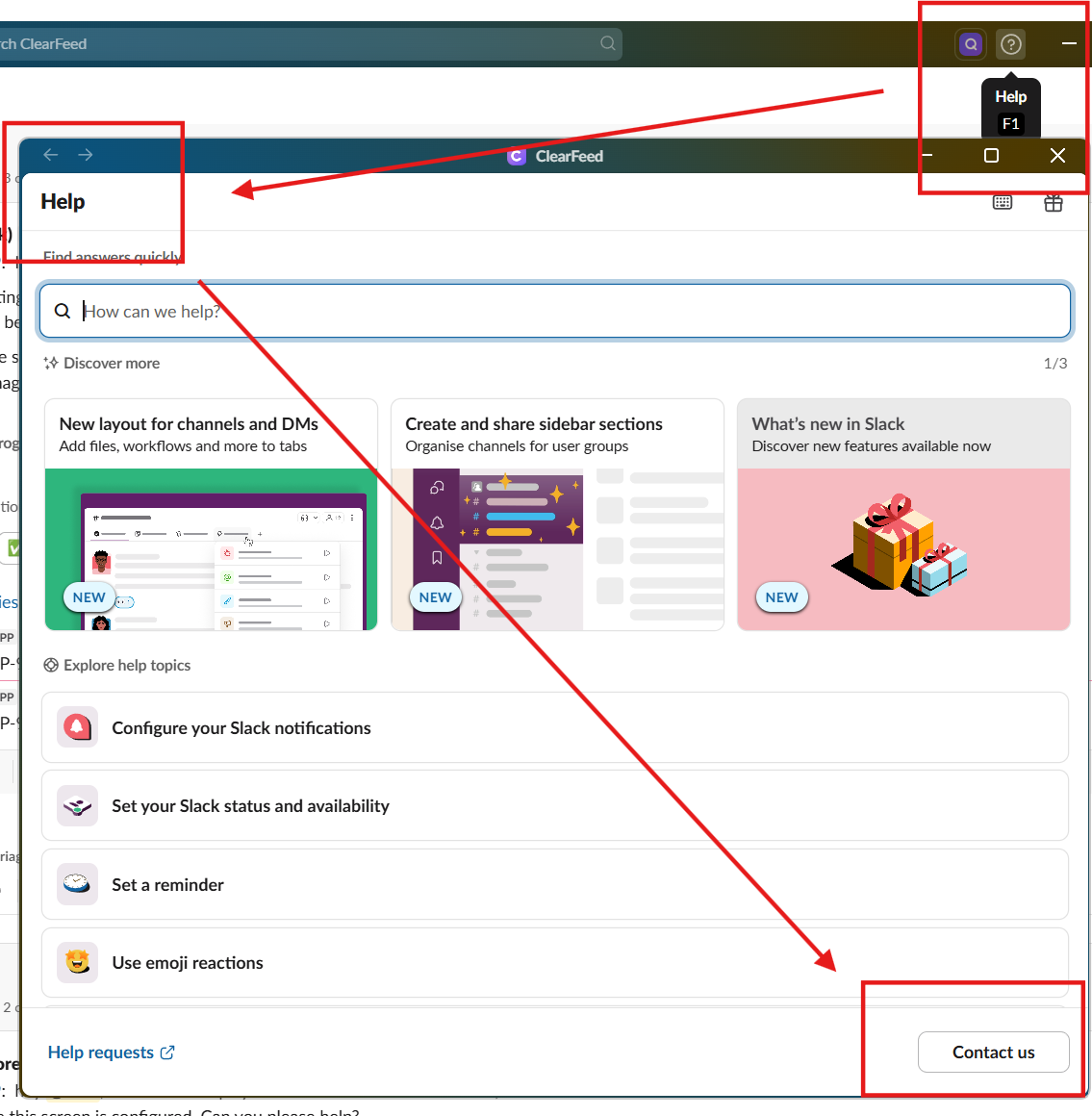
After entering the Help window - select Contact us. This will take you to a website with a url like https://clearfeed.slack.com/intl/en-in/help/requests/new (replace "clearfeed" with your Slack workspace name in this url). Then pick a Topic, fill the info about the problem and select either “Send Us a Message” or “Chat with an agent”.
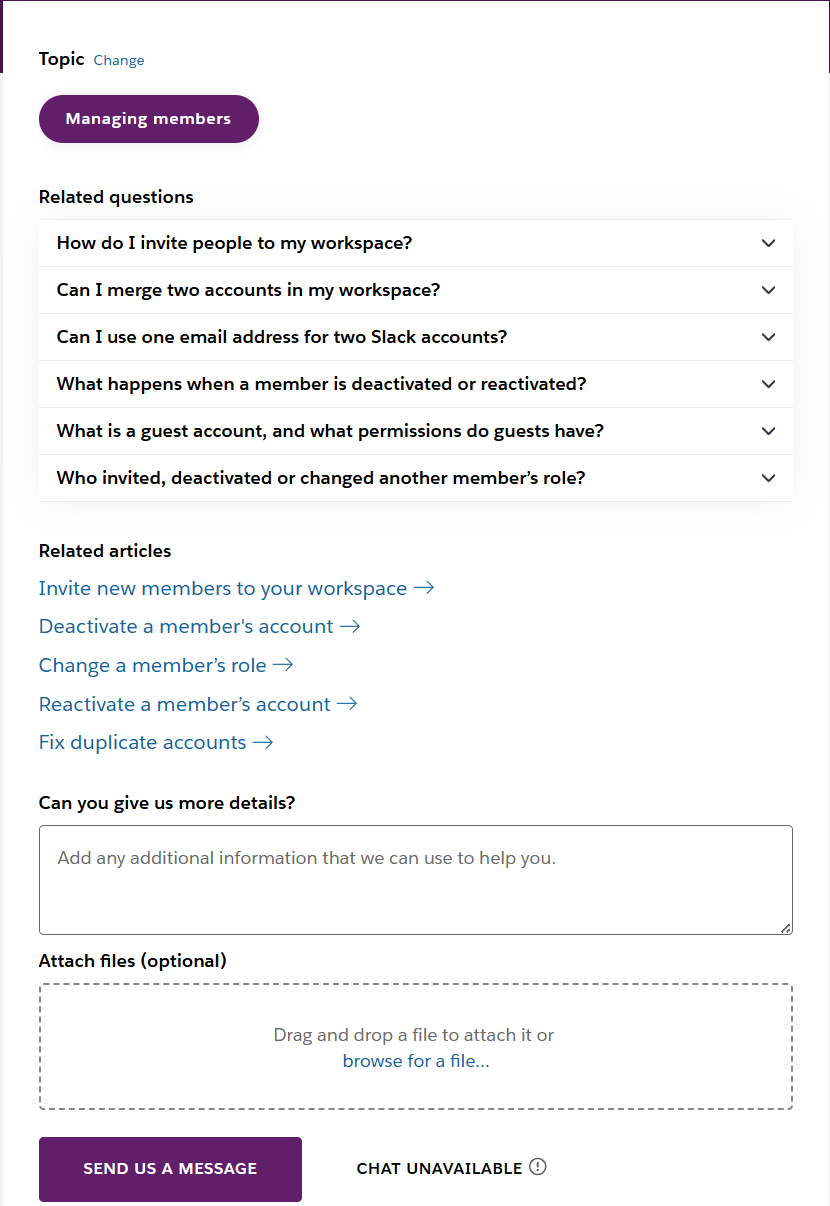
Live chat is available 24/7 for Pro, Business+, and Enterprise Grid customers, but is not available on the free plan. When you're connected to an agent, you can ask questions, troubleshoot issues, and receive immediate guidance without leaving Slack.
2. Reaching Slack Support via Email (Contact Form)
All users—regardless of plan level—can contact Slack via email through their official contact form. An Email Contact option is available via the Help > Contact Us button as described in the section above. If you don’t have the Slack desktop app - you can visit slack.com/help/contact and fill out the support form, which automatically routes your request to the appropriate team. Alternatively, you can email feedback@slack.com directly.
For specific purposes:
- General support: Use slack.com/help/contact
- Billing inquiries: Use the billing category in the contact form for slightly faster routing
- Security or fraud reports: Email abuse@slack.com
- Privacy policy questions: Email privacy@slack.com
3. Messaging Slack Support using the In-App Feedback Command
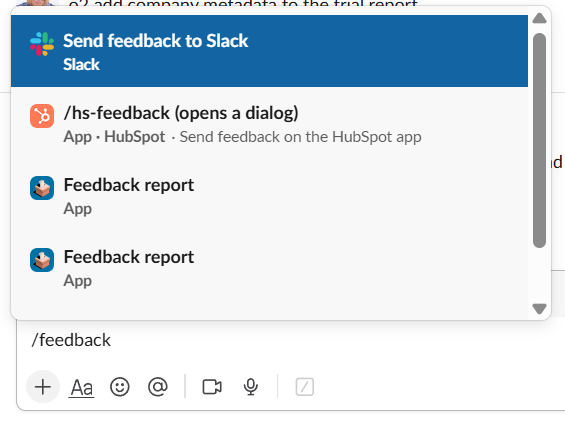
Within any Slack channel or workspace, you can use the /feedback slash command to submit a support request directly from the app. This method creates a support ticket without leaving your workspace, which is especially useful for troubleshooting app-specific issues. A screenshot shows what happens when we enter /feedback. Clicking on the Send feedback to Slack options opens up a new window where one can type in some feedback and send it to Slack.
4. Reaching Slack Support using the Website Chatbot
Slack's website features an AI-powered chatbot available 24/7 at slack.com/help. The bot can answer FAQs, help with common issues, and troubleshoot problems. If the chatbot cannot resolve your issue, it will escalate you to submit a formal support ticket or connect you with a human agent (depending on your plan).
5. Reaching Slack Support using Social Media
While not an official support channel, you can reach out to Slack's public social media accounts for attention:
- Twitter/X: @SlackHQ
- LinkedIn: Slack Developers page
However, these channels are generally slower and typically direct you back to official support forms.[5]
6. Reaching Slack Phone Support (Limited)
Slack does not offer direct phone support for general customer issues. However, there are phone numbers for specific purposes:
What kind of response time can I expect for my Slack Support request?
Response speed directly correlates with your subscription plan. Here are the response times you can expect based on your subscription tier:
Key insight: Free plan users can contact Slack, but they' may experience significantly longer wait times and have no access to live chat. If response time is critical, upgrading to at least the Pro plan provides a substantial improvement.
Who Can Contact Slack Support in Your Workspace?
Slack does not restrict support contact to workspace administrators only—any workspace member can reach out to Slack support. There is no gatekeeping of the support process. However, this does not mean that all workspace members can see each other's support tickets or history. Each support inquiry is handled individually.
How can I view my Support Ticket History with Slack?
Unlike traditional ticketing systems, Slack does not provide a built-in ticket history view for support inquiries submitted to Slack directly. Your support correspondence comes through email, and you'll need to check your email inbox for updates from Slack's support team. To keep track of your support tickets:
- Save all emails from Slack support (they typically come from feedback@slack.com or no-reply addresses)
- Note any ticket numbers provided in responses
- Reference these in follow-up emails if you need to reopen a case
Most Common Slack Support Questions
Based on community forums and Reddit discussions, here are the issues users most frequently need help with:
Technical & Feature Issues
- Connectivity and login problems – Unable to connect to Slack, authentication failures
- Notifications not working – Missing important alerts; notifications disabled in settings, Do Not Disturb active
- Message history limitations – Free plan users unable to access older messages; searchability issues
- Audio/video problems – Huddles or calls experiencing audio lag, microphone not recognized, sound quality issues
- App crashes or lag – Slack freezing, slow performance, high CPU/memory usage
- Messages not updating in real-time – Delayed message delivery or channels appearing stuck
Billing & Account
- Free plan limitations – Confusion about message history (90 days), 10,000 message search cap, 5GB file storage
- Subscription and pricing questions – How to upgrade plans, per-user costs, whether all members need paid licenses
- Billing disputes – Unexpected charges, subscription management
- Workspace access and permissions – Guest account setup, member invitations, permission levels
Integration & Configuration
- App integration questions – How to connect tools, app permission requests, managing integrations
- Slack Connect setup – Difficulty inviting external partners, channel visibility issues
- Workflow and automation issues – Custom workflows not triggering, automation problems
Specific Issues on Free Plan
- 90-day message retention limit
- 10,000 searchable message cap
- 5GB total file storage shared across workspace
- Maximum 10 app integrations
- No group video calls (Huddles) on free plan
- Guest account removal upon downgrade
Common Troubleshooting Before Contacting Slack Support
Try these fixes before submitting a support ticket:
- For connection issues: Run Slack's built-in connection test (Help > Troubleshooting > Run Connection Test)
- For notifications: Check Slack Preferences > Notifications; verify operating system notification settings; disable Do Not Disturb
- For performance lag: Clear app cache, restart Slack, ensure you're running the latest version
- For message issues: Check if the problem occurs in all channels or specific ones; test on desktop, web, and mobile versions
- For billing issues: Log into your Slack workspace admin settings to verify your plan and billing status
- For old messages: Remember free plan limits (90-day history, 10,000 message search cap); consider upgrading for full history access
- Check the status page: Visit status.slack.com to see if there's a known outage
If none of these resolve your issue, then reach out to support.
Slack Support FAQ
Here are some common questions around contacting Slack Support:
1. Can I call Slack support directly?
A: No. Slack does not offer phone support for general issues. Live chat is the closest real-time option (available on Pro, Business+, and Enterprise Grid plans).
2. How long does it take to get a response from Slack?
A: It depends on your plan. Free users wait 24–72+ hours. Pro users get 8-hour response times. Business+ and Enterprise Grid users get 4-hour guaranteed response times. Live chat is typically faster (minutes to an hour).
3. Is Slack support available 24/7?
A: For paid plans (Pro and above), yes—support is available 24/7. Free users get email support anytime, but response times are slow.
4. Can I see other people's support tickets in my workspace?
A: Not through Slack's native system. Each person's support request is private. If your organization uses a third-party ticketing tool in Slack like ClearFeed, visibility depends on that tool's permissions.
5. What should I do if I don't get a response after submitting a support request?
A: Check your email spam folder for responses from Slack. If you still haven't heard back, you can follow up by replying to the original ticket email or resubmitting through the contact form. If this is urgent (e.g., workspace compromised, significant data loss), try mentioning severity in your subject line.
6. Is there a better way to get help if I'm on the free plan?
A: Yes. Try the Slack Help Center first (it has solutions for most issues). Ask in r/Slack or the Slack Community Forum. These communities often provide faster, peer-based help for common problems.
7. How do I get help with a Slack app I'm building?
A: Use docs.slack.dev/developer-support/ for formal support, or join the Bot Developer Hangout Slack workspace or Slack Community Workspace for community help. Stack Overflow (slack-api tag) is good for specific technical questions.
8. Can I upgrade my plan for faster support?
A: Yes. Upgrading from free to Pro improves response time from 72+ hours to 8 hours. Business+ gives you live chat and 4-hour guaranteed response. For most businesses, Pro or Business+ is sufficient unless you have enterprise-scale needs.
9. Where do I report bugs?
A: Use the in-app /feedback command, the contact form, or for developers, GitHub issues in the Slack API organization. Be as specific as possible with error messages, screenshots, and reproduction steps.