Table of Contents

Customer support teams are often at the epicenter of challenging scenarios, handling dissatisfied customers, switching between channels, and dealing with urgent issues. With an endless stream of requests in the queue, Slack channels can get flooded with conversations, making it genuinely hard to spot what matters most.
That is where ticket triage comes in. The ticket triage meaning is simple: you sort incoming requests by urgency and impact, then route them to the right owner with the right context so critical issues/tickets get handled first. You will also hear this called help desk triage or service desk ticket triage, especially in triage in IT support teams. Same goal, different labels.
In this guide, you will learn what triage is, how a practical ticket triage process works, and how triaging tickets works in Slack, so your team can stay coordinated and deliver a better support experience.
TL;DR
Ticket triage helps support teams sort requests by urgency, impact, severity, ownership, and SLA risk so critical work gets handled first.
The gist
- A good triage process evaluates each request, fills missing context, assigns priority, routes ownership, and updates status.
- Slack triage works best with dedicated channels like #triage-support, clear routing rules, status markers, and follow-up automation.
- Triage channels make queues visible, reduce missed issues, improve handoffs, and help new teammates follow the same process.
- ClearFeed adds Slack-native triage queues with status, priority, assignee, private comments, SLA policies, digests, and Zendesk/Jira/Salesforce sync.
- Helpful triage questions include impact, urgency, severity, missing information, best owner, and whether an SLA is at risk.
Worth knowing: The guide’s core warning is that Slack support breaks down when requests stay scattered across threads, DMs, and channels without ownership.
What Is Ticket Triage?
Ticket triage is the step where you review incoming requests, decide what needs attention first, and route each issue to the right person with enough context to act. If you are used to a help desk or ITSM setup, you might call this help desk triage or service desk ticket triage. The goal is the same: handle high-impact issues quickly, while keeping the rest of the queue moving.
A triage ticket is simply a request that has been evaluated and assigned a priority. Instead of treating every message as equally urgent, triaging tickets helps you make consistent decisions based on a few criteria, such as:
- Urgency: How time-sensitive is the issue?
- Impact: How many users or accounts are affected?
- Severity: Is it a minor inconvenience or a workflow blocker?
- Ownership: Which team is best equipped to resolve it?
- SLA risk: Is the response window at risk of being missed?
Once those basics are clear, support ticket triage usually looks like this:
- Evaluate the request and collect missing details.
- Assign a priority level (for example, low, medium, high).
- Route it to the right owner or team.
- Update the triage status so everyone knows what is happening.
Example: A login outage affecting multiple customers is high-urgency and high-impact, so it is routed immediately to the right on-call owner. A “How do I set this up?” question might be lower urgency, and can be handled by support with a standard response or a link to documentation. A feature bug that blocks a paid account might be urgent but requires escalation, so it gets flagged and handed off with full reproduction steps.
When your team treats triage as a repeatable ticket triage process, two things happen fast: important issues stop getting buried, and everyone spends less time scanning threads trying to figure out what to do next.
How Does Ticket Triage Work in Slack?
Managing tickets in Slack is about creating a repeatable process for capturing, sorting, and routing requests without letting them get lost in threads and DMs. At a high level, the Slack ticket triage process typically has four parts.
- Create clear triage channels that act as your internal triage queue. Many teams use naming conventions like #triage-support, #triage-bugs, or #triage-it so it is clear where a request should land and who is expected to monitor it.
- Define a lightweight triage workflow for what happens when a request shows up. This is where most teams go from chaos to consistency. A simple workflow is: capture the request, ask for missing context, assess urgency and impact, then assign an owner. If your team supports multiple products or customer segments, this is also the place to define routing rules so triaging tickets does not depend on who happens to be online at the time.
- Use simple markers so anyone can understand triage status at a glance. Slack makes this easy with triage emoji reactions or short labels. For example, one reaction can mean “needs info,” another can mean “in progress,” and another can mean “resolved.” The goal is not decoration. It is to make the state of triage support tickets visible without needing a meeting or a spreadsheet.
- Add automation for follow-ups and escalation. A basic triage bot (or any lightweight automation) can remind the team about stale items, summarize unresolved requests at set intervals, and escalate high-severity issues to the right group when needed. If you use a help desk or issue tracker, this is also where the Slack conversation can be connected to your system of record, so engineering and support stay aligned and the handoff does not lose context.
7 Reasons To Use Triage Channels in Slack for Ticket Triage
If you are doing ticket triage in Slack, triage channels are the simplest way to keep requests visible, sortable, and easy to route. They turn scattered conversations into a working triage queue, so the team can prioritize, assign, and close the loop without relying on memory or constant follow-ups.
- Faster prioritization when the queue is visible: When requests land in one place, triaging tickets becomes a repeatable motion instead of an ongoing hunt. That is the foundation of a reliable ticket triage process, especially when the volume spikes.
- Cleaner routing with a consistent naming convention: A clear # triage-convention reduces confusion and lowers the odds of tickets landing in the wrong place. It also makes triage support tickets easier to route by topic, customer segment, or function.
- A shared triage workflow that does not depend on who is online: When everyone follows the same steps to capture context, assess urgency, and assign ownership, handoffs are smoother. Over time, this becomes a lightweight help desk triage process that your team can run on autopilot.
- Easier onboarding with pinned guidelines and examples: Pinned rules, sample formats, and a short checklist help new teammates contribute without second-guessing what “good triage” looks like. It also keeps experienced teammates aligned when the team grows.
- Clearer visibility using triage emoji and simple state markers: A small set of reactions can communicate triage status at a glance, without adding another tool or spreadsheet. The point is not decoration; it is a shared understanding of what is urgent, what is blocked, and what is done.
- Fewer dropped balls with intentional escalation paths: When you standardize how issues get escalated, you reduce slow back-and-forth and prevent high-impact problems from quietly aging in threads. This is where support ticket triage starts to feel like a real system, not a best-effort habit.
- More consistency with light automation and a triage bot: Even basic automation can help nudge unresolved items, summarize what is still open, and prompt owners when nothing has moved. A triage bot is useful when it reinforces the workflow, not when it adds noise.
How ClearFeed Brings Ticket Triage to Customer Support Teams in Slack
If you are serious about ticket triage in Slack, the hard part is not “creating a channel.” It keeps requests from getting scattered across customer channels, internal threads, and side conversations, where they are easy to miss. ClearFeed brings ticket triage into Slack by turning a dedicated triage channel into your team’s command center, where requests are consolidated, tracked, and worked on without losing the original customer context.
- Centralize everything into a triage channel (your queue in Slack): Triage channels appear as regular Slack channels but behave like a shared triage queue for the team. New requests are posted in the triage channel as threaded messages, so agents can collaborate and respond from a single place. The same model works even when requests originate outside Slack (email, portal/web chat, API, etc.), since those sources can feed into the triage channel as well.
- Prevent “Slack chaos” from becoming lost work: Teams told you the real issue is scattered conversations across DMs, group chats, and multiple channels, plus messy multi-message issues that don’t thread cleanly. ClearFeed is built for exactly that reality. This matters even more once you’re handling 40–50 customer channels or scaling to 100+.
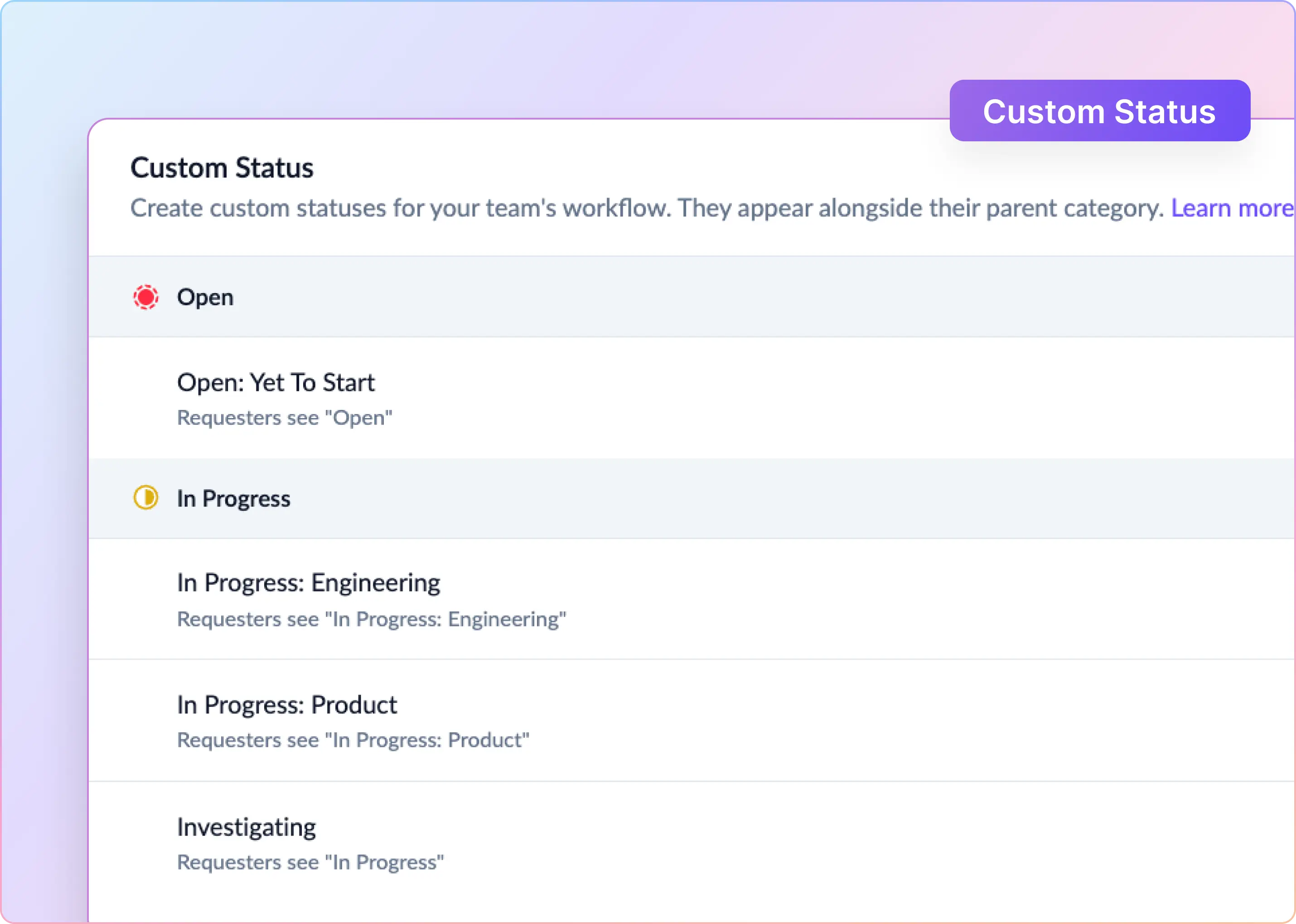
- Add “ticket-like” controls inside Slack: In the triage channel, you can manage request properties like status, priority, and assignee, so it doesn’t depend on someone remembering what’s pending. You can automate routing with assignment rules (for example, round-robin or assign to the first responder). If you use forms/fields, tickets can be edited directly from the triage channel view.
- Keep internal coordination internal (without messing up the customer thread): The triage channel supports public vs private comment visibility, so your team can coordinate in Slack while keeping the customer-facing experience clean. This directly maps to what teams ask for: private internal threads/comments and private notes that don’t go to customers.
- Make SLA management real, not manual: ClearFeed lets you define Business Schedules and SLA policies (first response time, resolution time, one-touch resolution) so targets are calculated consistently. This solves the “team lead eyeballing Slack all day” problem and reduces gaps when the monitor-person is offline. It also adds triage digests (daily reminders and weekly reminders) so open/unsolved items don’t quietly rot.
- Sync with your system of record (Zendesk, Jira, Salesforce) without leaving Slack: ClearFeed supports external ticketing integrations (including Zendesk, Jira/JSM, Salesforce), so triage can stay in Slack while the formal record stays where it needs to. In the triage channel, you can see incoming requests with assigned and ticket IDs, along with real-time updates from the external ticketing system. You can also choose how tickets get created (emoji/manual vs automatic), depending on how much noise you want.
Turn Ticket Triage Into a Repeatable System
At the end of the day, ticket triage is one of the simplest ways to scale support without lowering your standards. When you treat every request like it belongs in the same pile, the urgent ones get buried, the important ones age quietly, and the team ends up reacting instead of running a process. A consistent ticket triage process changes that. It provides a clear triage queue, a shared triage workflow, and sufficient visibility for the team to prioritize work without the constant overhead of coordination.
If you want a lightweight way to get started, use this quick set of help desk triage questions to assess each incoming request:
- What is the impact (how many users or accounts are affected)?
- How urgent is it (does it block work right now)?
- What is the severity (minor issue or workflow stopper)?
- What information is missing to move forward?
- Who is the best owner for the next step?
- Is there any SLA risk if this sits for another hour?
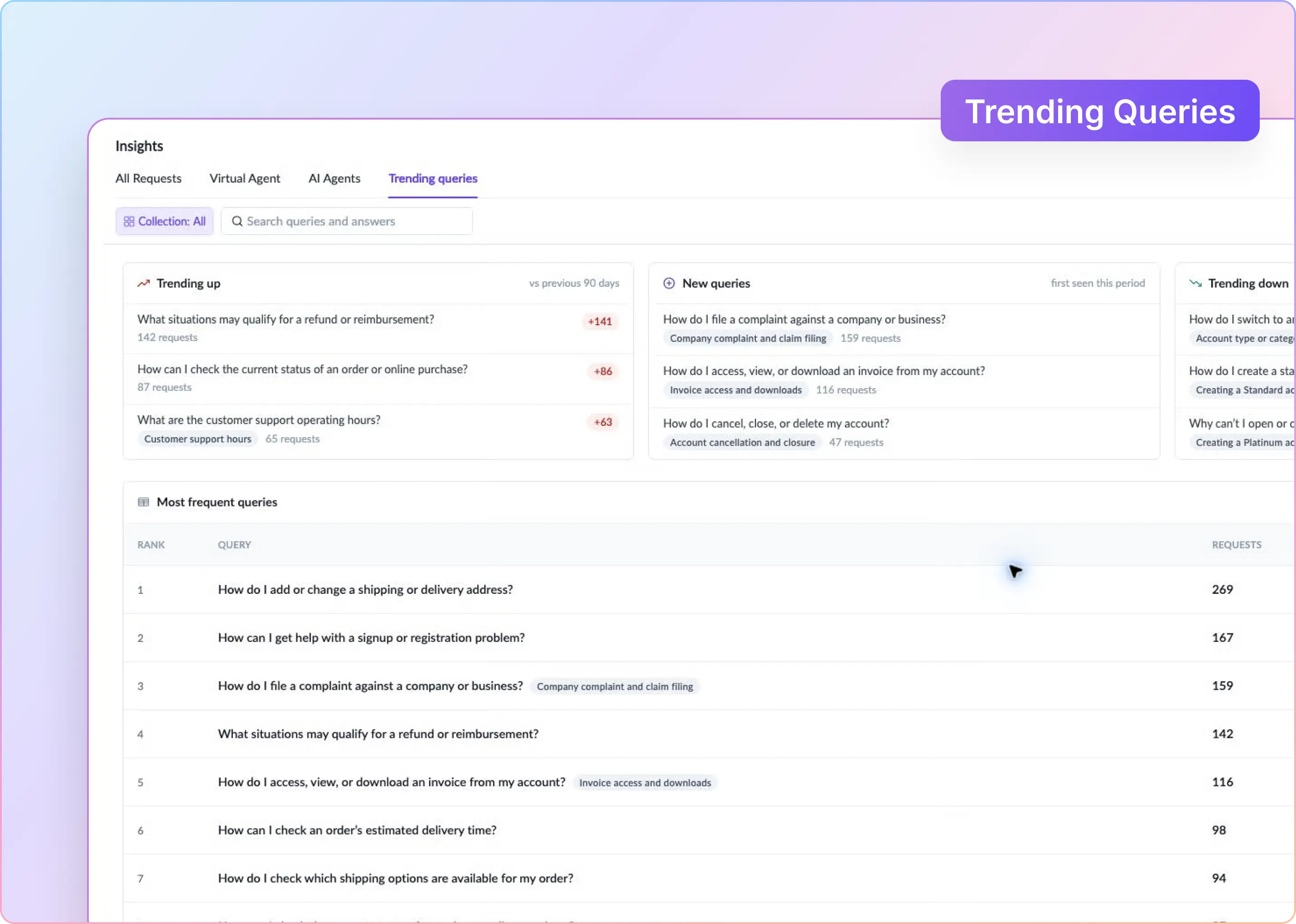
Once you have that baseline, you can add lightweight automation to keep the system healthy. For example, a triage bot can nudge stale items, summarize what is still open, and help the team spot trends before they become escalations.
If your support already lives in Slack and you want to make support ticket triage easier to run at scale, ClearFeed helps centralize requests into triage channels, so your team can coordinate in one place without losing the customer context.