Table of Contents

Most issues do not start life as tickets. They start as a message in a Slack channel — a customer reporting a broken button, an engineer flagging a spike in errors, an IT teammate asking why their laptop will not connect to VPN. If you never turn those messages into tracked work, they get buried on the same day they were reported.
This guide covers the two setups that actually work for teams in 2026: a lightweight workflow built on Slack Lists, and a scalable Slack-native issue tracker built on ClearFeed. Pick the one that matches your volume, ownership model, and reporting needs.
What People Mean by “Slack Issue Tracker”
When teams search for a Slack issue tracker, they usually want three things at once:
- Capture an issue directly from a Slack conversation, without asking the reporter to leave Slack and refile it in another tool.
- Keep the issue moving with structure — owner, status, priority, follow-ups — instead of losing it in scrollback.
- Stay in sync with wherever the work actually gets done — a Jira project, a Linear team, a GitHub repo, a customer support tool — so no one has to check two places for the same update.
The two options below are ordered by weight. Start with the lightest one that meets your needs and only move up when it stops working.
Option 1: Slack Lists — the Lightweight Setup
Slack Lists is a native Slack feature that lets you build a structured list of items — each with fields like status, owner, priority, and links back to the original thread. For a small team tracking a manageable volume of issues in one or two channels, Slack Lists is enough. It has no extra cost and no new tool to learn.
Best for
- Small to mid-sized teams tracking issues in a single channel.
- Product, engineering, or ops teams that just need a shared backlog with basic status.
- Teams that do not yet need SLAs, cross-team routing, or reporting.
Setup
- Create a dedicated Slack channel — for example, #issue-tracking.
- Create a Slack List in that channel with the fields you want to track. A useful default set: Title, Type (Bug, Feature Request, Question), Priority, Environment, Reproduction Steps, Expected vs Actual, Owner, Status, and a Link to Slack Thread.
- Standardize the status values you want to track through — for example, To investigate, In progress, Ready for testing, and Resolved.
- Agree on a triage rhythm — daily or twice a week — where someone runs through unassigned items and sets owners and priorities.
Workflow Discipline That Keeps It Usable
- Every list item links back to the Slack thread where the issue was first reported. Do not duplicate the discussion — the thread is the source of truth for context.
- Update the status the moment it changes, not at the end of the week. Stale statuses turn the list into a lie your team stops trusting.
- When an item is resolved, add a one-line note on what fixed it. That single habit turns your list into an internal FAQ.
Where Slack Lists Stops Being Enough
Slack Lists breaks down as soon as your setup gets non-trivial. Common tipping points:
- Issues come in from many channels. You need a way to intake from every customer channel or every internal help channel and land them in one place.
- Multiple teams share ownership. Support triages, engineering fixes, and product prioritizes — Slack Lists cannot route the same item to the right person on each team.
- You need SLA tracking. Slack Lists has no concept of first-response time or resolution time against a business schedule.
- You need reporting. Volumes, response times, breach rates, category breakdowns — none of these come out of a Slack List.
- The source of truth lives elsewhere. If issues eventually need to end up in Jira, Linear, GitHub, ClickUp, Asana, Zendesk, Freshdesk, or another system, manual copy-paste stops scaling almost immediately.
When you hit any two of these at once, it is time to move to a dedicated Slack-native issue tracker.
Option 2: ClearFeed — the Scalable Slack-Native Issue Tracker
ClearFeed turns your Slack channels into an issue-tracking surface with routing, SLAs, forms, analytics, and two-way sync into whichever system your team already uses. It works for both external customer issues (Slack Connect channels) and internal issues (IT, HR, engineering escalations).
Two Operating Models
ClearFeed supports two ways to connect Slack conversations to your task or ticketing tool. Pick the one that matches how your team actually works:
- External tool is the system of record. Requests from Slack are converted directly into tickets or issues in the external system — for example, a Jira ticket, a Zendesk ticket, or a Freshdesk ticket. Comments and status changes sync between the Slack thread and the external issue. SLAs and reporting live in the external system.
- ClearFeed is the system of record, external tool is for escalation. Requests stay in ClearFeed for SLA tracking and reporting. An agent selectively creates a follow-up task in Jira, Linear, GitHub, ClickUp, or Asana when engineering needs to get involved. The Slack thread stays synced to that external task while ClearFeed continues to own the customer-facing timeline.
The second model is what most support and IT teams want, because it keeps SLA measurement on the customer-facing side and only escalates the subset of issues that actually need engineering.
Key Capabilities
- Multi-channel intake. Track requests from Slack, Slack Connect, Microsoft Teams (including shared channels on the Professional plan), Discord, Telegram (beta, Professional and Enterprise plans), email, a customer portal, web chat, and an API.
- Two-way sync with task and ticketing tools. Bi-directional sync between the Slack thread and the linked issue is supported for Jira, Jira Service Management, Linear, Asana, ClickUp, GitHub, HubSpot, Zendesk, Freshdesk, Intercom, and Salesforce. Replies and status changes flow in both directions.
- Triage channel for internal coordination. A dedicated Slack channel that mirrors every incoming request, with internal notes, private comments, and full control of what is visible to the requester.
- Forms and AI-populated fields. Structured intake with required and optional fields, conditional fields (Professional plan and above), and AI Fields that auto-populate category, urgency, or sentiment based on the conversation.
- Assignment rules. Auto-assign to the first responder, restrict first-responder auto-assignment to a specific rotation, distribute via round-robin across a rotation, or assign to the customer owner with a rotation-based fallback when they are unavailable.
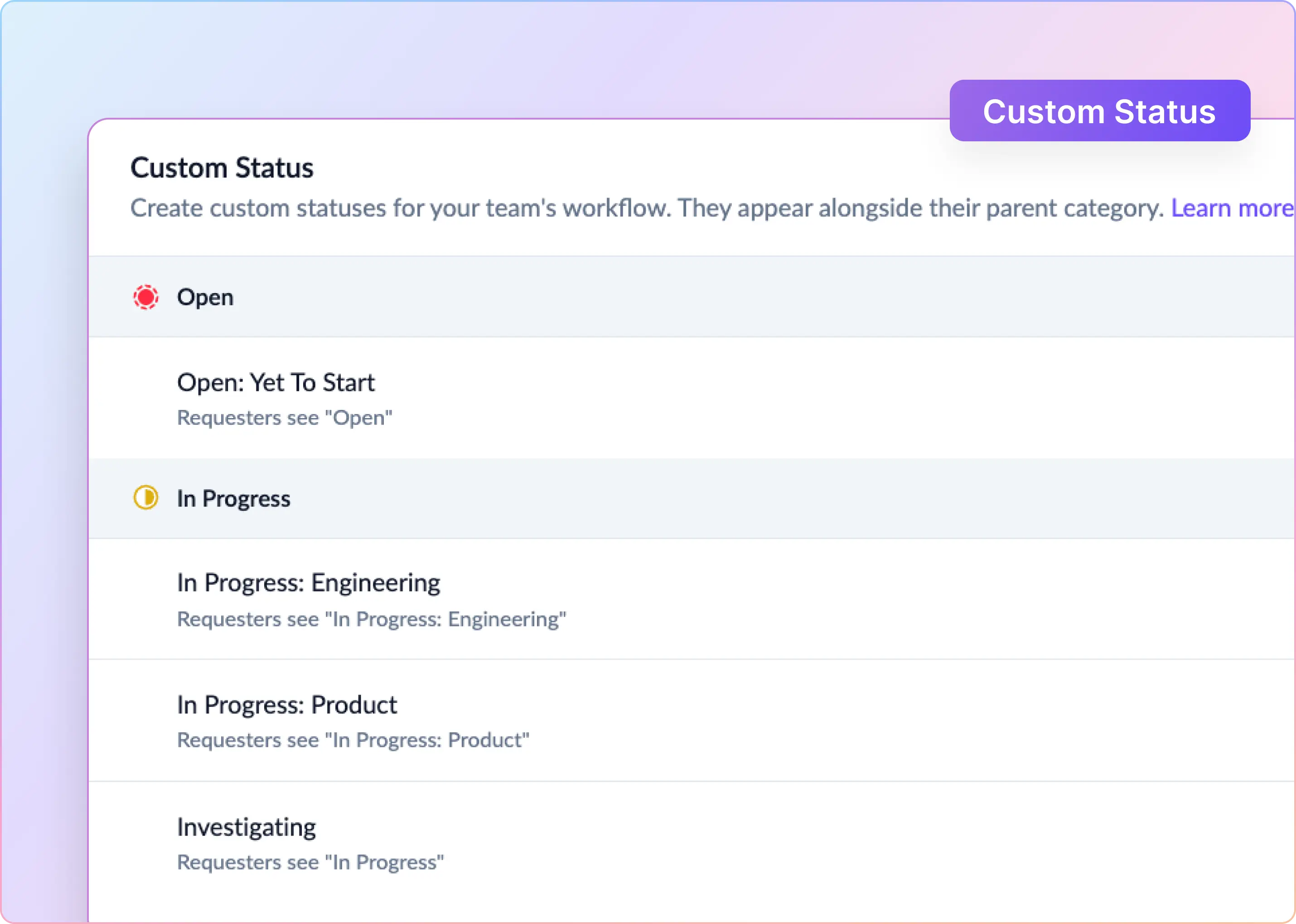
- Business schedules and SLAs. Configure working hours, holidays, First Response Time, Resolution Time, and One Touch Resolution. Pause Resolution Time when tickets are in Pending, On Hold, or both.
- Parent–child ticket linking. Group multiple related tickets under a single parent — useful for incidents reported by many customers or a feature request raised across accounts. Status updates on the parent notify all linked child tickets.
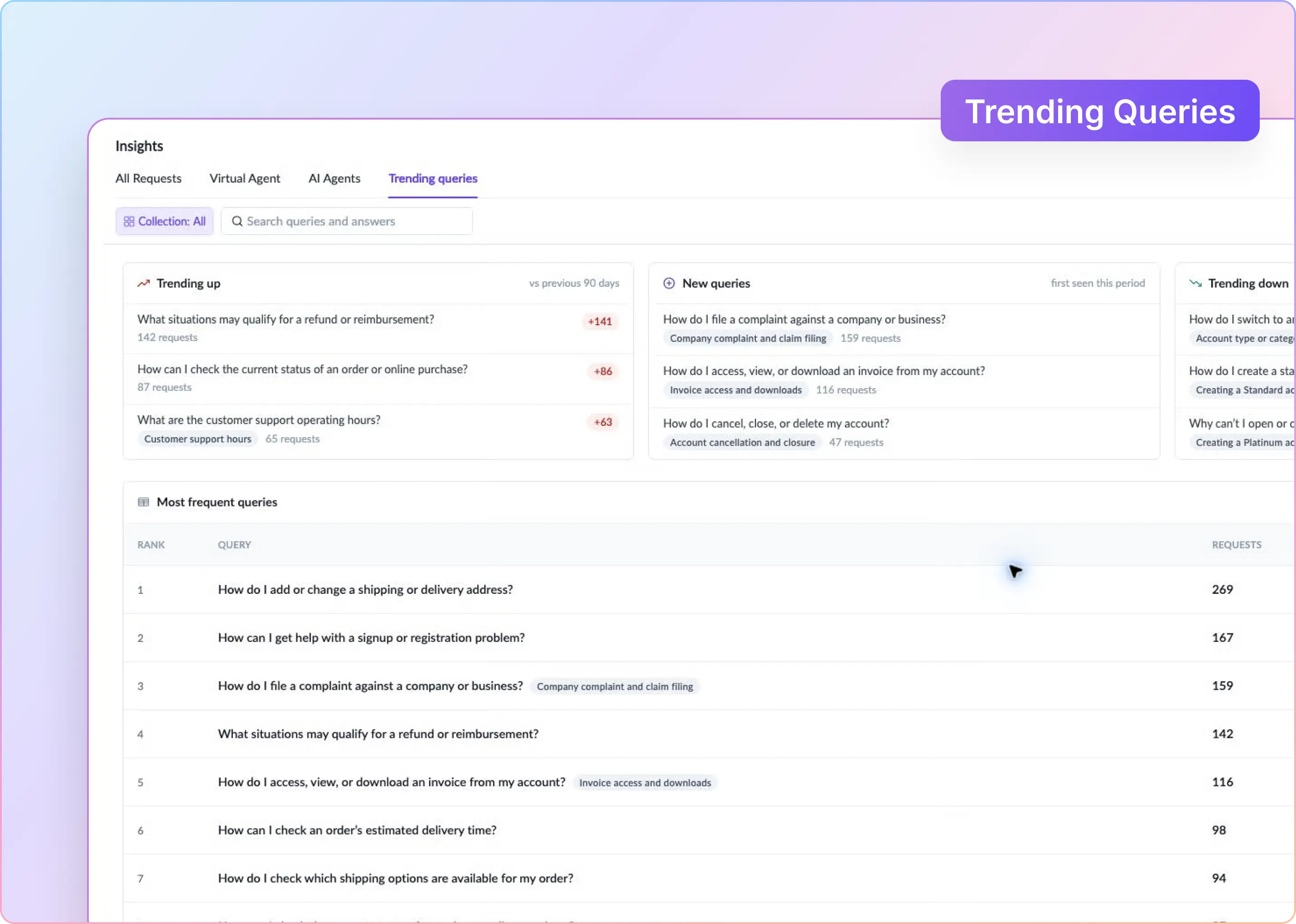
- Insights and reporting. Track volumes, first response time, response time, resolution time, one-touch resolution, SLA breach rates, and CSAT. Break down by assignee, collection, priority, status, or custom fields, and export via CSV or the Insights API.
- Emoji actions. Configure emoji reactions to file, assign, or resolve tickets — for example, react with 👀 to assign an issue to yourself and move it to In Progress, or ✅ to mark it done.
Integration Boundaries To Be Aware Of
Not every integration behaves identically. A few boundaries worth calling out before you commit to a setup:
- Jira, Jira Service Management, and Linear do not support filing private tickets via direct message, the File a Ticket button, or the /cf-file command. Private ticket creation is available with ClearFeed-native ticketing and a subset of external integrations.
- Discord collections currently support ClearFeed-native ticketing only — external ticketing systems are not available for Discord.
- Telegram is in beta on the Professional and Enterprise plans, and external ticketing sync is not yet available for Telegram collections.
- ClearFeed on Atlassian works with Atlassian-hosted Jira Cloud and Jira Service Management. Self-hosted Jira Server and Data Center deployments are not supported.
- Internal notes and private comments do not sync between Slack and Jira, Linear, or JSM in either direction.
Setup Checklist for ClearFeed As Your Slack Issue Tracker
- Confirm access. You will need a Slack workspace admin (to install and invite the ClearFeed app) and admin access to the external tool you want to sync with.
- Add your source channels to a Collection. A Collection is the ClearFeed grouping that maps to a set of Slack channels sharing the same routing, SLAs, and forms.
- Pick your operating model. Decide whether the external tool (Jira, Zendesk, etc.) is the system of record, or ClearFeed is the system of record with selective external escalations.
- Set up a triage channel. Point every collection at a Slack channel where your team will coordinate — this is where internal notes, private comments, and status updates live.
- Configure the intake form. Add the fields you actually need — Title, Priority, Type, Environment, Reproduction Steps, and any custom fields. Use conditional fields to hide irrelevant questions.
- Enable AI Fields where useful. Auto-Category, Auto-Emotion, and Auto-CSAT run out of the box. For product-area or urgency tagging, define a custom AI Field with a clear description and examples.
- Set assignment and SLA rules. Choose auto-assign to first responder, a round-robin rotation, or customer-owner assignment. Attach a business schedule and SLA policy to the collection.
- Connect the external system. Install the ClearFeed app on Atlassian for Jira/JSM, or connect Linear, GitHub, Zendesk, Freshdesk, Salesforce, HubSpot, ClickUp, Intercom, or Asana from ClearFeed settings.
- Pick a ticket-creation trigger. Automatic on every new thread, emoji-triggered (for example 🎟️), the /cf-file command, the File a Ticket action in the Slack Message Bar, or the More Actions menu on any message.
- Test end-to-end. File a real issue, check that it appears with the right fields in the external tool, reply from both sides, and see the status change propagate back to Slack.
Ways To File an Issue in Slack Once ClearFeed Is Set Up
The same collection can support several intake paths at once. Pick whichever matches how the reporter is working at the time.
- Automatic capture: Every new thread in a monitored channel becomes a request. Best for high-signal customer or internal support channels where most messages need a response.
- Emoji trigger: React with a configured emoji (default 🎟️) on the first message of a thread to file a ticket. Best for channels where only some threads are real issues.
- Slack Message Bar: A persistent File a Ticket or File a Private Ticket button that repositions itself below the latest message in the channel. Supported for ClearFeed-native ticketing, Zendesk, Freshdesk, HubSpot, Intercom, ClickUp, and Salesforce.
- Slash command: Run /cf-file to open the ticket-creation modal for the collection.
- More Actions menu: Open the More Actions menu on any Slack message and file a ticket or task in the linked system.
- From the triage channel: Use the More Actions button on a request to file a linked task in Jira, Linear, GitHub, ClickUp, or Asana for engineering follow-up while keeping the ClearFeed request open for SLA tracking.
Pricing
ClearFeed offers three product editions — External Helpdesk (customer support via Slack Connect, Teams, email, or web chat), Internal Helpdesk (IT, HR, engineering support inside a company), and the Integrations Edition (for teams that primarily convert Slack messages into tickets in an existing external tool). Both agent-based and usage-based pricing models are available depending on edition. Current plans and features are on the Helpdesk pricing page and the Integrations pricing page.
Frequently Asked Questions
What is a Slack issue tracker?
A Slack issue tracker captures issues reported in Slack conversations and manages them with structure — owner, status, priority, and follow-up workflow — without forcing the reporter to leave Slack.
Can you create issues directly inside Slack?
Yes. With Slack Lists you create a list item manually and link it back to the source thread. With ClearFeed you can capture automatically from monitored channels, or file manually via the /cf-file command, the Slack Message Bar, the More Actions menu, or a configured emoji reaction.
Which is the best issue tracker for Slack?
It depends on volume and ownership. A single team tracking a small backlog is well served by Slack Lists. A support, IT, or engineering group that needs routing, SLAs, reporting, and sync with Jira, Linear, GitHub, ClickUp, Asana, Zendesk, Freshdesk, or Salesforce is better served by a dedicated Slack-native issue tracker like ClearFeed.
Can I track bug reports and feature requests in the same intake?
Yes. Use a single intake form with a Type field to differentiate. On the ClearFeed side, that same field can drive different SLA targets or route to different teams via automations.
What about IT teams handling issues in Slack?
IT teams typically need routing, on-call rotations, SLAs, and multi-channel intake (Slack, Teams, email, portal). A Slack List is not enough for that. ClearFeed's Internal Helpdesk edition covers this use case and syncs tickets with task tools like Jira, Linear, ClickUp, and Asana for engineering handoffs.
Get started
If Slack Lists is enough for your team today, keep it lightweight and revisit only when you actually feel the pain. If you already know you need routing, SLAs, and sync into your task or ticketing system, the fastest way to see whether ClearFeed fits is a walkthrough with your own channels and workflows. Book a demo or start a trial from clearfeed.ai.